42
8.2.1 System Channel
This parameter sets the System MIDI channel on which System Exclusive
messages are transmitted/received.
8.2.2 Initial SW
This parameter sets the function of [SW]button when power is turned on.
PnlLck: Panel Lock (See P.18)
TchCuv: Touch Curve (See P.18)
RtrSpd: Rotary Slow/Fast (See P.18)
EQBps: EQ Bypass On/Off (See P.19)
WhlLck: Wheel Lock (See P.19)
FSWLck: Foot Switch Lock (See P.20)
EXPLck: Expression Lock (See P.20)
ExtSeq: External Sequencer Start/Stop (See P.21)
8.2.3 Touch
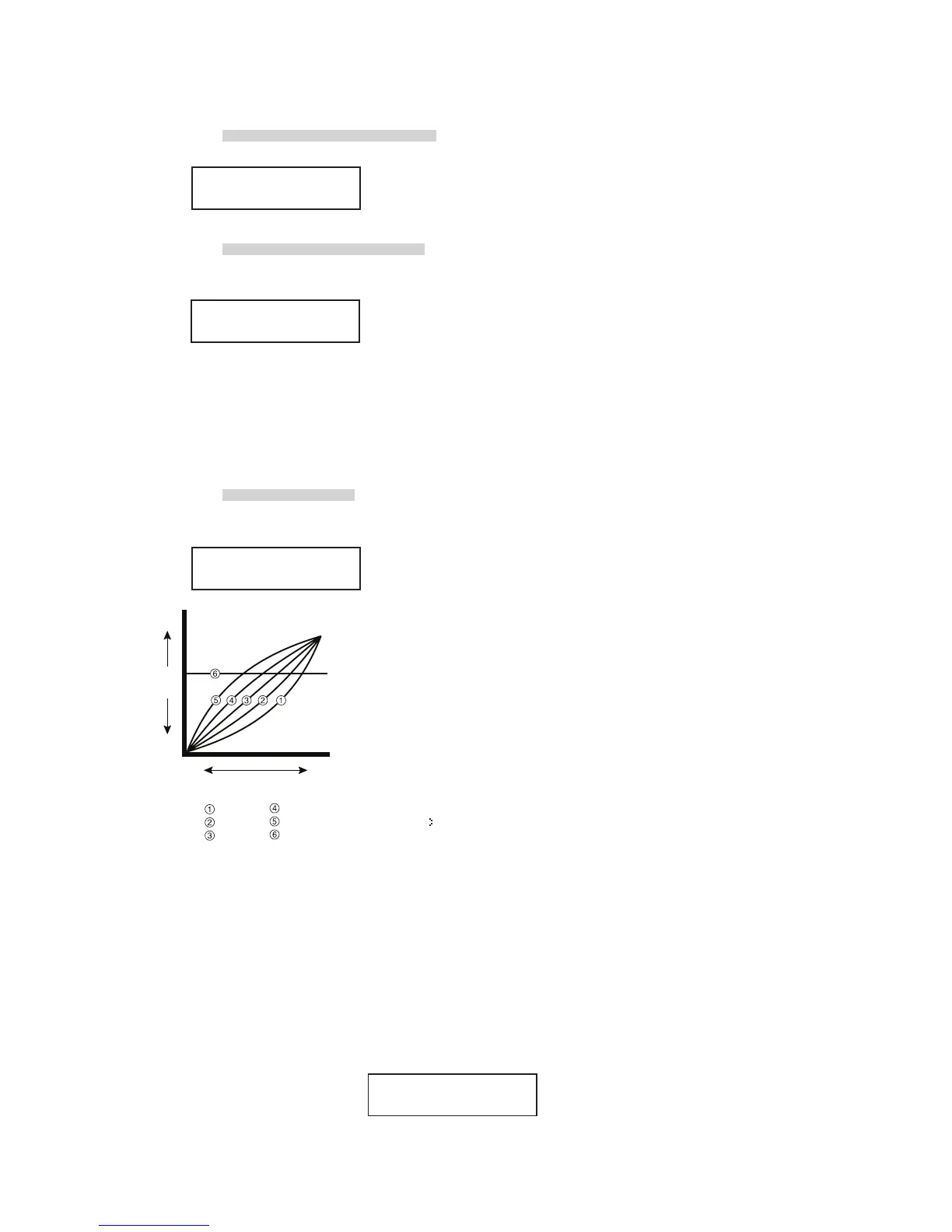
This parameter adjusts the touch response curve of the keyboard.
Heavy+: This Curve has a steep rise as velocity increases, and a shallower
curve at low velocities. (see 1) This curve requires the most striking
force to produce a loud volume.
Heavy: This curve requires a stronger striking force to produce a loud
volume. (see 2) This curve is perfect for those with strong fingers.
Normal: This curve recreates the touch response of an average acoustic
piano.
Light: This curve requires less striking force to produce a loud volume.
(see 4) This curve is good for those still developing finger strength.
Light+: This curve requires the least amount of striking force to produce a
loud volume. (see 5) This curve is good for those with a very delicate
touch.
Off: This curve gives a constant velocity level no matter how hard the
keyboard is struck. (see 6) This curve is suitable for sounds that
have a fixed dynamic range such as Organ, Harpsichord and certain
synthesizer sounds.
User1,2: You can create your own custom touch curve to fit your playing
style. Two user touch curves can be saved.
User Touch
The touch curve is the main component between the action and the sound.
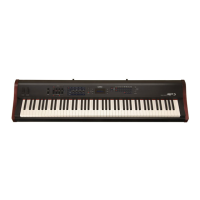
With this User Touch Curve function you can customize the MP8 according
to your personal playing style.
After selecting the “Touch” function by pressing the MENU buttons, use the
VALUE buttons to select User 1 or User 2. Now the selected curve is
activated.
Heavy+
Light
Heavy
Light+
Normal
Off
louder
volume
level
softer
softer
harder
Strength of the
struck key
SYSTEM
Touch =Normal
SYSTEM
System Ch = 1
SYSTEM
Init. SW =PnlLck
Press STORE
Touch =User1


 To Next Page