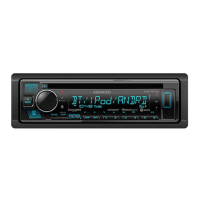
What does “ERROR” mean on my Kenwood Car Receiver?
- JJoseph ThomasSep 10, 2025
If your Kenwood Car Receiver displays “ERROR”, try the operation again. If “ERROR” appears again, check if the device supports the function you have tried.
What does “ERROR” mean on my Kenwood Car Receiver?
If your Kenwood Car Receiver displays “ERROR”, try the operation again. If “ERROR” appears again, check if the device supports the function you have tried.
What does “NO STATIONS” mean on my Kenwood Car Receiver?
If your Kenwood Car Receiver displays “NO STATIONS”, it means no stations are found.
What does “iPod ERROR” mean on my Kenwood Car Receiver?
If your Kenwood Car Receiver displays “iPod ERROR”, reconnect the iPod.
How to fix Bluetooth pairing issues on my Kenwood Car Receiver?
If you are experiencing Bluetooth pairing issues with your Kenwood Car Receiver: * Ensure you've entered the same PIN code on both the unit and the Bluetooth device. * Delete pairing information from both the unit and the Bluetooth device, then perform pairing again.
Why does “LOADING” appear on my Kenwood Car Receiver when I enter search mode?
If “LOADING” appears when you enter search mode on your Kenwood Car Receiver, the unit is still preparing the iPod/iPhone music list. It may take some time to load, try again later.
What does “USB HUB IS NOT SUPPORTED” mean on Kenwood Car Receiver?
If your Kenwood Car Receiver displays “USB HUB IS NOT SUPPORTED”, it means that the unit cannot support a USB device connected via a USB hub.
What does “UNSUPPORTED DEVICE” mean on Kenwood Car Receiver?
If your Kenwood Car Receiver displays “UNSUPPORTED DEVICE”, check whether the connected device is compatible with this unit and ensure the file systems are in supported formats.
How to fix voice calling issues on Kenwood Car Receiver?
If voice calling method is not successful on your Kenwood Car Receiver: * Use voice calling method in a quieter environment. * Reduce the distance from the microphone when you speak the name. * Make sure the same voice as the registered voice tag is used.
What does “SUBSCRIPTION UPDATED – PRESS ENTER TO CONTINUE.” mean on my Kenwood Car Receiver?
The message “SUBSCRIPTION UPDATED – PRESS ENTER TO CONTINUE.” on your Kenwood Car Receiver means that your subscription is updated.
Why is there echo during phone calls with my Kenwood Car Receiver?
If you hear echo or noise during a phone conversation using your Kenwood Car Receiver: * Adjust the microphone unit’s position. * Check the [ECHO CANCEL] setting.
Crucial information for safe and proper use of the product.
Important safety warnings regarding operation and battery hazards.
Precautions for volume setting and general usage to prevent accidents.
Warnings about handling the remote control and its battery.
Guidance on understanding the manual's structure and symbols.
Overview of the unit's front panel controls and indicators.
Description of the remote control and its operation.
Instructions on how to reset the unit to factory settings.
Steps for replacing the battery in the remote control.
Common operations like turning power on/off, adjusting volume, and changing sources.
Initial setup for language selection and disabling the demo mode.
Steps to set the current time and date on the unit.
Guide to configuring various initial system settings and options.
Settings for audio output, display illumination, and menu navigation.
Various settings including tuner presets, system options, source selection, firmware, factory reset, clock, and language.
Steps to prepare for registering the marine remote ID.
Instructions for registering the remote ID on the control unit.
Steps to remove a registered remote control ID.
Methods for finding radio stations using tuning and seeking.
Using the remote control to directly tune to a frequency.
Settings for auto memory, mono reception, news/regional programs, AF, and traffic info.
Searching for stations by program type.
Synchronizing the unit's time with Radio Broadcast Data System.
Prerequisites for using the AUX input source.
Steps to connect and play audio from an auxiliary device.
Customizing the name displayed for the AUX input.
How playback begins automatically for different sources.
Playback, track selection, repeat, and random play for CDs.
Connecting and identifying USB, iPod, and Android devices.
Playback controls for iPod/iPhone via USB.
Playback controls for Android devices via USB.
Choosing between controlling iPod/Android via the unit or device.
Selecting the internal or external memory for USB playback.
Outputting sound from apps like TuneIn via USB connection.
Navigating and selecting files for iPod/Android.
Methods for quickly searching files by browsing, skip ratio, or alphabet.
Searching for tracks/files using the remote control.
Instructions for using the KENWOOD Remote app.
Selecting drives and setting skip search ratios for USB sources.
Steps to prepare for using Pandora service.
How to connect and start listening to Pandora.
Controls for playback, skipping tracks, and thumbs up/down.
How to create and store new Pandora stations.
Finding existing Pandora stations by date or alphabet.
Saving song information to the connected device.
Removing stored Pandora stations.
Steps to prepare for using iHeartRadio service.
How to connect and start listening to iHeartRadio.
Controls for playback, station search, and storage.
Steps to prepare for using SiriusXM Radio service.
Finding the Radio ID needed for SiriusXM activation.
Instructions for activating the SiriusXM subscription.
How to connect and start listening to SiriusXM Radio.
Explanation of channel and replay keymodes.
Controls for selecting and changing channels.
Controls for playback, rewind, and fast-forward.
Using remote to tune directly to a SiriusXM channel.
Using SmartFavorites and TuneStart features for music playback.
Previewing songs on music channels.
Settings for channel locking, pass codes, and editing.
Settings for Tune Start, signal level, buffer, and reset options.
Overview of Bluetooth connection, supported profiles, and codecs.
Instructions for connecting the external microphone.
Steps to pair a new Bluetooth device with the unit.
Indicators for established Bluetooth connections.
Automatic pairing of devices connected via USB.
Handling incoming calls and connection behavior during calls.
Managing multiple calls, switching, and talk modes.
Adjusting call volume independently from other sources.
Settings to enhance microphone sensitivity and noise cancellation.
Configuring auto answer and battery/signal display.
Making calls via call history, phonebook, number dial, or voice commands.
Displaying battery and signal strength.
Using voice commands for calls and personal assistants.
Storing and making calls from memory contacts.
Settings for device connection, modes, deletion, PIN, auto-reconnect, and initialization.
Checking Bluetooth profile connectivity.
Playing audio from Bluetooth devices and controlling playback.
Configuring the unit for the KENWOOD Remote application.
Playing music from iPhone/iPod via Bluetooth.
Listening to Pandora and iHeartRadio services over Bluetooth.
Adjusting subwoofer level, equalizer settings, bass boost, and Q factor.
Settings for sound reconstruction, space enhancement, realism, stage, and noise reduction.
Selecting front, rear, and subwoofer sizes for optimal performance.
Adjusting crossover frequencies, slopes, and output levels for speakers.
Configuring time alignment for speakers based on car type and speaker setup.
Adjusting DTA position, distance, gain, and car settings.
Guide to measuring and calculating DTA distance and gain values.
Turning the display illumination on or off.
Selecting display colors and adjusting brightness levels.
Setting the dimmer on and off times.
Selecting automatic or single scroll for text display.
Troubleshooting common problems like no sound or unit not turning on.
Solutions for poor radio reception or static noise.
Troubleshooting problems with discs, files, and device recognition.
Troubleshooting playback and connection problems with Android devices.
Solutions for Pandora station limits, connection errors, and rating issues.
Troubleshooting issues with selecting or connecting to iHeartRadio.
Troubleshooting SiriusXM channel availability and tuner connection.
Settings for Tune Start, signal level, buffer, and reset options.
Troubleshooting pairing, connection, call quality, and audio playback problems.
Instructions for cleaning the unit's faceplate and connector.
Precautions for handling audio discs.
List of supported audio file formats and unplayable disc types.
Information on USB connection limitations and ratings.
List of compatible iPod/iPhone models via USB and Bluetooth.
Information on Android OS support and AOA 2.0.
Information on Pandora service availability and third-party changes.
Information on iHeartRadio service availability and third-party changes.
Information on Bluetooth device compatibility and signal conditions.
How to change displayed information by pressing DISP.
Important safety warnings for installation and wiring.
Precautions for safe installation and handling hot parts.
Step-by-step guide for installing the unit.
Detailed steps for in-dash mounting the unit.
Instructions for mounting without using the sleeve.
Steps for detaching the unit from the dashboard.
List of components included for installation.
Diagram and instructions for connecting KDC-X301/KMR-D368BT wiring.
Recommendation for professional installation using custom wiring harnesses.
Diagram and instructions for connecting KDC-BT21/KDC-MP368BT wiring.
FM and AM frequency range and sensitivity specifications.
Specifications for laser diode, digital filter, spindle speed, and wow/flutter.
USB standard, file system, and audio decode specifications.
Bluetooth version, frequency range, maximum range, and profiles.
Auxiliary input frequency response and impedance specifications.
Specifications for audio output power, impedance, tone control, and preouts.
Specifications for operating voltage, current, temperature, dimensions, and weight.
| Brand | Kenwood |
|---|---|
| Model | KDC-BT21 |
| Type | Car Receiver |
| Bluetooth | Yes |
| USB Port | Yes |
| AUX Input | Yes |
| Display Type | LCD |
| AM/FM Tuner | Yes |
| Detachable Faceplate | Yes |
| CD Player | Yes |
| Preamp Outputs (Channels) | 2 |
| RMS Power Output | 22W x 4 |
| Audio Formats Supported | MP3, WMA |
| Equalizer | 13-Band Graphic Equalizer |
| Steering Wheel Control | Compatible |
| Maximum Output Power | 50 Watts x 4 Channels |


Loading...