KIC 2000 v2.4.0.x
KIC 2000 User Manual 11
Connecting your KIC Explorer to the Computer
Important: You must install the KIC 2000 software before
connecting your KIC Explorer to the computer.
The KIC Explorer communicates through the USB port on the computer. Depending on your model
KIC Explorer you will connect either the KIC Explorer communication cable or the KIC Explorer Base
Station to your computers USB port.
In the event that there are no available USB ports, a standard 2-8 port USB-hub can be used to add more
USB ports to the computer.
After successful KIC 2000 software installation and installation of the batteries you are ready to connect
your KIC Explorer hardware to your computer. Turn the power on by pressing the on button.
1. Turn on the KIC Explorer.
2. Connect the USB communication cable to the KIC Explorer and the other end to the computers
USB port. If the KIC Explorer has the optional RF hardware connect the Base Station to the USB
port.
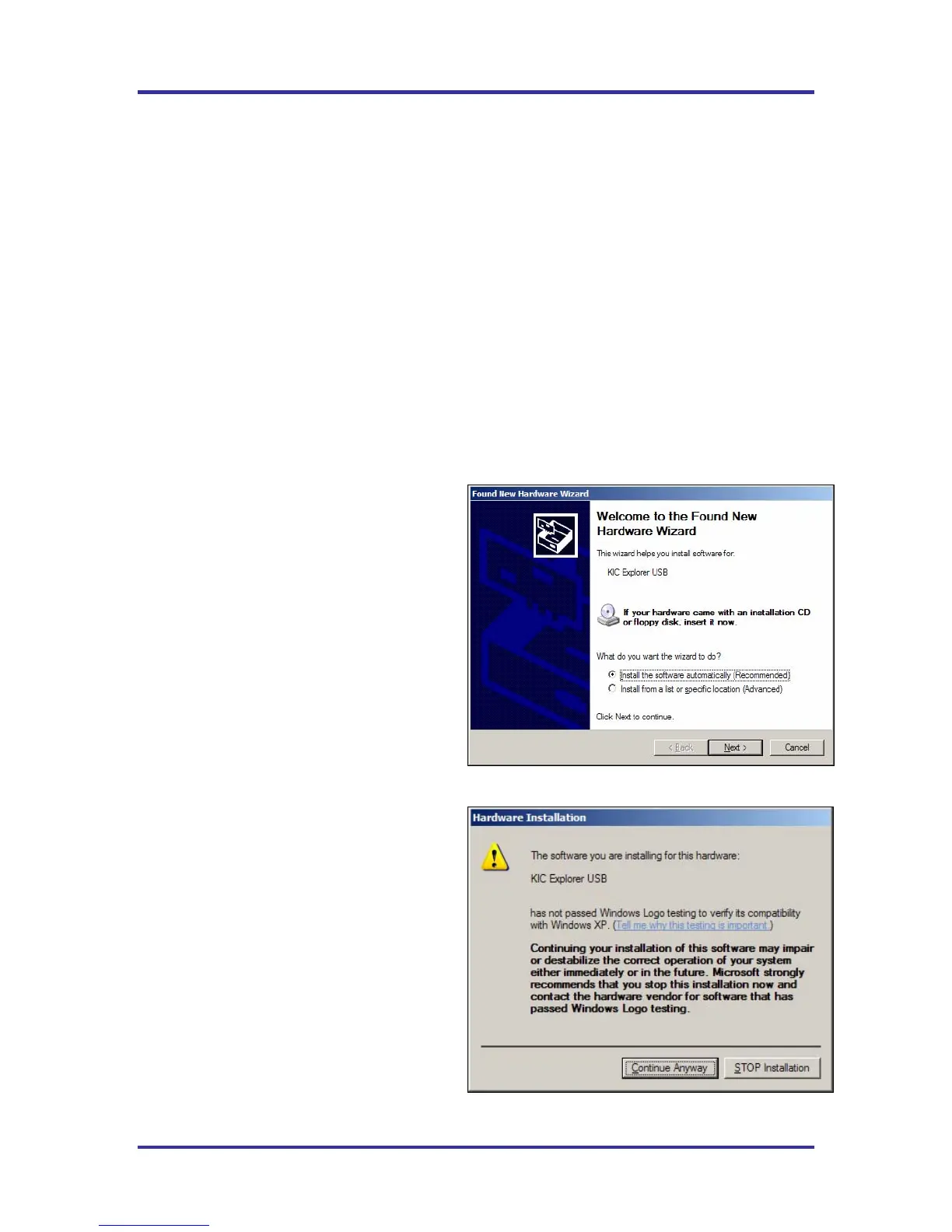
3. Whether you connect the KIC Explorer
or KIC Explorer Base Station, Windows
will recognize the USB device and the
“Found New Hardware Wizard” will
appear. Select the “Install the software
automatically (recommended) option
then select the “Next” button. See
Figure 16.
Note: The “Found New Hardware Wizard” USB
driver installation will run each time a unique
KIC Explorer or KIC Explorer Base Station is
connected to your computer.
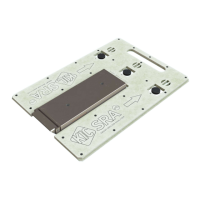
4. Next, Windows will prompt the user
regarding “Windows compatibility”.
Select the “Continue Anyway” button.
See Figure 17.
Figure 16
Figure 17



 To Next Page