TERRA 4K Operation Manual(KineOS 6.2)
©2019 Kinefinity Inc. Page 35 / 60
3.8 Control Cameras with iPad (KineRemote)
If the camera is configured with WIFI option, you can use iPad (iOS 10 or
below) to control TERRA.
Current KineRemote APP is only available in App Store (New APP might be
launched in later 2019), search Kinefinity or KineRemote, then download and
install.
Turn on WIFI: [ConfigurationSettingsWIFI Power: On].
How to use KineRemote:
1. Set camera: Plug in Antenna to WIFI socket, and turn on the camera.
A wireless hotspot (AP) will be generated by camera automatically
such as kinefinity_5D8A, 5D8A stands for the first four digits of the
camera serial number.
2. Set iPad: Run KineRemote App installed on iPad: [SettingWIFI], and
choose to connect kinefinity_5D8A.
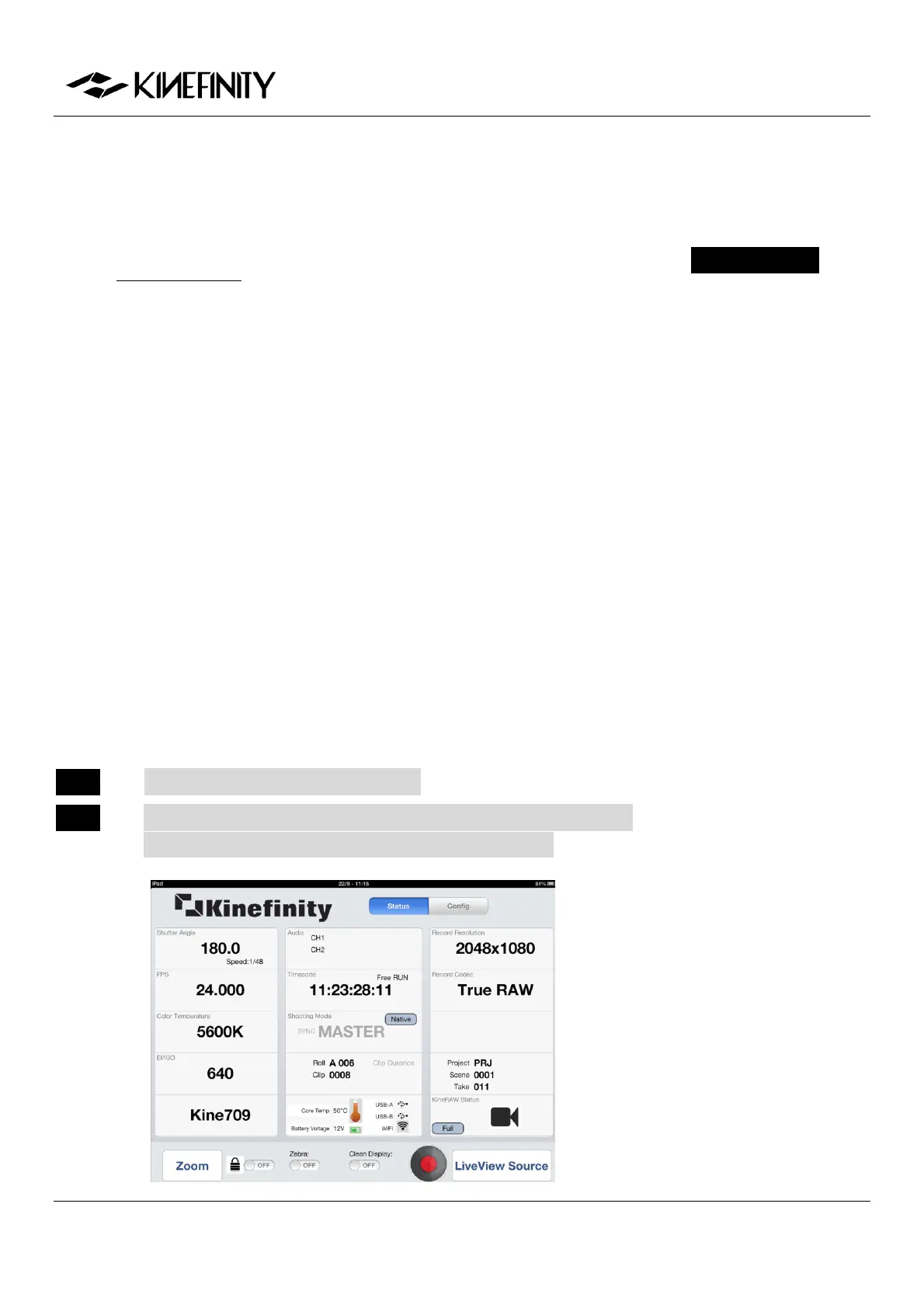
3. Open the APP: open the KineRemote, if you see the Timecode running,
it means you have successfully connected the camera to your iPad.
You can directly modify a parameter in KineRemote App by finger tap. For
example, to changes shutter, tap shutter Angle to pop up shutter setting list,
tap the Up or Down button with your finger to desired value, and click blank
space to confirm and exit.
NOTE LOOK is for Iris if attached an EF lens.
NOTE You need close the KineRemote in background when KineRemote
does not show parameter properly. Then open it again.
Menu Operation
Turn on WIFI
[ConfigurationSystem
SettingsWIFI Power: On]


 To Next Page