25
INSTALLATION
OPERATION
Operating the Automation App and Automation III Remote
Syncing and Programming Your Remote
■
Activate the remote by pulling both plastic tabs from the back battery compartment.
■
Download the Automation App for your smartphone or tablet at getshadeapp.com.
■
Open the Automation App and follow the steps to set up your new shades and remote.
■
Use the Automation App to program and manage your Automation III remote(s) as accessories.
■
For more information, refer to the digital Automation III Remote Control Guide.
Basic Operation
■
Wake up the remote by picking it up or pressing ■ STOP.
■
Press group number(s) 1, 2, 3, 4, 5, and/or 6 to select one or more groups. Selected group numbers light up white on the
remote.
■
Press selected group number(s) 1, 2, 3, 4, 5 and/or 6 a second time to deselect one or more groups. Deselected group numbers
are not lit.
Further Operation and Programming Information
Automation App
The Automation App is required to program Automation III shades, remotes, and gateways. The App is compatible with Apple® and
Android™ smartphones and tablets. For more information regarding setup and operation using the Automation App, refer to
https://www.kirsch.com/window-coverings-product-manuals.
Automation III Gateway
The Automation III Gateway is used to control shades in larger projects as well as integrate Automation III shades with third-
party integration systems. For information regarding programming of Automation III Gateways, refer to the digital Automation III
Gateway Guide.
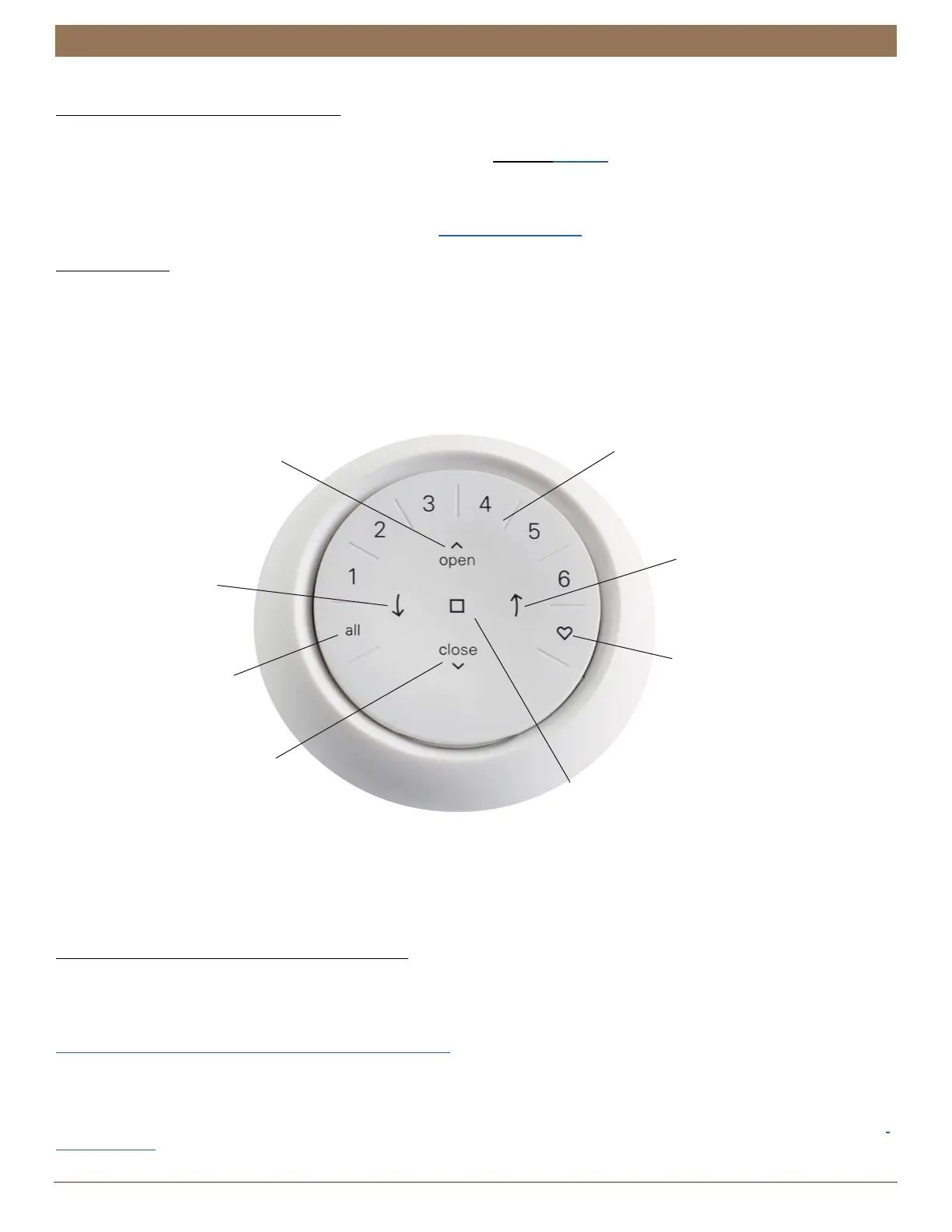
OPEN
LEFT ARROW
RIGHT ARROW
STOP
- Stops motion
GROUP NUMBERS
Each number represents
a different group
CLOSE
* The default first Favorite position is the front shade(s) at 50% open.
**Both Favorite positions can be updated in the Automation App > Shade Settings.
ALL
- Press to select
all groups
FAVORITE
- Press once to send
shade(s) to our first
Favorite position*
- Quickly press twice to
send shade(s) to your
second Favorite
position**
- No function
- No function
- Raise shade(s)
- Lower shade(s)


 To Next Page