EasyManua.ls Logo

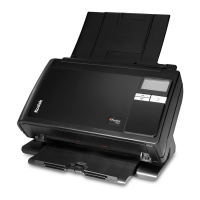
Kodak alaris 2000w Series - User Manual

Kodak alaris 2000w Series
78 pages
Print Icon
To Next Page IconTo Next Page
Loading...
A-61931
User’s Guide
S2000/2000w Series Scanners
Kodak alaris
Kodak

Table of Contents

Questions and Answers

  • H
    heather55Aug 8, 2025
    Why is my Kodak alaris 2000w running slow?
    • C
      Christopher MartinAug 8, 2025
      There are several reasons why your Kodak scanner might be running slow: * Your PC may not meet the minimum requirements for the scanner. * The scanner is designed to operate with USB 3.1 or USB 2.0, but will function in a USB 1.1 port. If you are using a USB 1.1 connection, update your USB connection. * When scanning wirelessly, other network traffic can slow performance. * Several settings, such as active feeding and enhanced stacking, can slow the scanner. Experiment to find the settings that work best for you.
  • A
    Ashley MillsAug 12, 2025
    What to do if images are not being cropped correctly with my Kodak alaris 2000w?
    • S
      swiseAug 12, 2025
      If the cropping options (Automatically Detect and Straighten or Automatically Detect) are enabled and your images are not being cropped correctly, clean the imaging area. Also, ensure that the pages are straightened in the input tray before scanning.
  • B
    Billy JamesAug 17, 2025
    How to fix Kodak alaris 2000w that will not scan or feed pages?
    • M
      Michael BensonAug 17, 2025
      If your Kodak scanner won't scan or feed pages, check the following: * Ensure the power adapter is securely plugged into the back of the scanner and the wall outlet. * Verify the wall outlet is not defective. * Confirm the PC was restarted after installing the software. * Make sure the page(s) are in contact with feed rollers and the paper present sensor. * Check that the scanner power light is on and the display screen indicates the scanner is ready.
  • D
    Dylan GonzalezAug 21, 2025
    What to do if my Kodak alaris 2000w images have black background bleed-through?
    • H
      harrisderekAug 21, 2025
      When scanning translucent paper, black bleed-through may appear on the image. To minimize this, adjust the Contrast and Brightness values or select Draft (Fixed) in TWAIN or Fixed Processing in ISIS to improve the image.
  • M
    Michael HarperAug 25, 2025
    Why does my Kodak Scanner show 'Length protection active' message?
    • K
      Kenneth CalhounAug 26, 2025
      The “Length protection active” message appears because the combination of driver settings may result in a jam message when scanning occurs. If a jam message occurs, adjust one or more of these settings in the scanner driver: * reduce the maximum document length * lower the image resolution * turn on compression * lower compression quality * change to simplex scanning * change the image type (color, gray scale, or black and white) * turn off Dual Stream * turn off Auto Color Detection.
  • S
    stephaniegarrisonAug 30, 2025
    What causes roller marks on paper after scanning with Kodak alaris 2000w Scanner?
    • B
      brettkingAug 30, 2025
      Roller marks can appear on the paper after scanning if the rollers are dirty. Scanning pages with wet ink will cause ink to transfer to the tires, and from the tires to your pages. Do not scan pages unless the ink on them is dry.
  • J
    jeffrey81Sep 2, 2025
    What to do if paper is too wide for the input tray of my Kodak alaris 2000w?
    • J
      Joseph GatesSep 2, 2025
      If the paper is too wide for the input tray: * Move the side guide lock to the LTR setting if it is on the A4 setting. * For oversize pages, see “Oversize paper” on page 35.

Kodak alaris 2000w Series Specifications

General IconGeneral
Optical Resolution600 dpi
Duplex ScanningYes
Scanning TechnologyDual CIS
Output ResolutionUp to 1200 dpi
Maximum Document Size216 mm x 356 mm (8.5 x 14 in.)
Minimum Document Size2" x 2"
ConnectivityUSB 3.2 Gen 1
Document Feeder Capacity80 sheets
Paper Thickness34-413 g/m² (9-110 lb.)
Operating System CompatibilityWindows
Output FormatJPEG, TIFF, PDF, RTF, TXT, BMP, PNG
Image Processing FeaturesDeskew

Related product manuals