3-46
Common Operations > Using Various Functions
Sharpness
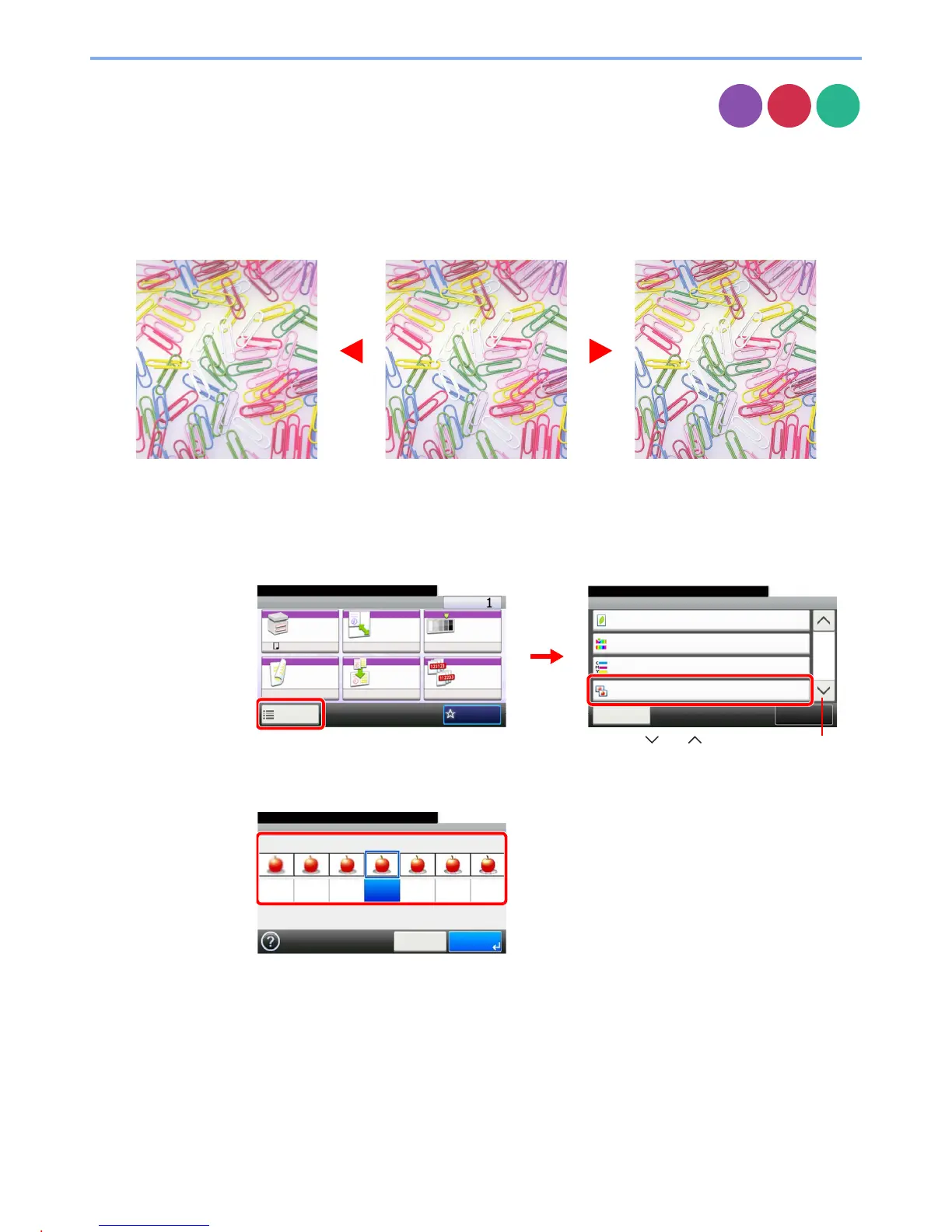
Adjust the sharpness of the image.
When copying penciled originals with rough or broken lines, clear copies can be taken by adjusting sharpness toward
[Sharpen]. When copying images made up of patterned dots such as magazine photos, in which moire* patterns appear,
edge softening and weakening of the moire effect can be obtained by setting the sharpness toward [Blur].
* Patterns that are created by irregular distribution of halftone dots.
1
Display the screen.
1 Referring to Using Various Functions on page 3-33, display the screen.
2 Press [Functions] and then [Sharpness].
2
Adjust the sharpness.
Press [-3] to [+3] (Blur - Sharpen) to adjust the sharpness.
Copy
Send
Scan to
USB
Original More SharpLess Sharp
Ready to copy. (Full Color)
Functions
Close
10:10
EcoPrint
Off
0
Hue Adjustment
2/4
Add/Edit
Shortcut
Color Balance
Off
0
Sharpness
Ready to copy. (Full Color)
Copy Copies
Paper
Selection
Zoom Density
Duplex Combine Collate
1-sided>>1-sided
A4 100% Normal 0
OnOff
Functions
10:10
Favorites
GB0001_01
GB0002_01
1
2
Use [ ] or [ ] to scroll up and down.
Sharpness
10:10
Blur
Cancel
-3
Sharpen
-2 -1 0 +1 +2 +3
OK
Ready to copy. (Full Color)
GB0060_00



 To Next Page