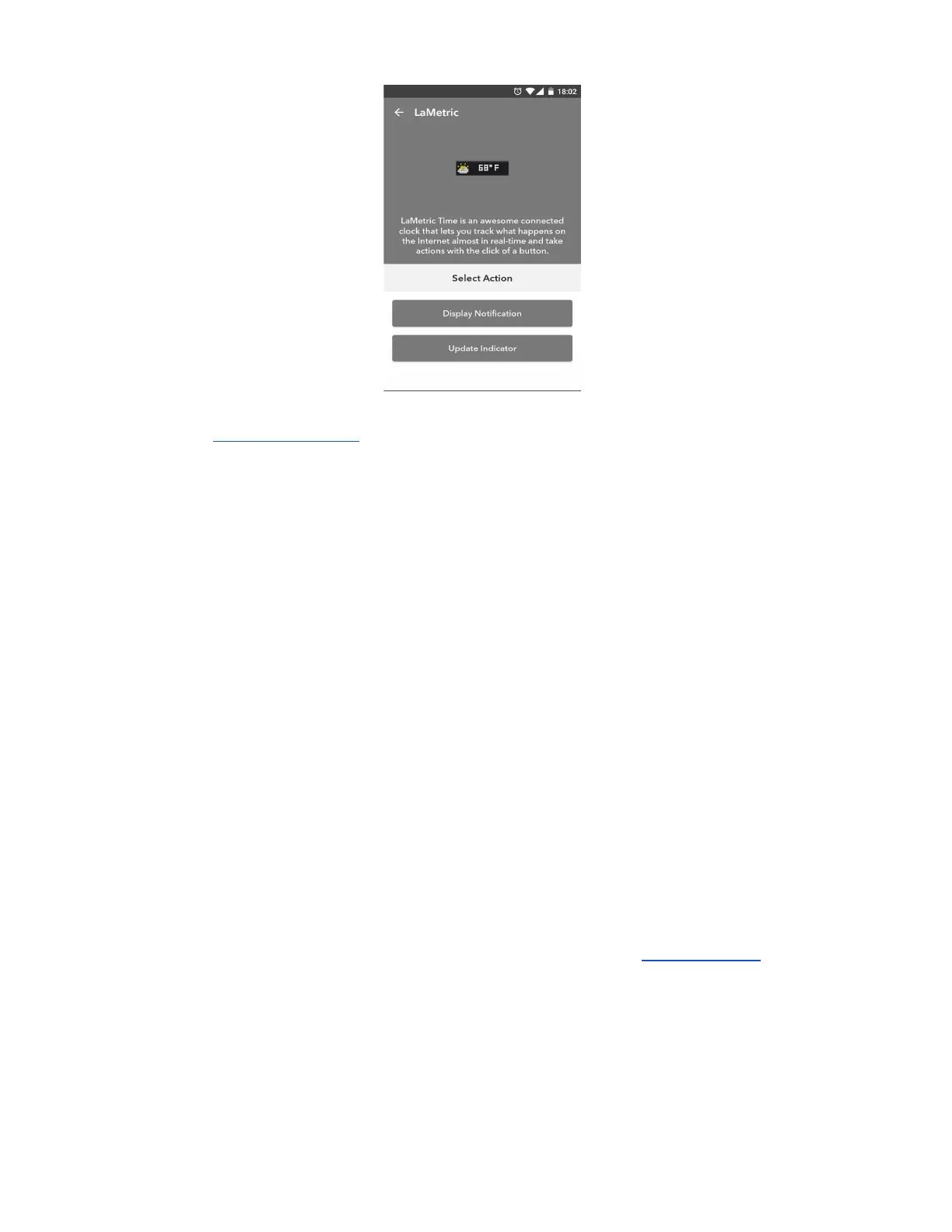
10. Choose Display Notification for notifications to be sent directly on LaMetric device or Update
Idicator to use IFTTT app for this applet. Then select an icon and enter desirable text. Tap
Create action to continue.
11. Review your applet and tap Create applet to finish. Congratulations, you have done it!
With LaMetric IFTTT channel you have possibility to create numerous applets to make your life easier
and brighter! Try it out!
6.6. Display Notification
With Display Notification you don’t need to install any additional apps on your LaMetric device.
Use Display Notification on your LaMetric Time to get actual and instantaneous notifications when you
get new emails or get messages from the systems of your Smart Home. It will allow you to be updated
about new interesting tweets and always know what new is happenig in the area you are interested in.
Display notification will be hidden from the screen of LaMetric Time once the message is scrolled out.
To set up Display Notification use IFTTT app on your smartphone or use desktop version . Browse
applet s:
71


 To Next Page