- Go to your LaMetric Time app to enable smartphone notifications. See section 4.6.7. Stream
music .
5.6. Updating software via USB
Follow a few easy steps to update software:
1. Connect device to PC using USB cable.
2. Start device in Recovery mode (press and hold Volume Up button and short press the On/Off
button at the same time).
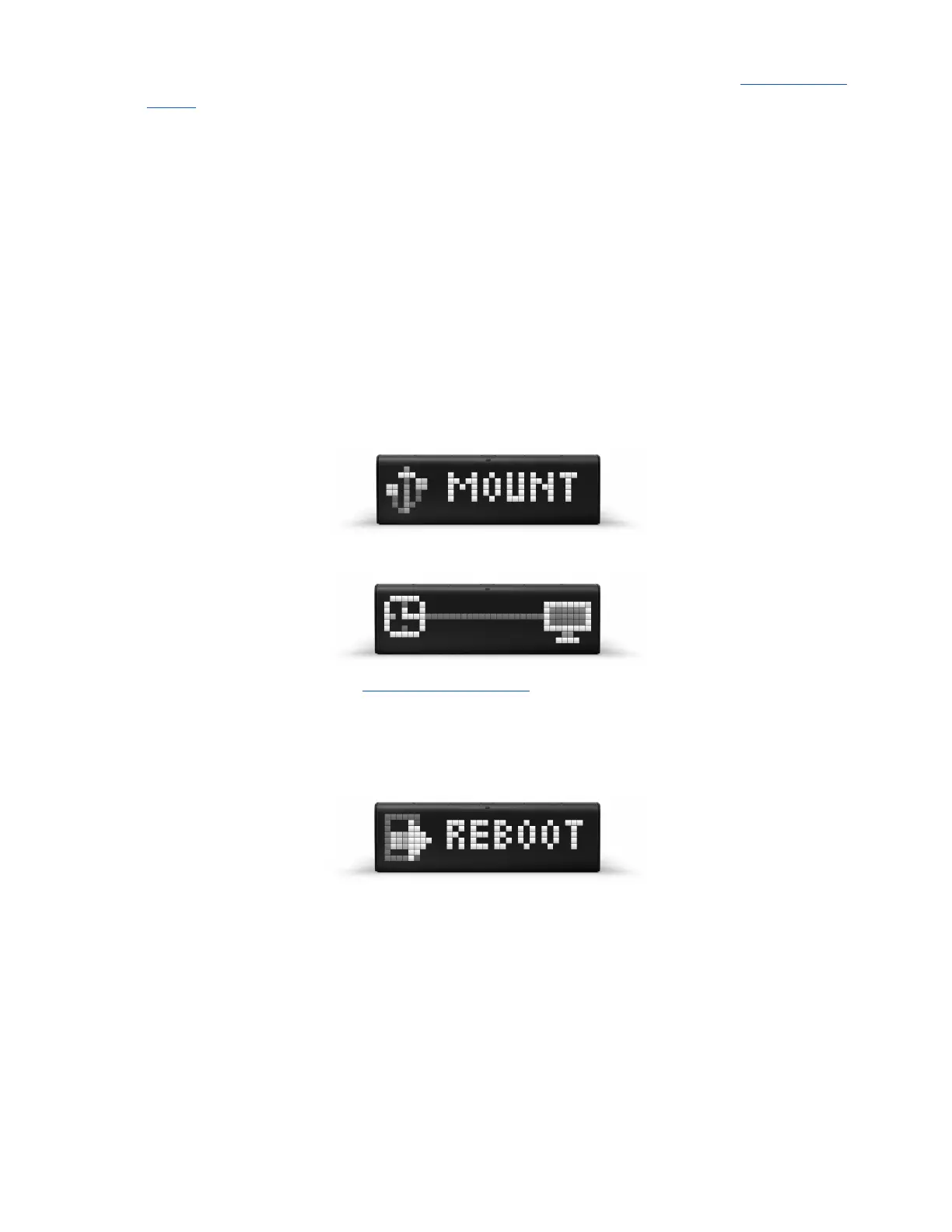
3. Mount mass storage (navigate in Recovery mode to ‘MOUNT’ using Left or Right navigation
buttons and confirm with Action button ).
4. PC should detect new mass storage device and LaMetric will be temporarily locked.
5. Drop latest software file from firmware.lametric.com to the root folder of the disk drive that
appeared on your PC.
6. Safely disconnect LaMetric from PC and reboot it (navigate to ‘REBOOT’ using Left or Right
buttons and confirm with Action button ).
7. The software will be installed automatically. The device will reboot few times.
8. In a case of some issue - error file update.err.txt will be created on the disk. To check the error –
mount disk again and open the file to find out the reason of failure.
5.7. Device notifications
LaMetric will always notify you if something goes wrong or some your actions are needed.
56


 To Next Page