BLU-BD1000 USER MANUAL
12
THE REMOTE CONTROL
BD=Blu-ray Disc; DVD/CD = DVD or CD audio discs; MC = Media Center
*Please note: Some features on this remote control require the feature to be available and
supported by the disc/media being played.
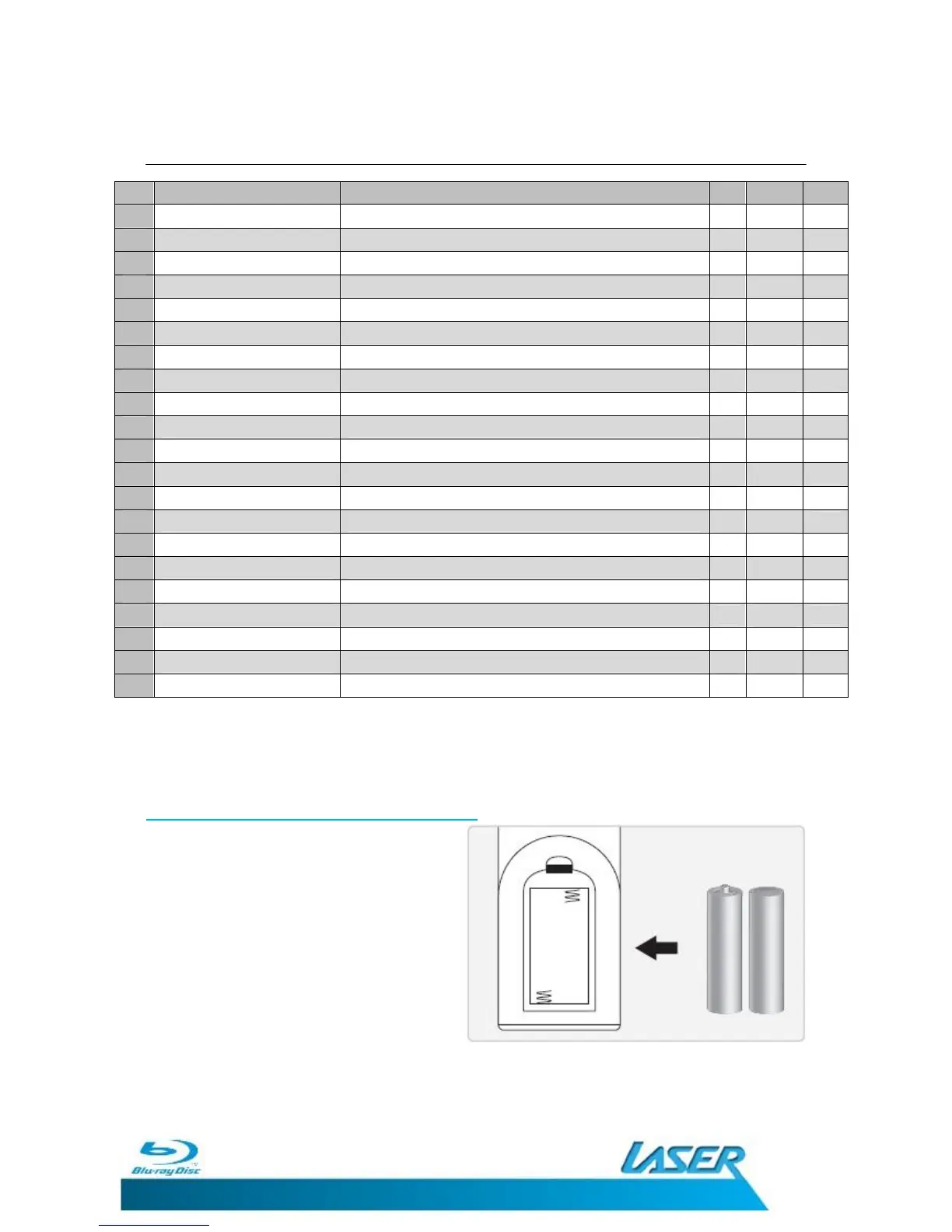
Installing the Remote Control Batteries
Before using the BLU-DB1000 Blu-ray
player, please take a moment to fit the
supplied AAA batteries to the remote
control.
Unclip the compartment lid and insert
the batteries as shown to the right.
When the batteries are fitted. Locate the
lugs on the bottom of the lid and clip
back in to place.
When using the remote control, the front window of the remote control should be pointed to
the infrared sensor on the front panel within an angle of ±30° and a range of about 4.5 meters.
21
RETURN Press to return to the previous menu
22
ENTER Press to confirm menu selection
23
MENU Press to show the Main Menu for current disk
24
FORWARD/REVERSE Press to fast forward/fast rewind
25
STOP Press to stop current playback
26
PAUSE Press to Pause current playback
27
HDMI Press to cycle through Video Resolutions
28
INFO Press to display information on current playback
29
DIGEST Press to display additional information on discs
30
ZOOM Press to zoom in or out on current screen image
31
RANDOM Press to play chapters or track in a random order
32
ANGLE Press to view alternate angles on supported discs
33
Media Center Press to open or close Media Center Console
34
SECONDARY AUDIO Press to Activate Secondary Audio Languages
28
INFO Press to display information on current playback
29
DIGEST Press to display additional information on discs
30
ZOOM Press to zoom in or out on current screen image
31
RANDOM Press to play chapters or track in a random order
32
ANGLE Press to view alternate angles on supported discs
33
Media Center Press to open or close Media Center Console
34
SECONDARY AUDIO Press to Activate Secondary Audio Languages


 To Next Page