BLU-BD1000 USER MANUAL
39
GETTING THE BEST FROM THE PLAYER
Audio Setup
As well as the Audio setup as described earlier in this manual, if you have audio set up
through the television or to a Home Theatre System, the BLU-BD1000 allows you to fine
tune the audio output to best suit your environment.
From the Main Setup menu select Audio Settings >> Speaker Settings >> Configuration.
Select the number of speakers that you have connected to your system from simple stereo
speaker (2.0) right up to full DTS-HD High resolution 7.1 channel system.
You will be asked to select the Channel mode for the selected option. These options will
vary depending on what equipment you may have connected to the player via the HDMI
cable. The BLU-BD1000 may automatically detect an HDMI connected Home Theatre System
and select the number and type of audio channels available
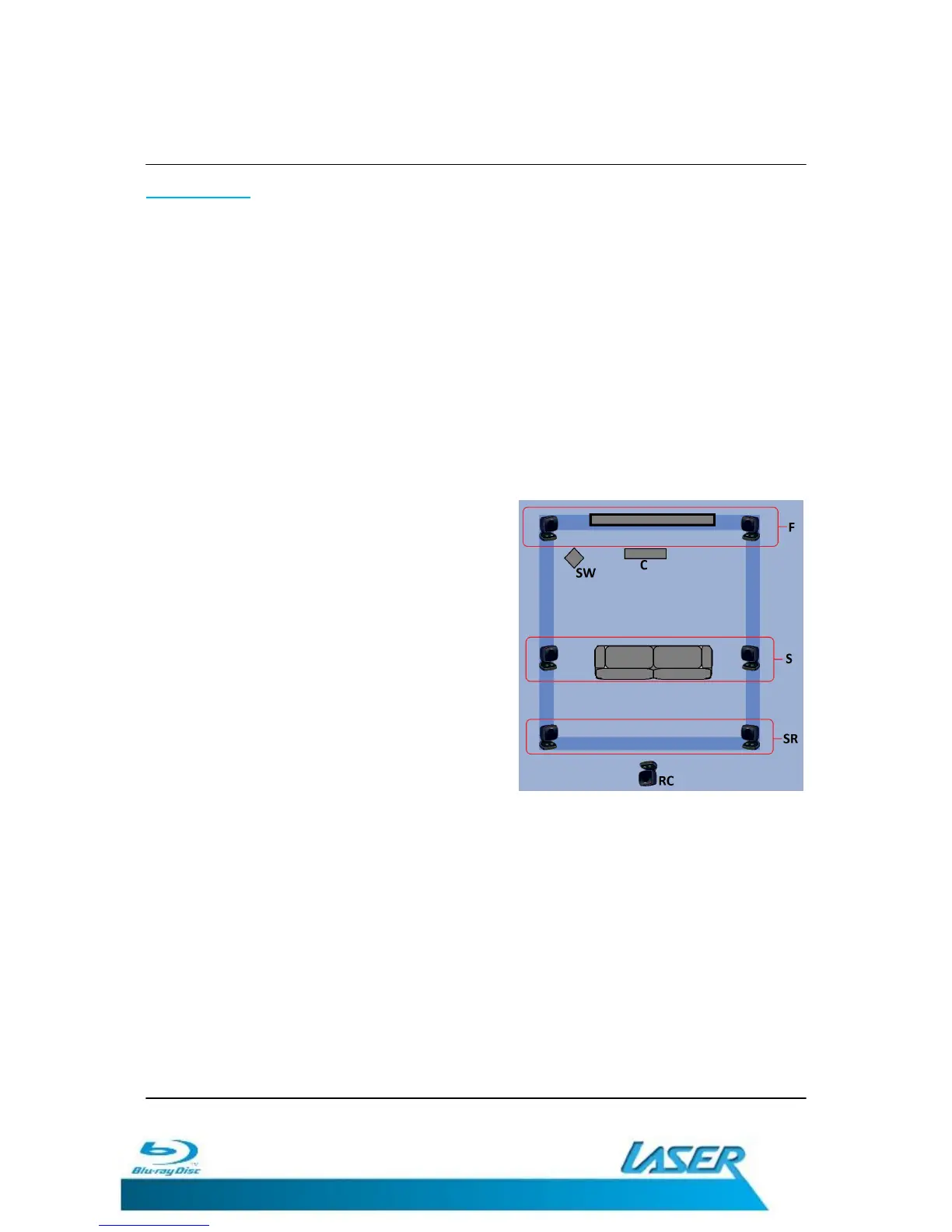
Here is a basic diagram of Home Theatre speaker
layouts.
F= Front Left and Right Speakers
SW= Sub Woofer: (1 or 2)
C= Centre: Voice channel
S= Surround Speakers left and right
SR= Surround Rear Speaker left and right
RC= Rear Centre Speaker
2.1 F + SW 5.1
F + C + SW + S + SR
6.1 & 7.1 through HDMI only
The Audio configuration should be used in conjunction with the documentation for your
Home Theatre or speaker setup. This documentation will show the best position, angle and
distance for each speaker.
The Speaker settings in the Audio setup allow you to fine tune the audio and set the size
trim and delay for individual speakers as they are placed in the room.
A test sound is also available to help set the position of the speakers in relation to your
viewing position.
Note: Speaker Identification and terminology may vary slightly between
manufactures. Please read all documentation carefully to help identify all
components and how they relate to terms used in this document.
GETTING THE BEST FROM THE PLAYER


 To Next Page