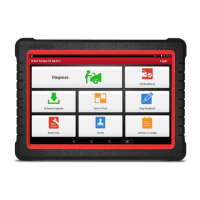
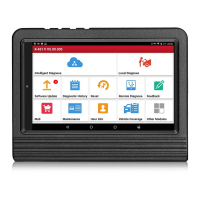
LAUNCH X-431 Throttle User Manual
13
3.5.2 Unlock the screen
Press [POWER] to activate the screen and drag the
lock to “Unlock” position.
*Note: If you define as unlock using the pattern, you have to draw the right target
pattern to unlock it.
3.6 Screen Layout
1. Preview the screen
Tap and hold any blank area on the home screen, a function menu will pop up at
the bottom of the screen. It mainly includes wallpapers, lock screen wallpapers,
widgets, settings and apps.
2. On-screen buttons
There are 6 on-screen buttons available on the bottom of the screen.
y Back: Tap
to return to the previous screen.
y Home: Tap
to jump to the Android’s home screen.
y Recent App: Tap
to view the recently launched applications and running
applications.
y Screenshot: Tap
to capture the current screen.
y Downloadable: Once some upgradable diagnostic software is detected, the
icon
will turn highlighted.
y VCI Connection
: Shows whether the VCI device is properly connected or
not.
3.7 Adjust Brightness
Tips: Reducing the brightness of the screen is helpful to save the power of X-431
Throttle.
1. On the home screen, tap Settings -> Display -> Brightness level.
2. Drag the slider to adjust it.
3.8 Set Standby Time
If no activities are made within the defined standby period, the screen will be
locked automatically and the system enters sleep mode to save power.



 To Next Page