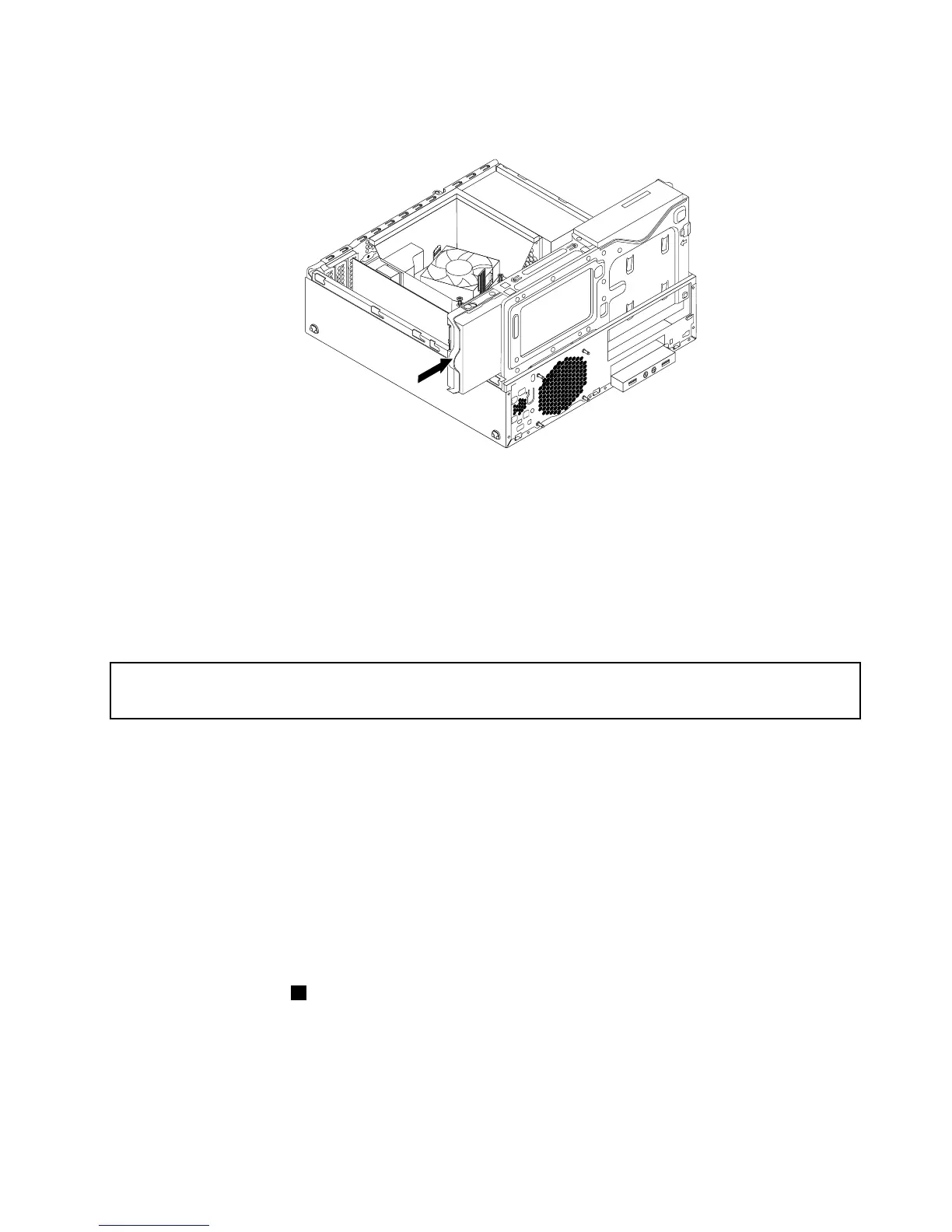
9.Slidethenewharddiskdriveintothedrivecageuntilitsnapsintoposition.
Figure44.Installingtheharddiskdrive
10.Connectthesignalcableandthepowercabletothenewharddiskdrive.
Whattodonext:
•Toworkwithanotherpieceofhardware,gototheappropriatesection.
•Tocompletetheinstallationorreplacement,goto“Completingthepartsreplacement”onpage93.
Installingorreplacingthesecondaryharddiskdrive
Attention:
Donotopenyourcomputerorattemptanyrepairbeforereadingandunderstandingthe“Importantsafetyinformation”
onpagev.
Thissectionprovidesinstructionsonhowtoinstallorreplacethesecondaryharddiskdrive.
Note:Thesecondaryharddiskdriveisonlyavailableinsomemodels.Fornewinstallation,see“Installing
thesecondaryharddiskdrive”onpage53.Forreplacement,see“Replacingthesecondaryharddisk
drive”onpage57.
Installingthesecondaryharddiskdrive
Toinstallthesecondaryharddiskdrive,dothefollowing:
1.Removeallmediafromthedrivesandturnoffallattacheddevicesandthecomputer.Then,disconnect
allpowercordsfromelectricaloutletsanddisconnectallcablesthatareconnectedtothecomputer.
2.Removethecomputercover.See“Removingthecomputercover”onpage32.
3.Removethefrontbezel.See“Removingandreinstallingthefrontbezel”onpage32.
4.Pressthereleasetab1asshownandpivotthedrivebayassemblyupward.
Chapter5.Installingorreplacinghardware53







 To Next Page