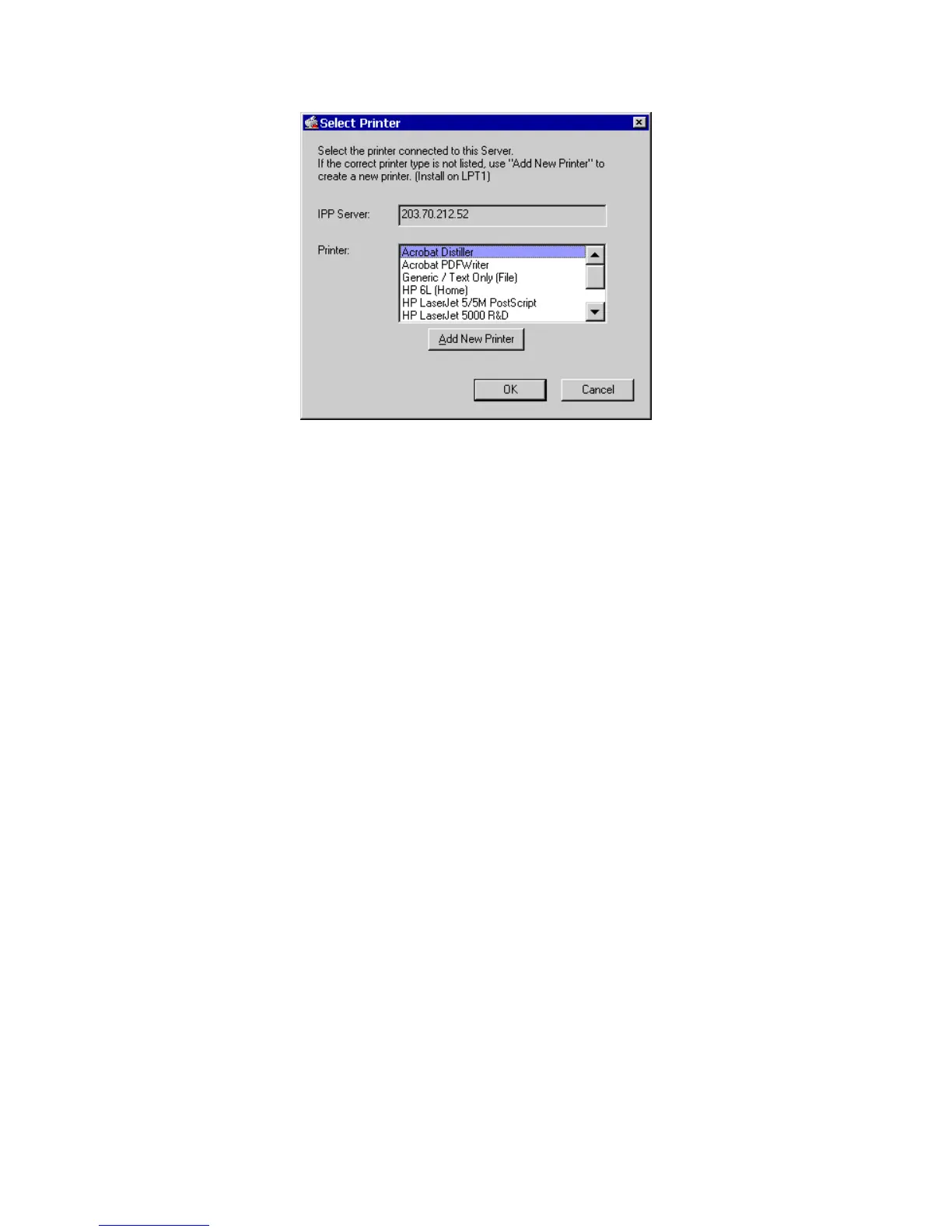
Select Printer for IPP Port
5. Either selects an existing printer to use the new port, and click OK.
OR
a) Click the "Add New Printer" button to start the Add Printer wizard.
b) Complete the Wizard, installing the desired printer as a local printer on your PC.
c) When returned to this screen, select the new printer and click OK.
6. The selected printer is now associated with the remote NAS, and installation is com-
plete.
Changing the IPP Port Settings
After the IPP port is created, you can reach the IPP Port screen via the Windows Port
Settings button:
1. Open the Printers folder (Start - Settings - Printers)
2. Right-click the IPP Printer, and select Properties.
3. Locate and click the Port Settings button (on the Details or Port tab, depending on your
version of Windows).
Using the IPP Printer
The IPP Printer can be selected and used like any other Windows printer, but your Internet
connection needs to be active.
An NAS may be unavailable for IPP printing for any of the following reasons:
It is powered off.
The IP Address of the Router/Gateway for the remote LAN has changed.


 To Next Page