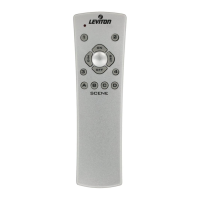
Include Controller
NOTE: The INSTALL
CHECKLIST screen will appear
withtheselectionboxaround
STEP 2 - Include Controller
when NEXT STEP is chosen from
STEP 1.
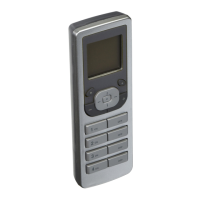
Press the center button on
the VRCPG to bring up the
INCLUDE CNTRLLER screen,
where you will be prompted to
place the controller in program
mode.
NOTE: Leviton Controllers require
an inclusion process that differs
from Dimmers and Switches.
Controllers must be placed into
program mode before they can be included into the
network (refer to individual device instruction
sheet).
Once your controller has been placed in program
mode, press the center button on the VRCPG. The
VRCPG will go through the communication process
and assign the node information for that device. The
TEXT EDITOR will display where you can name your
device (refer to TEXT EDITOR pg. 7).
Once your name is displayed,
press the center button .The
VRCPG will confirm inclusion
and prompt you to continue to
INCLUDE CONTROLLER by
pressing the center button or
to continue to the NEXT STEP
by pressing the right soft key
NOTE: The confirmation process will take some time,
specifically in large networks. Remain close to the
controller until the confirmation is complete. After
including all controllers, proceed to the
NEXT STEP
.
Update Controller
NOTE: The INSTALL
CHECKLIST screen will appear
withtheselectionboxaround
STEP 3 - Update Controller
when NEXT STEP is chosen from
STEP 2.


 To Next Page