You can now name your new
area by pressing the center
button (refer to TEXT
EDITOR pg. 7). Once you
name your new area, press the
center button to save the
information and return to the
CREATE AREA screen.
Scroll to and press the center
button to select Add Devices
which will bring up a list of the
dimmers and switches you
included in Step 1 to add to your
new area. Scroll to each device
checkboxandusethe and
buttons to either add or subtract
each device from your area.
NOTE: You can use the
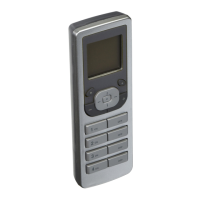
4 ON button on the
bottom of the VRCPG to select
ALL devices simultaneously. The
4 OFF button deselects
ALL devices. This feature will work whenever you
encountercheckboxlists.
Once you have checked the devices for your area
press the center button to save. The AREA
screen will display with your newly created area
and prompt you to continue to create a new area
by
pressing the center button to select
<<
NEW
>>
or
to continue to the
NEXT STEP by pressing the right
soft key .
NOTE: You can use the 1 ON button and
1 OFF button on the VRCPG to turn the
lights ON and OFF in an area that has the selection
boxaroundit.
Set Associations
NOTE: The INSTALL
CHECKLIST screen will appear
withtheselectionboxaround
STEP 5 - Set Associations
when NEXT STEP is chosen
from STEP 4.
Press the center button to bring up the
STEP 5
10


 To Next Page