Install Complete
NOTE: The INSTALL
CHECKLIST screen will appear
withtheselectionboxaround
STEP 8 - Install Complete when
you save your security selection.
Press the center button to
receive your confirmation that
the INSTALL CHECKLIST is
now complete. Press the center
button again to start using
the VRCPG.
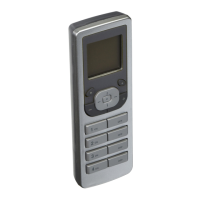
The HOME screen of the
VRCPG will be displayed.
STEP 7
You will be prompted to, and
must re-enter password.
Scroll to 2. and use the side
arrow buttons to toggle
between choices OPEN, VRCPG
Lock and System Lock.
Press right soft key (Save) to
complete.
NOTE: Selecting
<
VRCPG Lock
>
will lock the
VRCPG. When you return to the HOME screen you
will not have access to the MAIN MENU nor any
screens until you press the right soft key and
enter your password.
Selecting
<
System Lock
>
will only lock System
Setup, preventing one from changing how the
system is configured until the password is entered
upon prompt.


 To Next Page