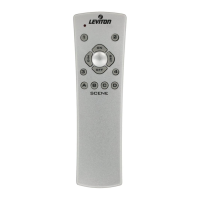
Press the center button to
bring up the UPDATE CNTRLS
screen where a list of all the
controllers in the network will be
displayed.Withtheselectionbox
around the first controller listed
press the center button . The
VRCPG will prompt you to stand
within 3 feet of that controller.
Press the right soft key (YES)
to update your controller. NOTE:
It is important that you remain
within 3 ft. of the controller
you've selected from the list.
If you are unsure about which
controller you are updating you
can use the "Who Is" command
(see pg. 13). Leviton controllers
will blink during the update
process, confirming you are
updating the correct controller.
Once the VRCPG confirms
UPDATE it will display the updated node information.
Press the center
button to finalize.
Continue this process until all of your controllers
have been updated. Each time you successfully
update your controller it will be removed from the
list. Once all of your controllers have been updated,
press the right soft key to continue to the NEXT
STEP.
Create Areas
NOTE: The INSTALL
CHECKLIST screen will appear
withtheselectionboxaround
STEP 4 - Create Areas when
NEXT STEP is chosen from
STEP 3. NOTE: Areas are a set
of devices that will be controlled
as one.
Press the center button to
bring up the AREA screen. With
<<
NEW
>>
selected press the
center button to bring up the
CREATE AREA screen.
9


 To Next Page