21
It will optimize the mesh
network to ensure overall
system routing integrity.
4. Update Controllers
(refer to INSTALLATION
CHECKLIST - Update
Controller pg. 8).
5. Remove Failed
Use this option to detect
devices that are non-
operational and require
removal from the network.
Once the list is generated, you
will press the center button
to select a device to
remove. Press the right soft
key (YES) to remove the
device from the network.
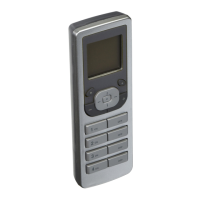
6. Join as Secondary
This feature allows you to
join this Leviton VRCPG
as a secondary remote to
the network. Press the right
soft key (YES) after the
prompt to continue. NOTE:
This step will erase any
existing data in the remote.
You will then be required to
include this remote with your
primary controller. Follow
the controller inclusion/
replication process of your
primary controller (for
VRCPG see pg. 8). This
secondary remote will prompt
you to start building the
node list. Press right soft key
(YES) to complete.
A confirmation (version)
screen will display the same
Home ID as the primary, a
new Node ID, a new serial
number and an x2 designation
at the top. NOTE: The


 To Next Page