39
Editing
Using the Disc Edit menu
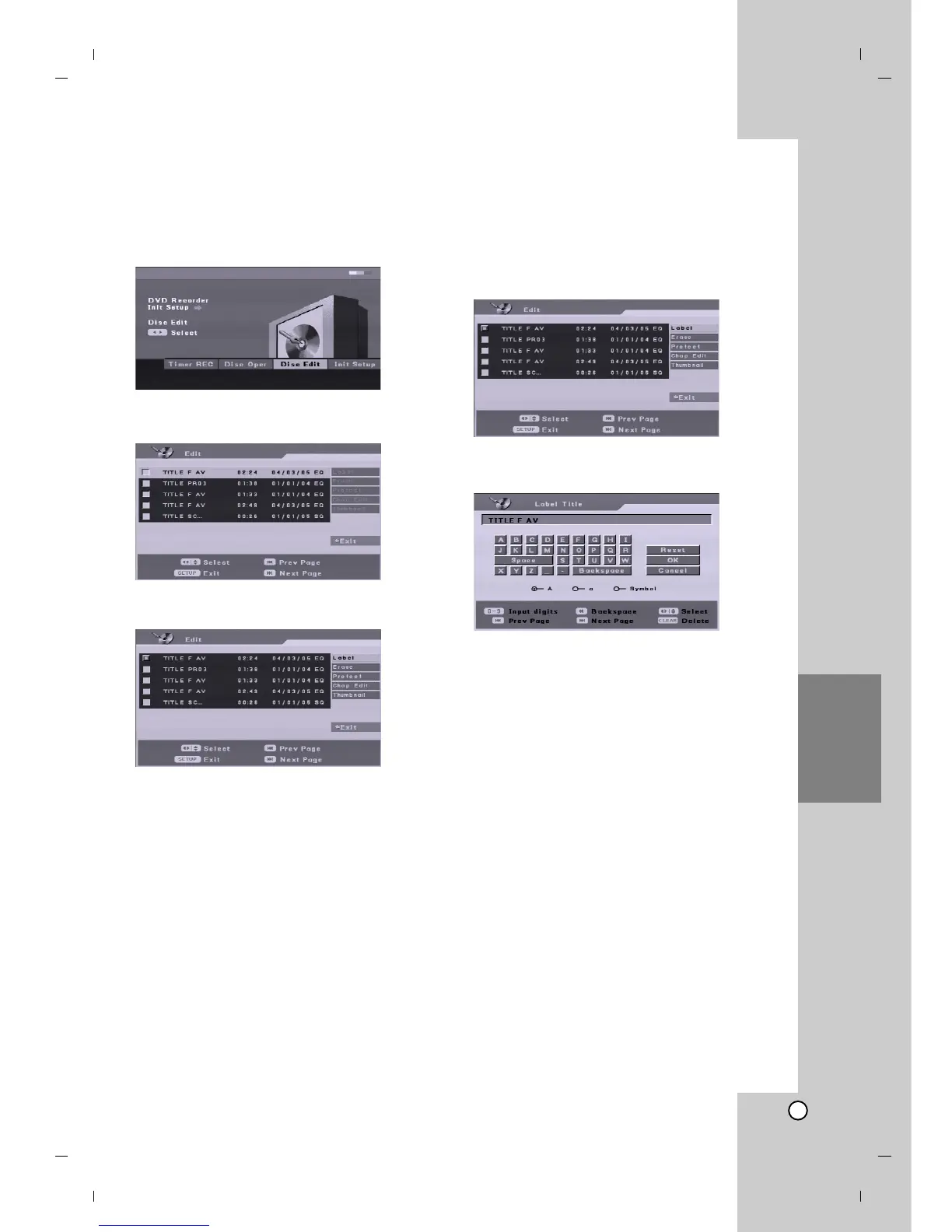
1. Press SETUP and the [DVD Recorder Initial
Setup] menu appears.
2. Use b / B to select [Disc Edit] option then press
ENTER. Disc Edit Menu appears.
3. Use v / V to select a title then press ENTER.
The menu options appears on the right side of the
menu.
4. Select an option then press ENTER to confirm
your selection.
[Label] Edits the title name. (See page 39.)
[Erase] Erase the title. (See page 40.)
[Protect] Protects accidental recording, editing or
deleting of the title. (See page 40.)
[Chap Edit] Displays [Chap Edit] menu. (See page
41-42.)
[Thumbnail] Changes a favorite scene for the
thumbnail picture shown in the Title List menu.
(See page 40.)
5. To exit the menu, press SETUP or select [< Exit]
option on the [Edit] menu then press ENTER.
Naming a Title
You can name titles independently. Names can be up
to 32 characters long.
1. Choose the title you want to name on the [Edit]
menu, then press ENTER.
The menu options appears on the right side of the
menu.
2. Use v/V to select [Label] option then press
ENTER.
Keyboard menu appears.
3. Enter a name for the title. Use b / B / v / V to
select a character then press ENTER to confirm
your selection.
Tip:
Remote control buttons for entering a name
SKIP (. / >): Changes keyboard type
SCAN (m): Deletes the previous character at
the cursor position.
b / B: Moves cursor to left or right.
Numbers (0-9): Inputs Digit at the cursor
position.
4. Choose [OK] then press ENTER to fix the name
and return to the previous menu screen.
Choose [Cancel] then press ENTER to return to
the previous menu screen without saving.
Choose [Reset] then press ENTER to delete all
characters.


 To Next Page