45
My stuff
01
02
03
04
05
06
07
08
09
Games and Apps
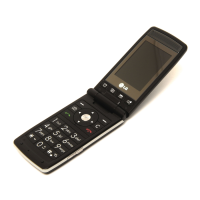
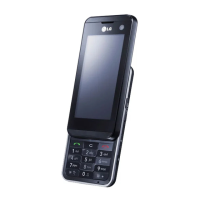
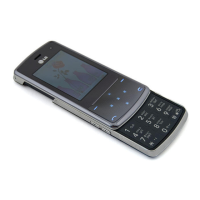
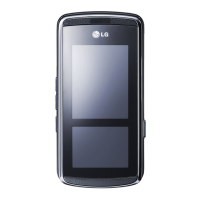
Your KF600d comes with preloaded games
to keep you amused when you have time to
spare. If you choose to download any
additional games or applications they will be
saved into this folder.
Playing a game
1 Touch then select .
2 Scroll to and select Games & Apps.
3 Select Games.
4 Select the game of your choice and
touch Play.
Using the games options menu
In the Games folder, touch to bring up
the following list of options.
Play – Select this to play the game.
Information - View the Name, Version,
Vendor, Jar-size and Domain of the fi le.
External memory
If you’ve inserted a memory card it will be
displayed as a folder within My stuff. Your
external memory folder will be divided into fi ve
further folders: Images, Sounds, Videos,
Documents and Others. Each folder will
contain all the fi les of that type which are
saved to your memory card rather than your
handset.
Using your phone as a Mass
storage device
Your KF600d can be used as a mass storage
device, just like a USB stick. This is a great
way of moving your fi les from your computer
to your phone. If you’ve inserted a memory
card, when connecting as Mass storage, it will
be displayed as two drives on your computer.
The handset memory and external memory.
1 Touch , select then
Connectivity.
2 Select USB connection.
3 Scroll to Mass storage and touch OK.


 To Next Page