49 Infotainment System
3. Use the keypad to input the name
you want to search.
For details, refer to the “Searching
for the name” of the “Phone” section.
4. Select the phone book entry you
want to call.
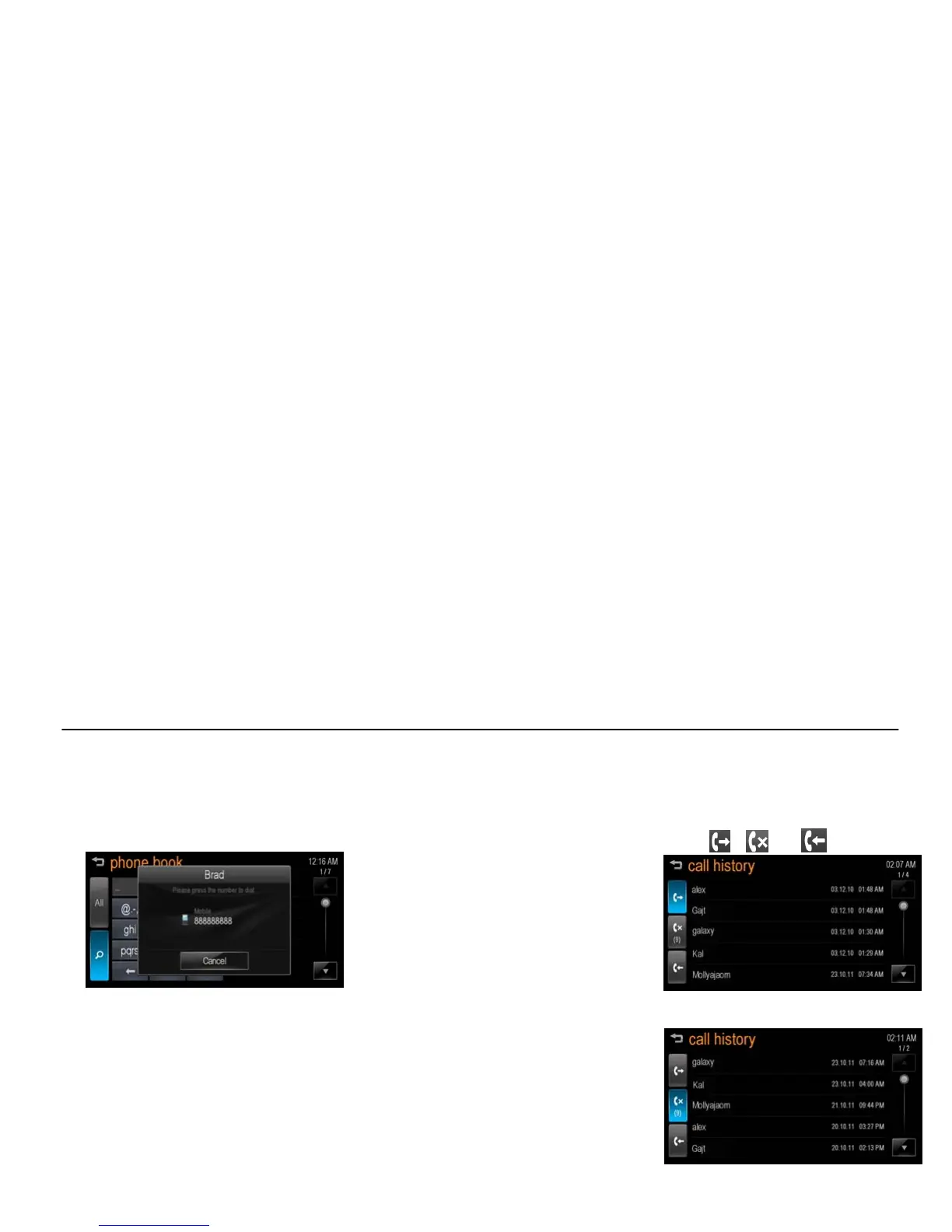
[bt phone search list_BYOM]
5. Press the number to dial.
Note
When your Bluetooth device and
Infotainment system is successfully paired,
the phone book is downloaded automatically.
But the phone book may not be downloaded
automatically according to the type of the
phone. In this case, connect it again or
proceed with the phonebook download on
your phone.
Searching for the name
Ex) when the user search for the “alex”
name
1. Press [abc] to to select the first
character.
The names included “a”, “b”, or “c”
characters are displayed on the
"phone book" screen.
2. Press [jkl] to to select the second
character.
The names included “j”, “k”, or “l”
characters are displayed on the
"phone book" screen.
3. Press [def] to to select the third
character.
The names included “d”, “e”, or “f”
characters are displayed on the
"phone book" screen.
4. Press [wxyz] to to select the fourth
character.
The names included “w”, “x”, “y”, or
“z” characters are displayed on the
"phone book" screen.
5. As more letters of the name are
entered, the list of possible names
is shortened.
Making a call from Call history
[Level 4]
1. Press [Call History] on the "phone"
screen.
2. Press [
], [ ], or [ ].
[bt call history_BYOM]
<Dialed Call>
[bt call history missed_BYOM]
<Missed Call>



 To Next Page