Infotainment System 54
Stitcher [Level 3]
Some image and explanation may vary
by phone operating systems, versions,
and/or application (App) versions. This
section explains a general operation.
Using the Stitcher [Level 4]
You can listen to your favorite news,
comedy, sports, talk and storytelling radio
shows in 1 app. Get the latest shows from
NPR, CNN, Fox, BBC, Carolla, SModcast,
Joe Rogan, Maddow, Rush, Fresh Air,
Freakonomics, Radiolab, The Moth and
more. Choose from 5,000+ on demand
podcasts and live local AM/FM stations.
1. Install the Stitcher application on
your smartphone.
2. Connect your smartphone and the
Infotainment system through the
USB port or Bluetooth wireless
technology.
iPhone: USB connection
Android phone: Bluetooth wireless
technology
3. Activate the Stitcher application.
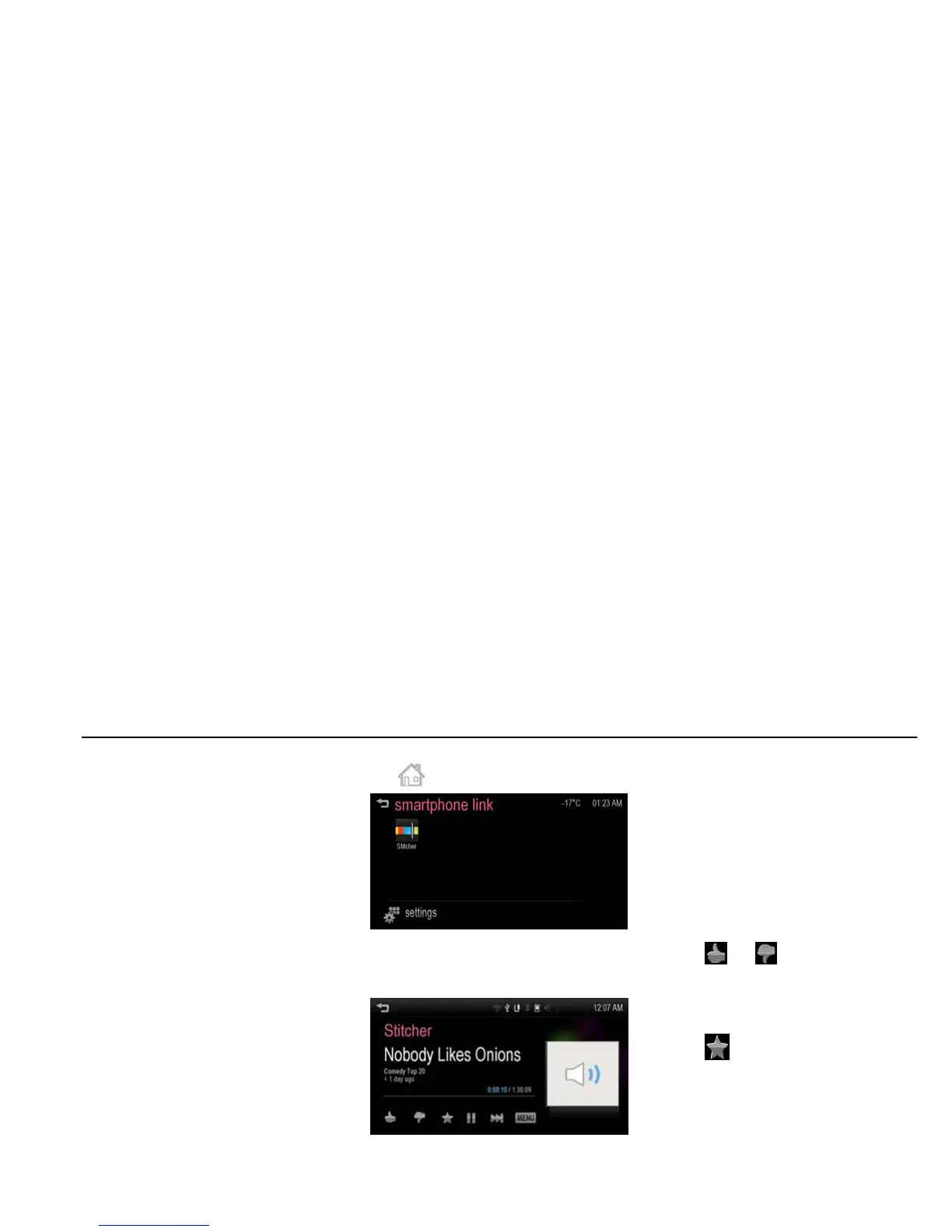
4. To play the Stitcher, press [HOME
( )] > [smartphone link].
[function smart_J300 EU]
5. Press [Stitcher].
6. The Stitcher screen is displayed.
[stitcher playing_J300 EU]
Note
If smartphone is not connected to the
Infotainment system or application is not
installed in the smartphone, the Stitcher
menu is not activated.
Thumbs up and thumbs down
[Level 4]
You can rate songs using thumbs up
and thumbs down.
Press [
] or [ ] on the Stitcher
screen.
Saving the favorite station [Level 4]
Press [ ] to save the station as a
favorites station.
Pause [Level 4]
Press [w] during playback. Press [r] to
resume playback.
Moving to the next station [Level 4]
Press [l] to move to the next station.



 To Next Page