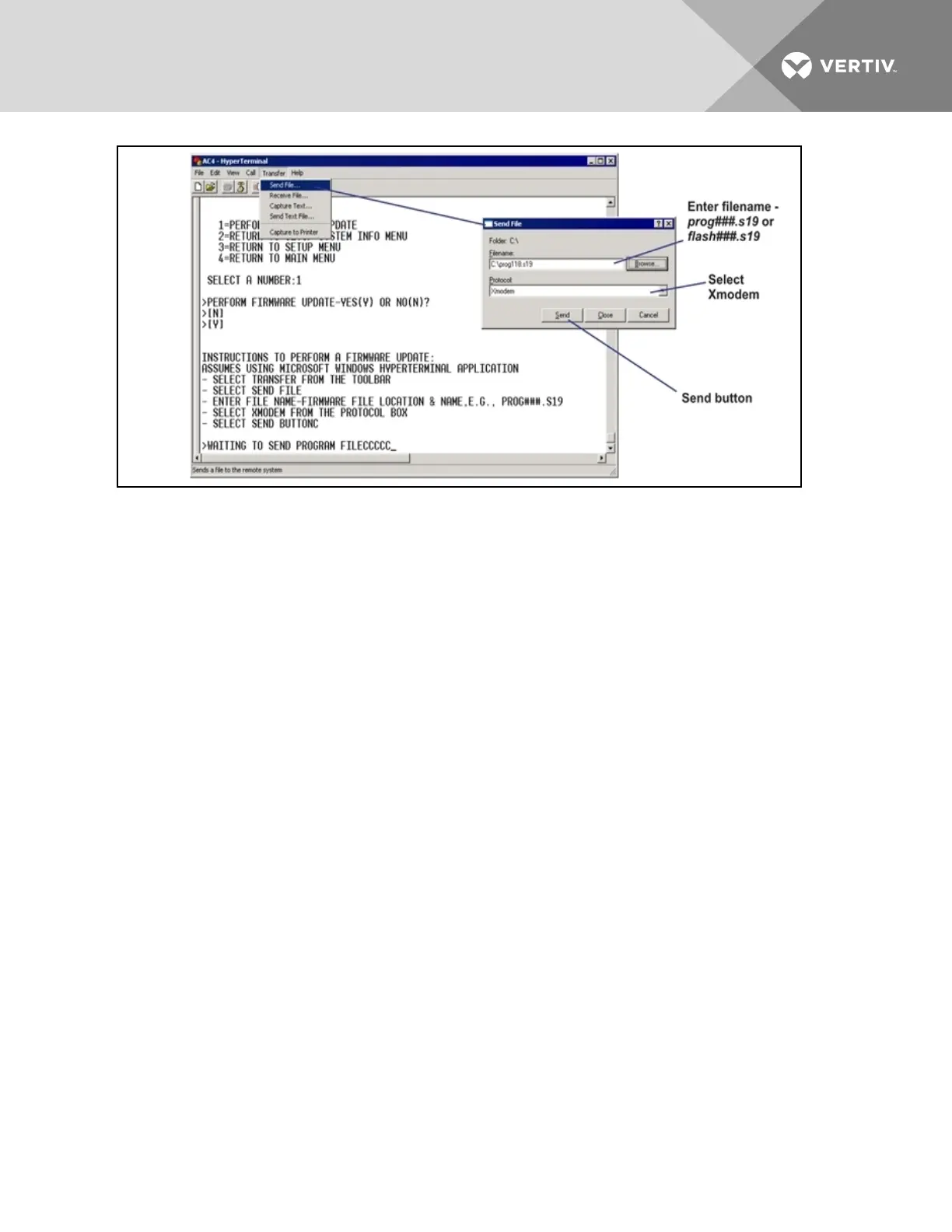
b. In the Send File window, as shown above:
•In the Filename box, enter the full path of the file to be uploaded—prog###.s19—or click on
the Browse button to locate the file.
•In the Protocol box, select Xmodem from the drop-down list.
•Click on the Send button. (To close the window without sending the file, click on Close or
Cancel.)
•When the transfer is complete, a confirmation message appears in the Service Terminal
Interface window.
3. Next, follow these steps to upload the file flash###.s19 (where ### is a number—for example,
flash512.s19) to the Liebert AC4:
a. At the top of the HyperTerminal window, shown above, click on Transfer, then on Send
File.
b. In the Send File window, shown above:
•In the Filename box, enter the full path of the file to be uploaded—flash###.s19—or click on
the Browse button to locate the file.
•In the Protocol box, select Xmodem from the drop-down list.
•Click on the Send button. (To close the window without sending the file, click on Close or
Cancel.)
•When the transfer is complete, a confirmation message—“Firmware Update Successful”—
appears in the Service Terminal Interface window and the Liebert AC4 reboots with the new
firmware update.
Vertiv | Liebert® AC4 User Manual | 59


 To Next Page