4. Reviewing/Exporting Data
Reviewing/Exporting Data on the QUANTOM Tx
™
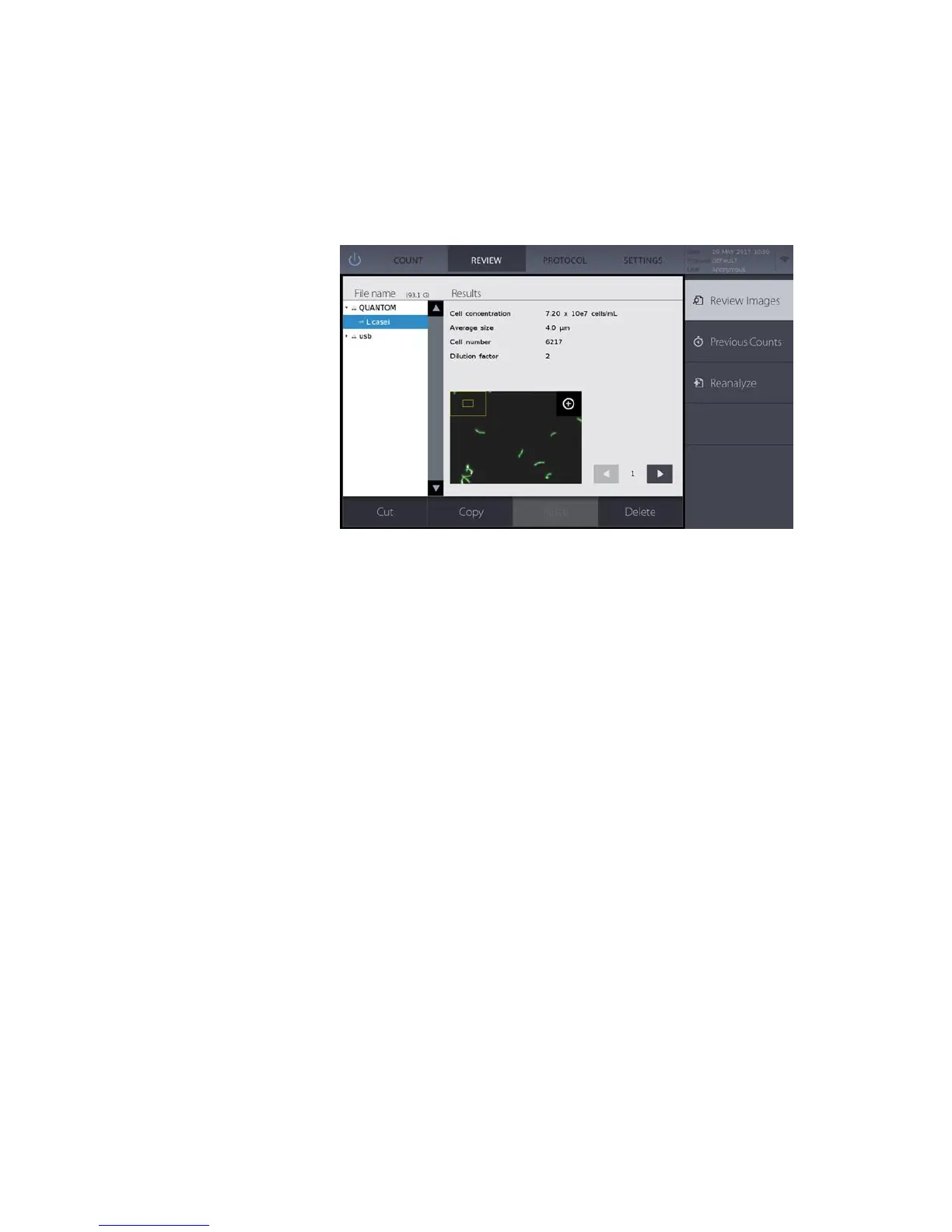
Press REVIEW in the menu bar.
Press Review Images to view data from a QUANTOM Tx
™
-generated folder.
Select a folder from the SSD drive or a USB drive. Cell count results and corresponding
images will appear.
Press the icon in the upper right corner of the image to enlarge. Zoom in or out by moving
two fingers farther apart or closer together while touching the display.
Scroll through the captured images using the arrows to the right of the image.
To transfer files to a USB drive or delete files from the SSD drive, use the command
buttons at the bottom of the screen.
Press Previous Counts to see a list of previous counts.
A summarized version of each count is save onboard automatically as numerical data.
Press Export to USB to save each count as a CSV file to a USB drive. A USB drive must
be connected to a USB port.
Press Erase All to delete all stored counts.
To recount captured images with a different protocol, first load the desired protocol.
Press Review Images to view data from a QUANTOM Tx
™
-generated folder.
Select a folder from the SSD drive or a USB drive. Raw cell count images must be
available.
Press Reanalyze to reanalyze the image with the loaded protocol.


 To Next Page