QUANTOM Tx
™
models with serials numbers that end in 01-38 (ex: QTX-16-00038)
should use QUANTOM
™
Utility and models with serial numbers that end in 39 and above
should use FileZilla, the FTP freeware described below. The serial number can be found
on the back of the QUANTOM Tx
™
.
Computer requirements
Operating system: Windows 7, 32-bit; Windows 10, 32-bit
Display size: 1280 x 1024 pixels
Internet: WiFi connection
Installation
1. Download QUANTOM
™
Utility software from www.logosbio.com and install
on a compatible PC.
2. Connect QUANTOM Tx
™
to a WiFi network (pg. 18). Make note of the
QUANTOM Tx
™
IP address.
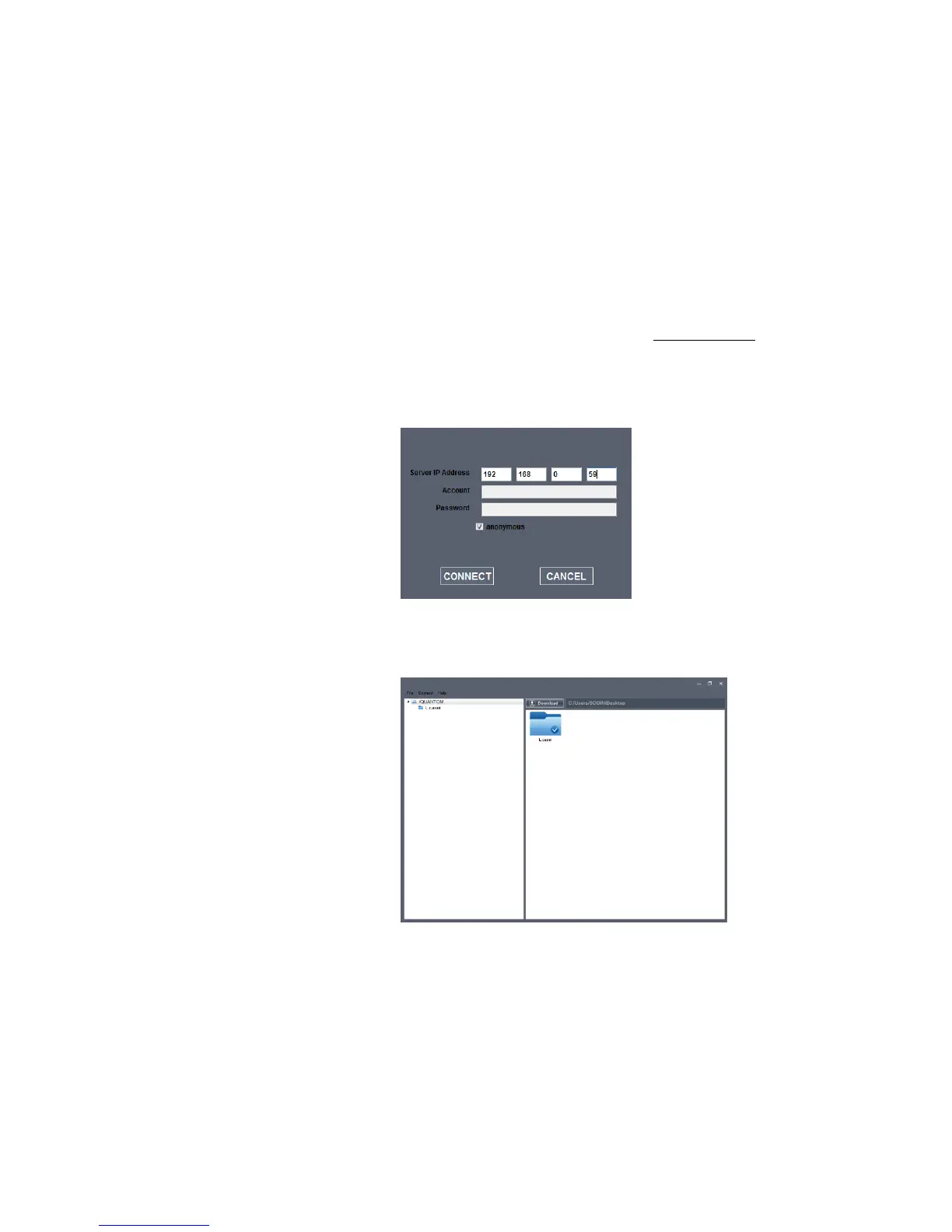
3. Open QUANTOM
™
Utility and select Connect in the menu bar.
4. Enter the QUANTOM Tx
™
IP address. The PC must be connected to the same
WiFi network as the QUANTOM Tx
™
. If the 21 CFR Part 11 Package
(Q11001) has been installed to the QUANTOM Tx
™
, a user name and
password will need to be entered to access data. Click CONNECT.
5. Select folders/files saved to the QUANTOM Tx
™
. Click Download to import
to your PC.
6. Once downloaded, double-click on files to enlarge images. Click the Details
button in the upper right corner to see the metadata associated with the image.
7. For more details on using QUANTOM
™
Utility, select Help in the menu bar or
press F1 on the keyboard.


 To Next Page