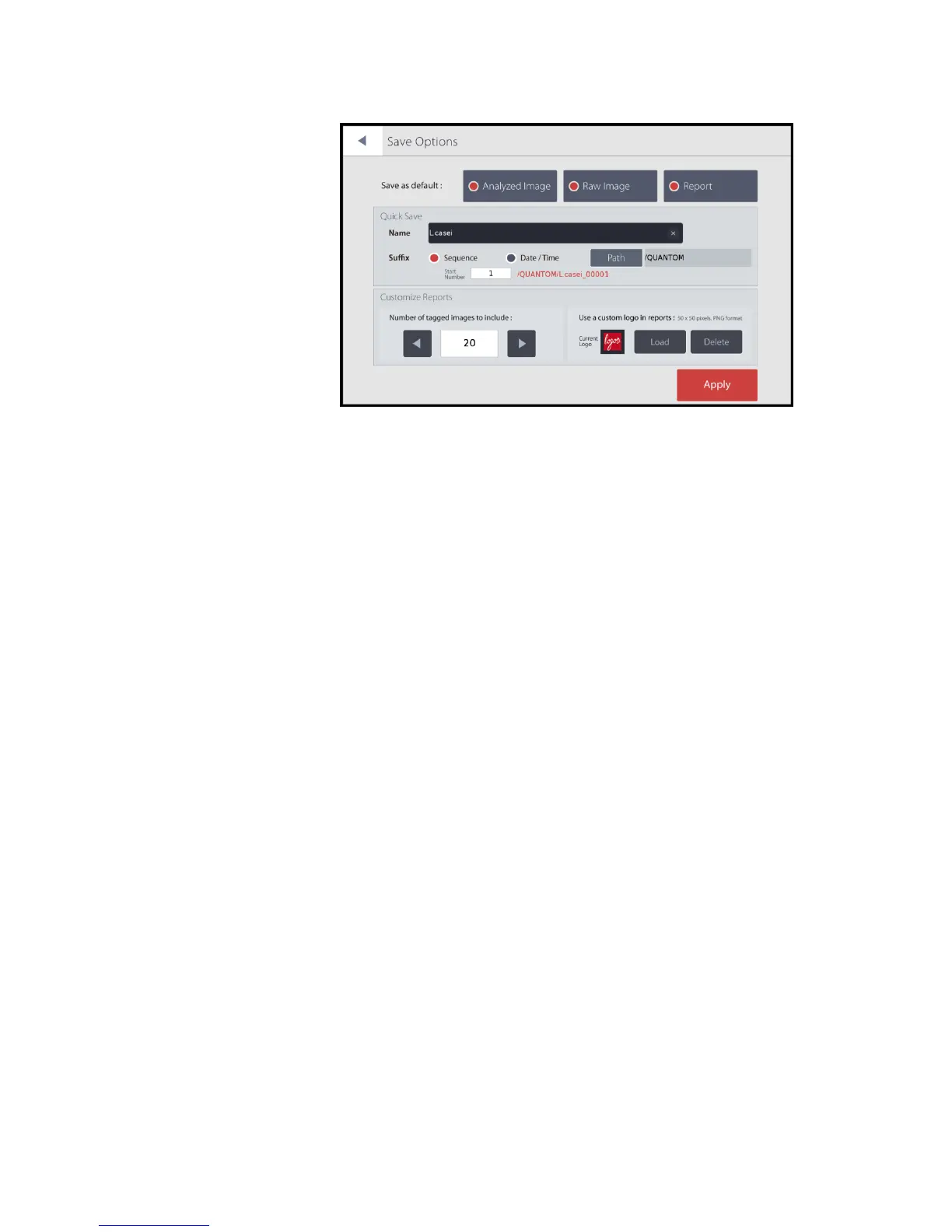
Save Options allows the user to preset the type of file(s) saved, how to save files in quick
save mode, and the option to customize data reports.
Save As Default
Select the desired saving options and press Save.
Analyzed Image Select to save tagged image(s) of cells.
Raw Image Select to save untagged image(s) of cells.
Report Select to save comprehensive data reports.
Quick Save
Set Quick Save defaults:
Name
Using the onscreen keyboard, enter the desired default file name prefix.
Suffix
Users may select Sequence to add numbers to the predetermined name upon
quick saving or Date/Time to add the date and time to the name.
Path
Press Path to determine the default quick save location. To create a new folder,
click the folder icon in the File Path window.
Customize Reports
Select the number of images to save to data reports. The number of images saved cannot
exceed the number of captured images.
Data reports can be customized to include your organization’s logo. Save a 50 x 50 pixel
logo in PNG format to a USB drive. Connect the USB drive to a USB port. Use the USB
drive supplied with the instrument or use a USB 2.0.
Press Load Logo. Select the logo file. Press Save.
Count data saved to the QUANTOM Tx
™
SSD drive can be accessed via WiFi through the
recommended FTP freeware (pg. 14).
Connect the supplied WiFi dongle to a QUANTOM Tx
™
USB port.
Open WiFi Options.


 To Next Page