39
To do this, use the Power Saving command. Just remember the higher
your Power Saving setting, the less reliable your position information
on the map display.
To access the Power saving feature in Easy Mode press
MENU|↓ to
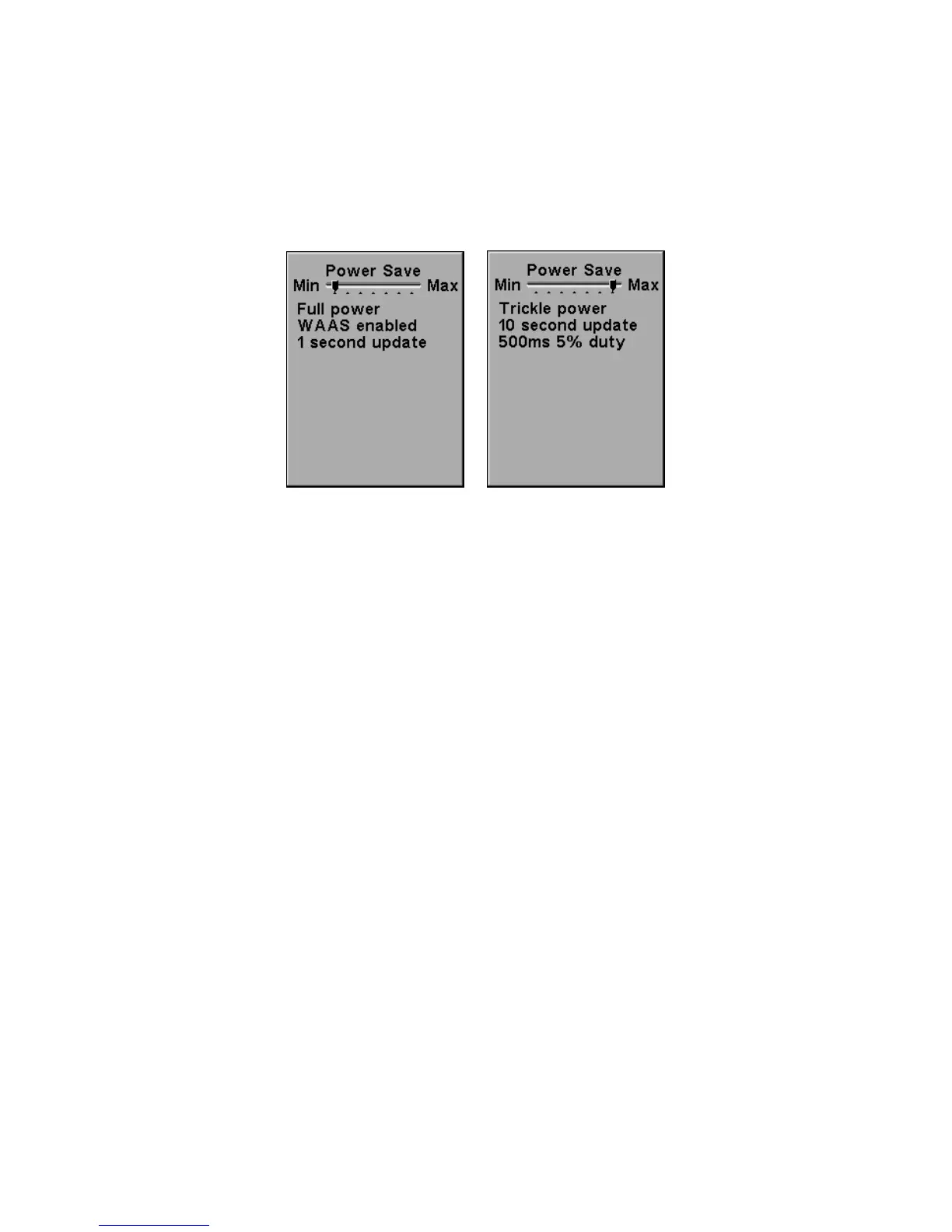
POWER SAVING|ENT. Press → or ← to move the slider bar.
To return to the main page display, press
EXIT repeatedly.
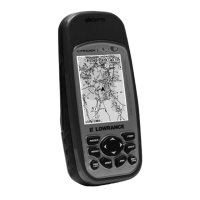
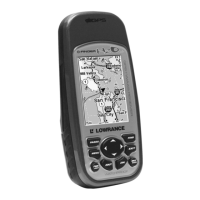
Power save set to minimum power (left)
and Max power (right).
Transfer Custom Maps and GPS Data Files
Custom Maps:
Custom maps work only from a MMC or SD card. When a card con-
taining a Custom Map File is loaded into the unit, the iFINDER auto-
matically loads the map into memory when you turn on the unit.
GPS Data Files:
GPS Data files contain waypoints, routes, trails and event marker
icons. Instructions for copying GPS Data Files between your computer
and an MMC are contained in the instruction manual for your MMC
card reader and MapCreate 6 software.
GPS data automatically recorded in the unit's internal memory must be
saved to the MMC (as a GPS Data File) in order to store it on your per-
sonal computer. GPS Data Files stored on an MMC must be copied from
the card to the iFINDER's internal memory before the unit can read
them. Here's how:
1. Insert the MMC into your unit. Press
MENU|↓ to TRANSFER MY
DATA|ENT and the screen below appears.



 To Next Page