52
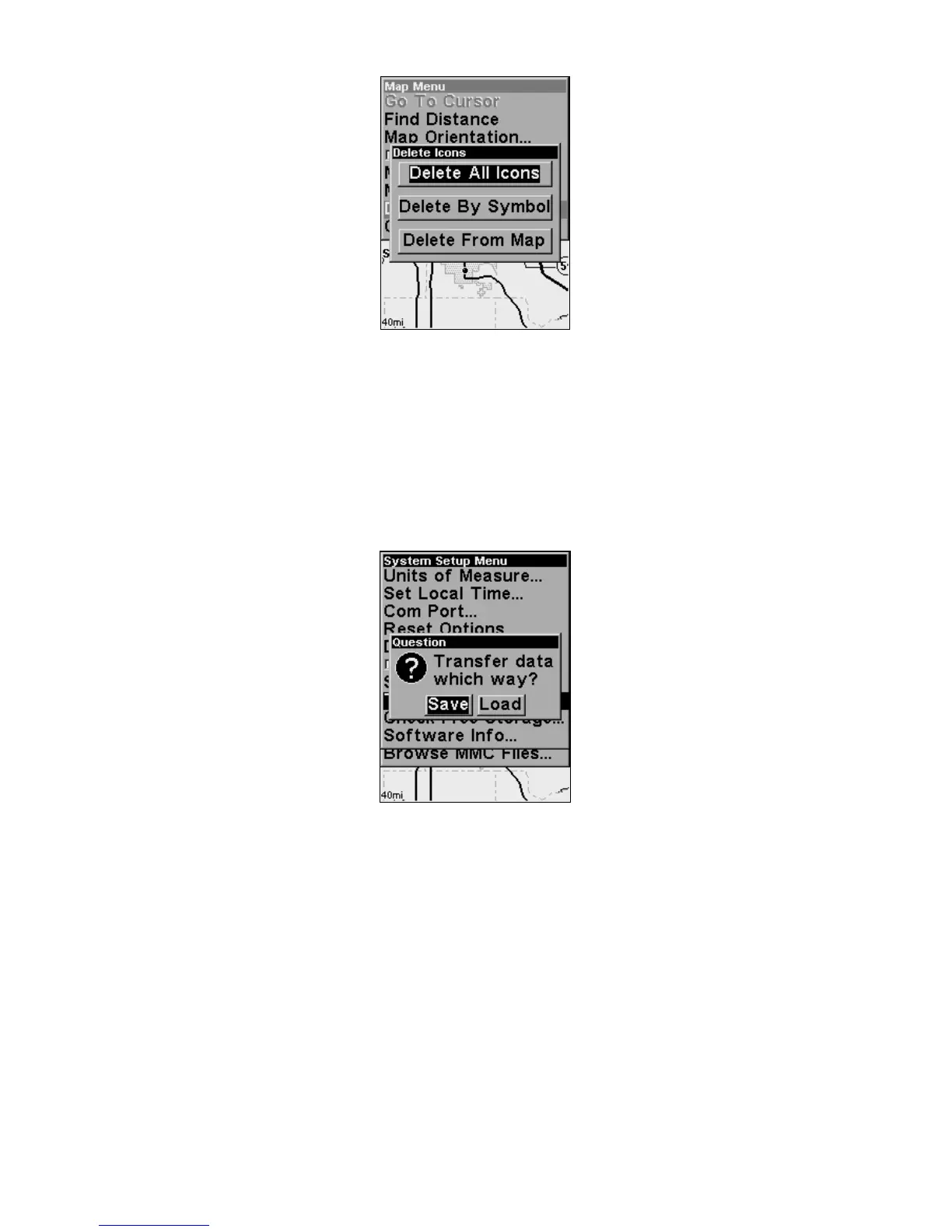
Delete icons menu.
Load GPS Data Files from an MMC
GPS Data files, containing waypoints, routes, trails and event marker
icons, must be copied from an MMC to the iFINDER's internal memory
before the iFINDER can read them. Here's how:
1. Press
MENU|MENU|↓ to SYSTEM SETUP|ENT|↓ to TRANSFER MY DATA|ENT
and the screen below appears.
The Transfer My Data menu asks if you want to save data to the MMC
or load data from the MMC into the iFINDER's memory.
2. If no MMC is present, you must insert a card into the iFINDER to
activate the
LOAD or SAVE commands.
To load data from the MMC to the iFINDER, press → to
LOAD|ENT.
3. Loading: There may be more than one GPS Data File (*.USR) on the
card. To select a file, press
ENT to activate the selection box, use ↓ ↑ to
highlight the file, then press
ENT to accept the selection. Next, press ↓ to
LOAD|ENT. To return to the main page display, press EXIT repeatedly.
2. Saving: To accept the default name Data for the GPS Data File,
press ↓ to
SAVE|ENT. If you wish to rename the file (as in the example
below), press
ENT to activate the selection box.



 To Next Page