10
TT24 DIGITAL LIVE CONSOLE
TT24 DIGITAL LIVE CONSOLE
Adjust EQ, Dynamics, and channel
routing
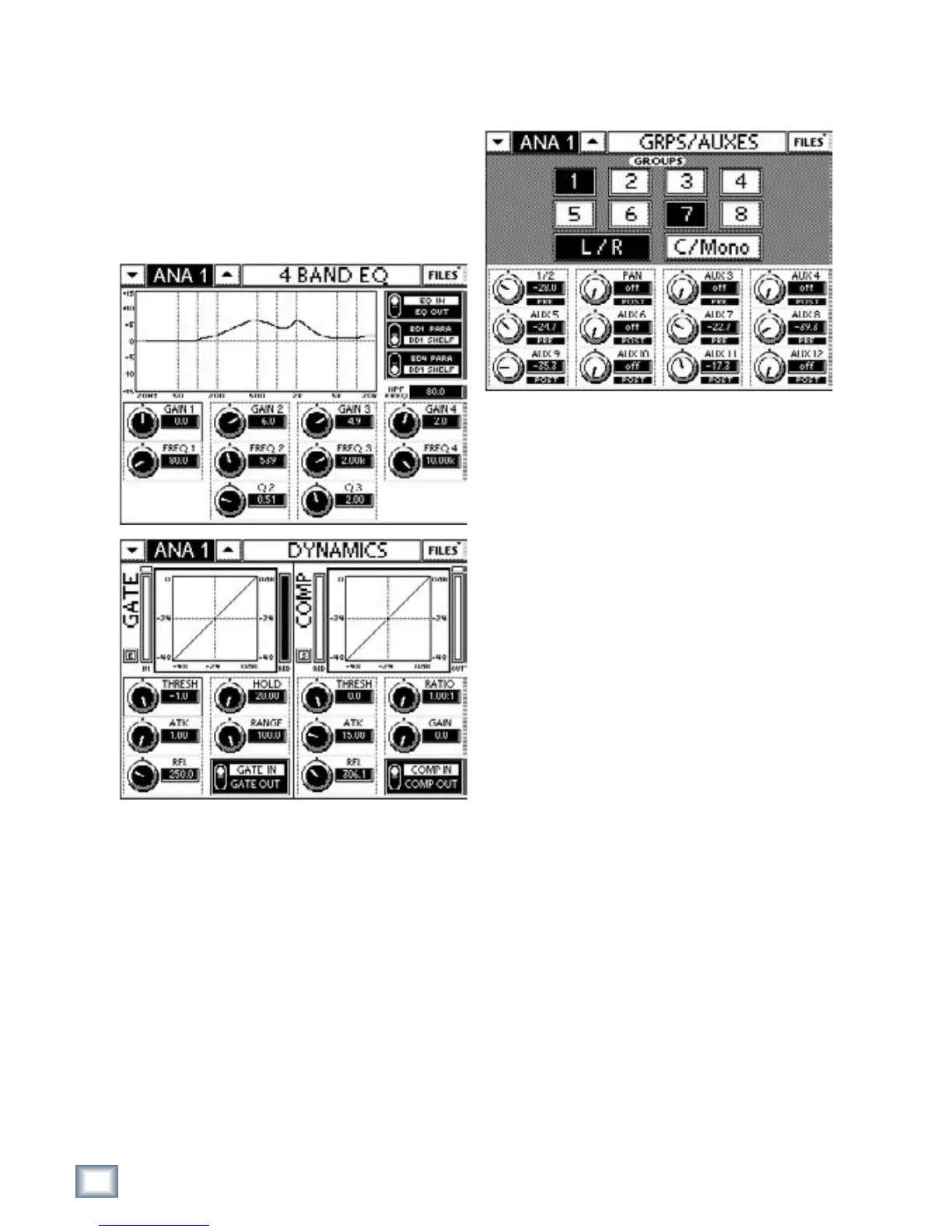
1. With channel 23 and 24 selected, press the EQ but-
ton in the QuickMix area to display the 4-BAND EQ
Touchscreen (Figure 2-7).
2. Select the EQ IN toggle switch to enable EQ.
3. Use the 12 QuickMix knobs to adjust the EQ param-
eters.
4. Press the DYN QuickMix button to display the
DYNAMICS Touchscreen (Figure 2-7).
5. Select the GATE IN and COMP IN toggle switches
on the Touchscreen to engage the processors.
6. Use the 12 QuickMix knobs to adjust the dynamics
parameters.
Touch the Gate or Compressor Touchscreen graph
to display their more detailed Touchscreen.
7. Press the GRP/AUX QuickMix button to display the
GRPS/AUXES Touchscreen (Figure 2-8).
8. Route the selected channel to Groups 1–8, L/R,
and C/Mono by selecting their buttons from the
GROUPS area in the top-half of the Touchscreen.
9. Adjust the selected channel’s Aux send levels using
the QuickMix knobs.
10. Push the QuickMix knobs to toggle each Aux send
between pre- and post-fader.
2.4 Aux Functions
This section discusses how to setup, route, and mix
the Aux buses. Each of the 12 Aux masters have their
own EQ and compressor/limiter.
1. Press the AUX MSTR button (Figure 2-4) to display
the AUX MASTER Touchscreen.
2. Select Aux master 1 by pressing the top-left Quick-
Mix knob. Figure 2-9 (right) shows Aux 1 selected.
3. Touch the EQ graph or press the EQ QuickMix but-
ton to display the 6-BAND EQ for the selected Aux
send 1 (bottom of Figure 2-9).
The EQ IN/OUT button is located on the top-right
of the Touchscreen.
The six bands have the following format:
• bands 2 and 3 are full parametric filters (GAIN,
FREQ, Q);
• bands 1 and 4 are high-and low-shelf filters, respec-
tively;
• bands 5 and 6 are kill filters to remove narrow
bands of unwanted frequencies. Push the kill filter’s
QuickMix knob to cycle through -6, -12, or -18 dB
settings. As the amount of cut increases, the filter Q
increases (i.e., bandwidth narrows). Turn the knob
to adjust the frequency.
Figure 2-7 4-Band EQ (top) and Dynamics
Touchscreens (bottom)
Figure 2-8 GRPS/AUXES Touchscreens


 To Next Page