42
TT24 DIGITAL LIVE CONSOLE
TT24 DIGITAL LIVE CONSOLE
6.8 Snapshots
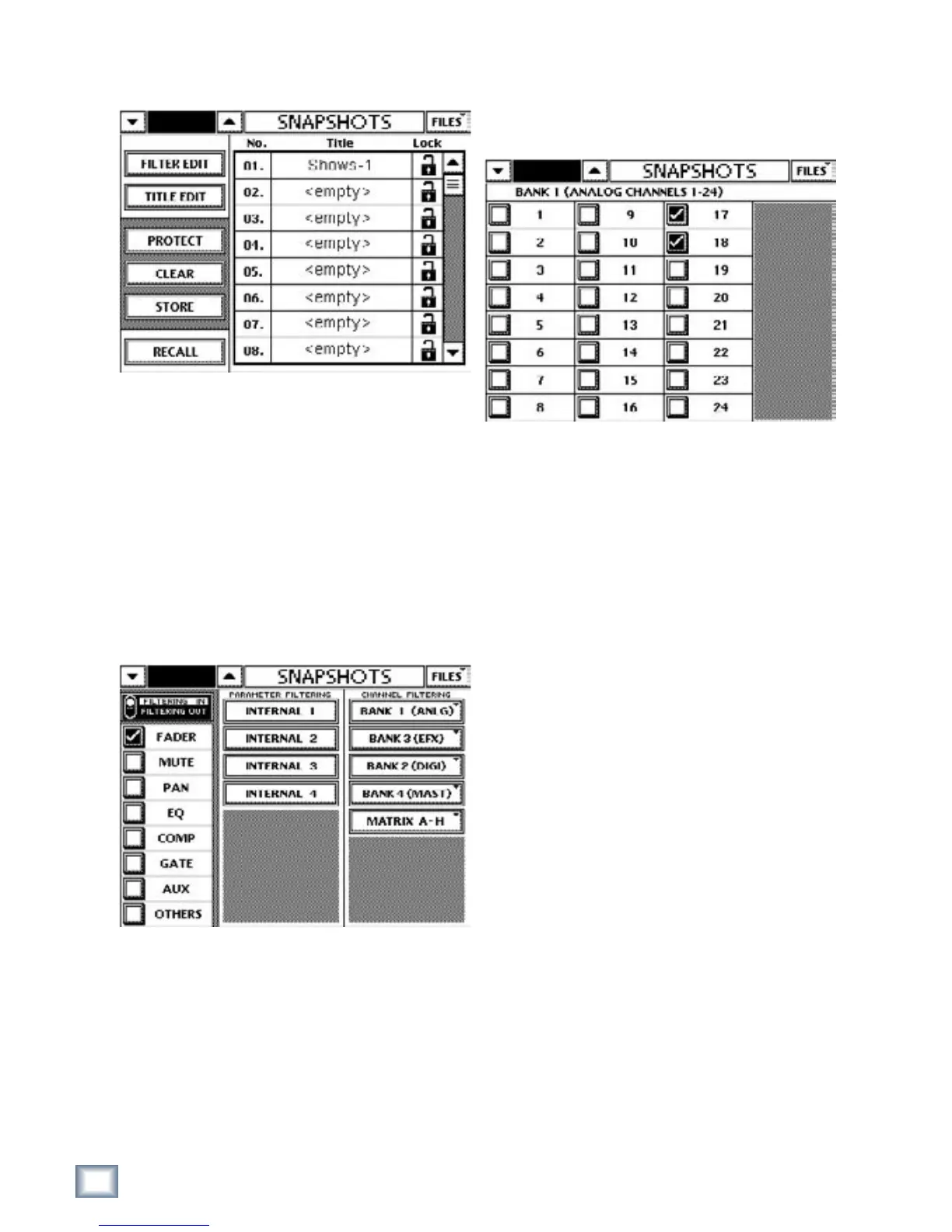
Figure 6-17 SNAPSHOTS Touchscreen
Press the SNAP QuickMix button to open the SNAP-
SHOTS Touchscreen. The right side of the screen
displays a vertical list of all snapshots with FILTER
EDIT, TITLE EDIT, PROTECT, CLEAR, STORE, and
RECALL buttons to the left (Figure 6-17).
Touch a snapshot name in the SNAPSHOT TITLE
field to select it. An empty snapshot slot displays Empty
while a used snapshot displays Snapshot n where n is
the automatically incremented snapshot number.
6.8.1 FILTER EDIT
Figure 6-18 SNAPSHOTS FILTER EDIT Touchscreen
Press the FILTER EDIT button to access the specific
filtering screens. The TT24 offers the ability to filter mix
elements like mute, fader, pan, EQ, compressor, gate,
auxes, and others on a per snapshot basis.
When any of the elements are selected in the filter
edit screen, they are not affected when that snapshot is
recalled.
Additionally, internal EFX and individual input and
output channels can be filtered out of snapshot recall as
well through the channel filtering section on the filter
edit screen.
Note: All filter settings apply to an individual snapshot.
Figure 6-19 SNAPSHOTS Channel Filtering Touchscreen
6.8.2 TITLE EDIT
Press the TITLE EDIT button to change the name of a
snapshot from the default Snapshot n. When the “Enter
new snapshot name” screen appears, type in the new name
using the keypad on the screen and press OK to finish.
6.8.1 PROTECT
The PROTECT button allows the user to prevent a
snapshot from being cleared or overwritten. To protect
a snapshot:
• select a snapshot then click the PROTECT button;
OR
• click in the LOCK column next to the desired snap-
shot.
When protected, a lock icon appears in the LOCK
column to the right of the snapshot name. The absence
of an icon next to a snapshot denotes that it can be de-
leted or overwritten. In Figure 6-17, snapshots 1, 2, and
5 are locked and the rest are unlocked.
To edit or clear a locked snapshot:
• select it and click the PROTECT button;
OR
• click the lock icon.


 To Next Page