23
Why the Ultrasonic Obstacle Avoidance Mode doesn’t work
on mBot
If you find your mBot cannot avoid obstacle when you set it in Ultrasonic Obstacle Avoidance
mode, please follow below steps to do troubleshooting.
1. Make sure the ultrasonic module is connected to Port 3 (required by default program).
2. Double check the wiring of the ultrasonic module and make sure the connection is firm and
well. Check whether the red indicator of the ultrasonic module is on. If not, the problem is caused
by wiring.
3. Press button B on the IR remote control to enter Ultrasonic Obstacle Avoidance Mode if you
use the IR remote controller. When it set in Ultrasonic Obstacle Mode, onboard light should be
green on.
4. Refer to this FAQ to reset default program to have a try.
5. Make sure the battery on mBot can provide enough power.
According to our test and research, it is suggested to use rechargeable Li-ion battery or
rechargeable nickel-metal hydride, nickel-cadmium which can be bought from amazon or local
shop. Or Alkaline battery with good quality like Energizer, DURACELL.
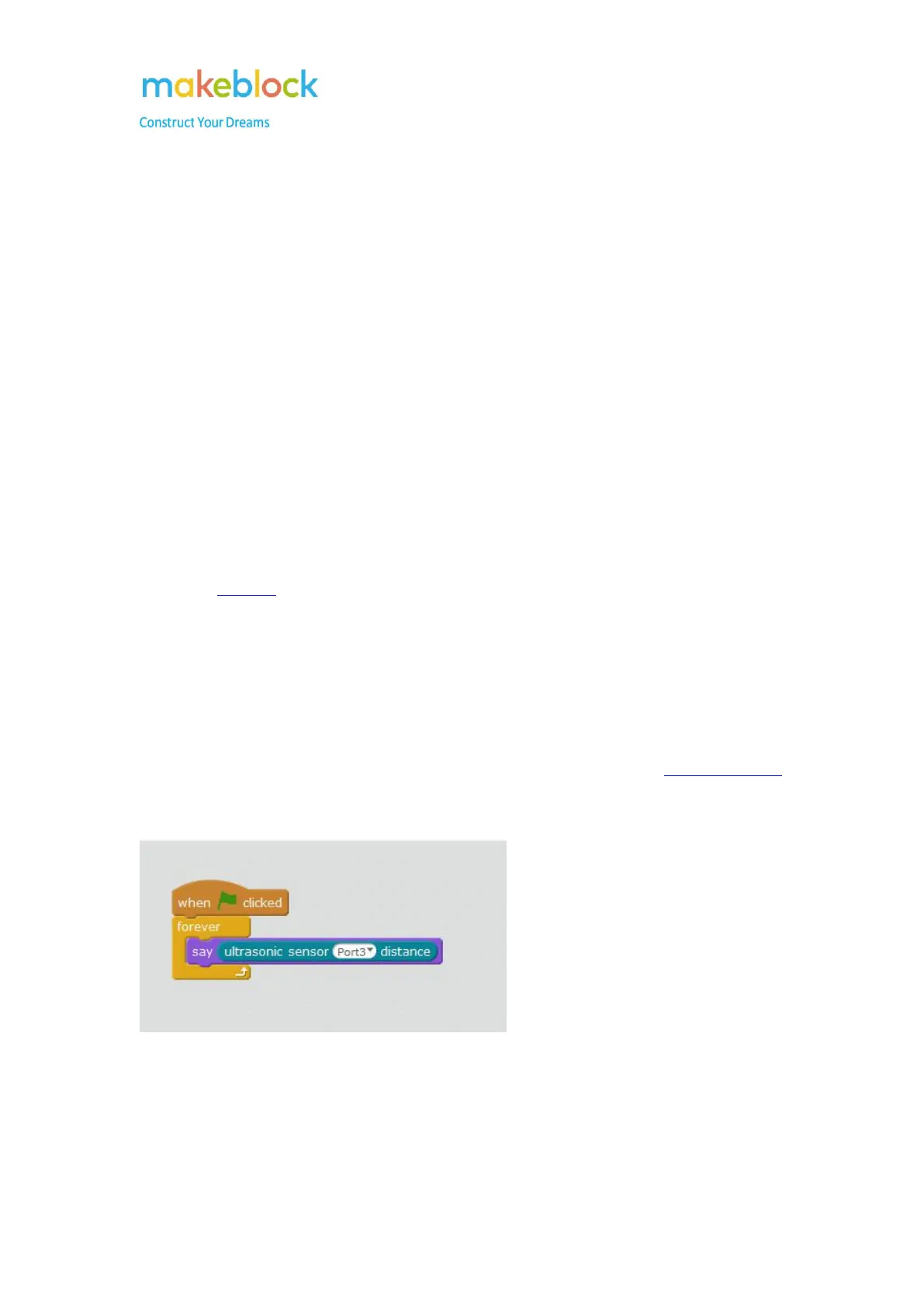
6. Write below example program to test the Ultrasonic module. First of all, upgrade firmware,
then click on green flag and move your hand at the front of the Ultrasonic sensor to check the
distance from panda.
Notes: Here the ultrasonic module is connected to port 3.
If it is always 400, that means the module maybe faulty. But you may try to change to port 4 or try
with another RJ25 cable in case faulty cable or port.


 To Next Page