EasyManua.ls Logo

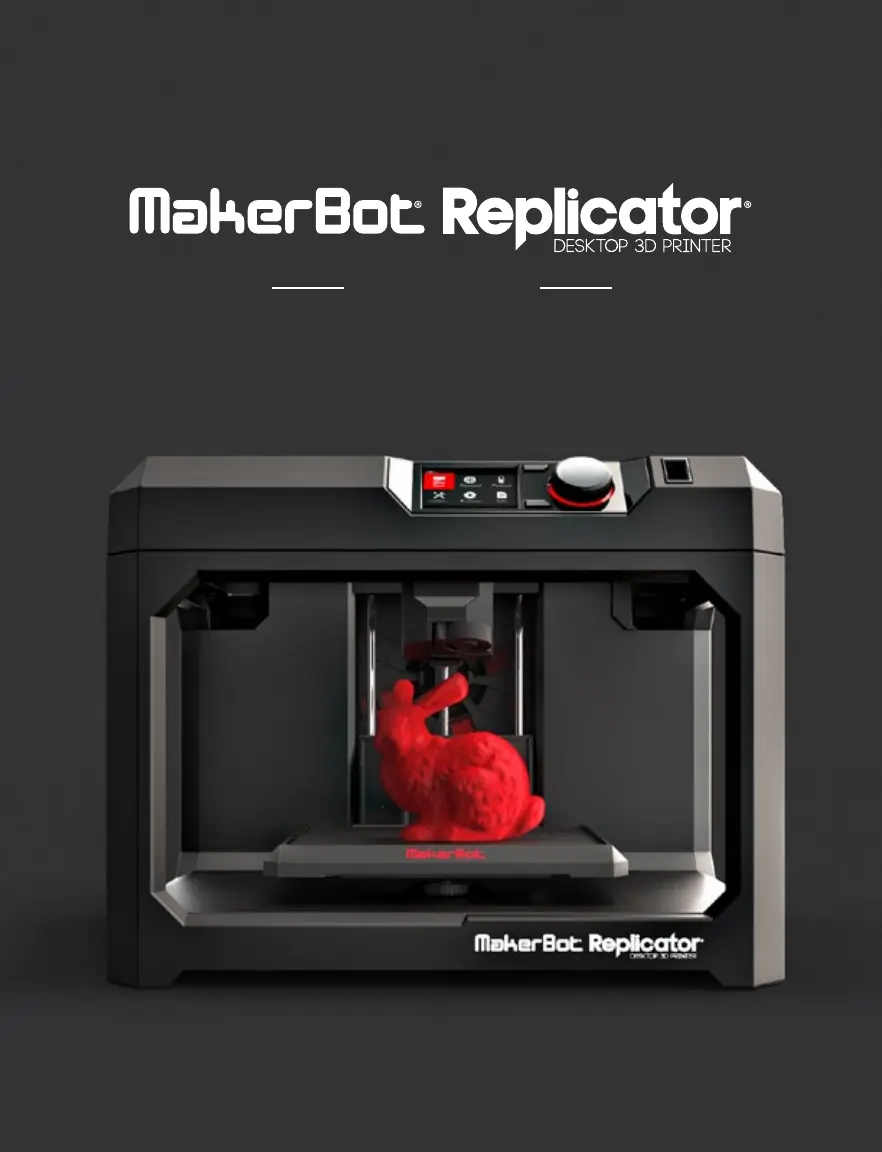
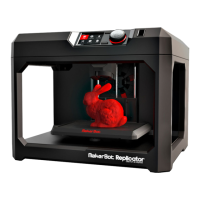
MakerBot Replicator - User Manual

MakerBot Replicator
61 pages
Print Icon
To Next Page IconTo Next Page
Loading...
USER MANUAL

Other manuals for MakerBot Replicator

Questions and Answers

  • L
    Lisa McconnellSep 7, 2025
    What to do if the touchscreen doesn’t respond on MakerBot Replicator?
    • M
      Mary McguireSep 7, 2025
      The control panel screen on the MakerBot® Replicator® Desktop 3D Printer is not a touchscreen. Turn the dial to scroll through the available options on the screen. Press the dial to select.
  • J
    Jonathan RiveraAug 22, 2025
    How to connect MakerBot Desktop to MakerBot Replicator 3D Printers?
    • D
      doyleamberAug 22, 2025
      If your MakerBot Replicator is connected to a network, but MakerBot Desktop only allows exporting, establish a connection within MakerBot Desktop. Go to Devices > Connect to MakerBot, select your printer, and click Connect. Confirm the connection by pushing the dial on your MakerBot Replicator when prompted.
  • R
    robertjordanSep 4, 2025
    What to do if the filament won’t extrude from the Smart Extruder of MakerBot Replicator 3D Printers?
    • R
      Rhonda GraySep 5, 2025
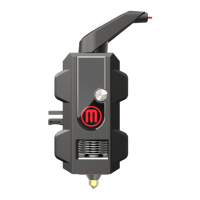
      If filament won’t extrude from the Smart Extruder of your MakerBot 3D Printer, try unloading and reloading the filament. To possibly prevent future jams, allow the Smart Extruder to cool before turning off your MakerBot Replicator.
  • C
    Cassandra NelsonSep 3, 2025
    Why does filament break between the spool and the MakerBot Replicator Smart Extruder?
    • A
      Albert ClaytonSep 3, 2025
      If the filament breaks between the spool and the MakerBot Replicator Smart Extruder, open the filament drawer and ensure the filament unwinds counterclockwise. Also, check that the filament guide tube is not twisted or bent, and make sure to unload any filament left in the Smart Extruder before reloading.
  • B
    Brandon HarrisSep 2, 2025
    Why can’t I access the Library, Explore, and Store sections of MakerBot Desktop for MakerBot 3D Printers?
    • J
      Jim HaynesSep 2, 2025
      If you can't access the Library, Explore, and Store sections of MakerBot Desktop, you may not be logged into your MakerBot account, as these features are only accessible when logged in. If you are logged in and still can't access them, your computer may not be connected to the internet.
  • M
    Matthew HarrisAug 31, 2025
    Why MakerBot Desktop only allows me to export, not print, although my MakerBot Replicator is connected to a network?
    • J
      James DonovanAug 31, 2025
      If the MakerBot Replicator is connected to a network, but MakerBot Desktop only allows exporting and not printing, you might not have established a connection between MakerBot Desktop and your MakerBot Replicator. To fix this, in MakerBot Desktop, navigate to Devices > Connect to a New Device. Select your MakerBot Replicator from the list and click Connect. When prompted, confirm the connection by pushing the dial on your MakerBot Replicator.
  • M
    mdorseyAug 30, 2025
    Why does the object peel off the build plate during printing with MakerBot Replicator?
    • T
      Timothy BeanAug 30, 2025
      If objects peel off the build plate of your MakerBot 3D Printer during printing, it may be due to inconsistent plate height. Relevel the build plate to ensure consistent adhesion. Also, ensure the build plate is clean by wiping it down with a lint-free cloth to remove dust, oil, or tears in the blue tape. Consider using a raft to provide a consistent build surface.
  • J
    Joshua AllenAug 29, 2025
    How to remove filament from the MakerBot Replicator Smart Extruder of MakerBot 3D Printers?
    • B
      bridget88Aug 29, 2025
      To remove filament from the MakerBot Replicator Smart Extruder of your MakerBot 3D Printer, try unloading the filament while squeezing the tabs on the side of the Smart Extruder and pulling on the filament.
  • M
    Mark JonesAug 27, 2025
    What to do if my front door popped off MakerBot Replicator 3D Printers?
    • M
      Matthew HowardAug 27, 2025
      If your front door popped off your MakerBot 3D Printer, simply snap it back onto its hinges. The front door is designed to pop off without being damaged.
  • R
    Richard ThomasAug 26, 2025
    Why does object peel off the build plate during printing with MakerBot Replicator?
    • A
      Allison MccarthyAug 26, 2025
      To resolve peeling, ensure the build plate of your MakerBot 3D Printer is clean. Dust, oil from your hands, or imperfections in any tape can prevent objects from sticking. Wipe the build plate with a clean, lint-free cloth.

Summary

Safety and Compliance

Important Safety Precautions

Key warnings and cautions for operating the MakerBot Replicator safely.

About the MakerBot Replicator

Getting Started

Unpacking the MakerBot Replicator

Step-by-step instructions for safely unpacking the 3D printer from its packaging.

Setting Up the MakerBot Replicator

Guide to installing the Smart Extruder and the filament spool.

Install the Spool of MakerBot PLA Filament

Detailed steps for correctly mounting and threading the filament spool.

Plug In and Power On

Steps for connecting the power cord and turning on the MakerBot Replicator.

Startup

Level the Build Plate

Procedure for leveling the build plate to ensure proper print adhesion.

Load Filament

Step-by-step guide on how to load filament into the Smart Extruder.

Print a Test Object

Instructions for printing a preloaded test object to verify functionality.

MakerBot Desktop

Downloading and Installing MakerBot Desktop

Guide to downloading and installing the MakerBot Desktop software on your computer.

Printing from MakerBot Desktop

Overview of the MakerBot Desktop software sections: Explore, Library, Prepare, and Store.

Print Settings and Options

Configuring resolution, raft, and supports for optimal print quality.

The Control Panel

Home Screen and Core Functions

Accessing Print, Filament, Utilities, Settings, and Info from the home screen.

Print: Select a File

Initiating a print by selecting a file from USB, internal storage, or cloud library.

Start Print Options

Choosing to print, view info, or copy a selected file from the file screen.

During a Print

Monitoring print progress, time, and accessing the print menu for pause or cancel.

Troubleshooting

MakerBot Replicator Specifications

General IconGeneral
Filament Diameter1.75 mm
Nozzle Diameter0.4 mm
Print TechnologyFused Deposition Modeling (FDM)
Layer Resolution100 microns
ConnectivityUSB, Wi-Fi
Supported MaterialsPLA
DisplayLCD display

Related product manuals