2.3: Initial Setup
Rev 2 10/21/19 11 41113427
7. Wait for the device to enumerate (1–4 minutes, typically).
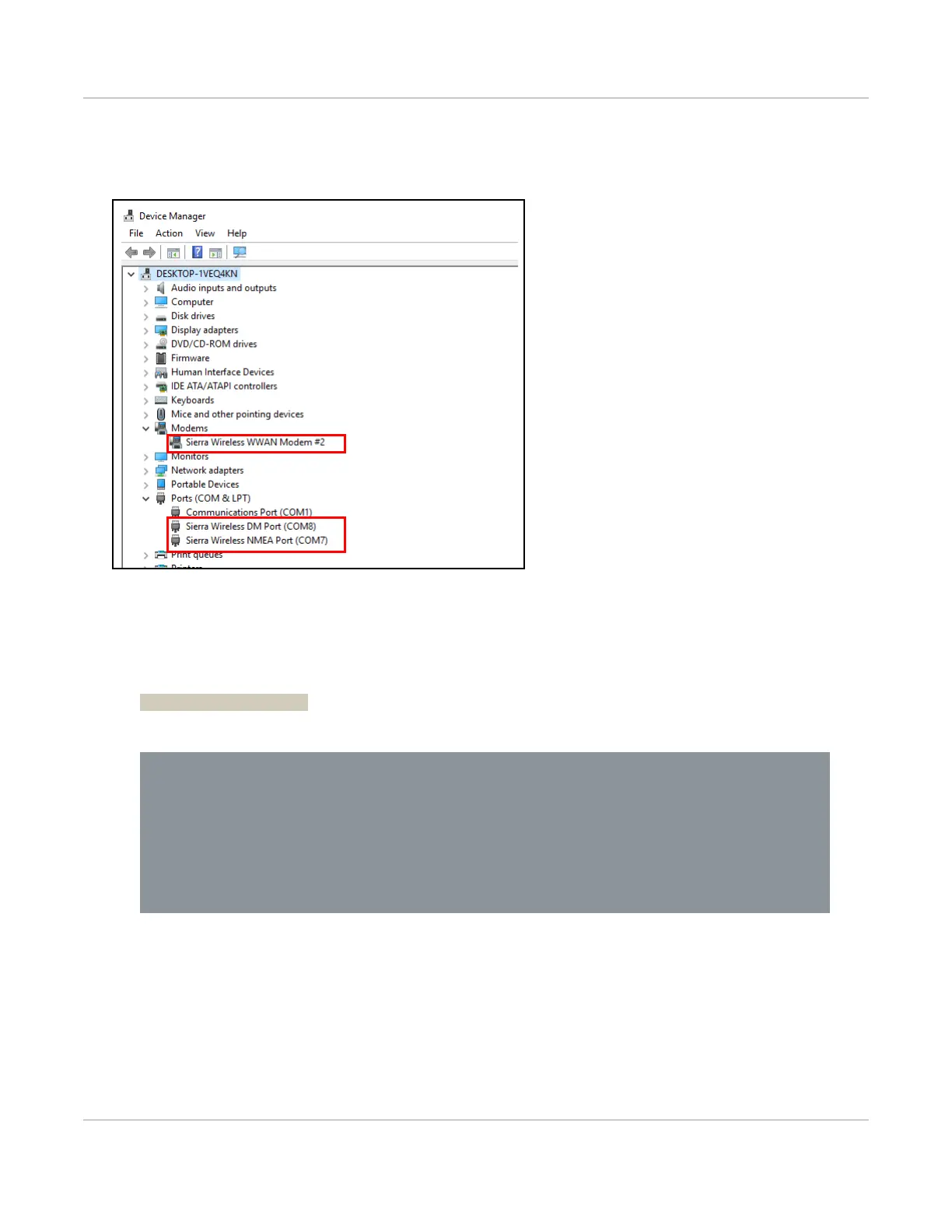
(Windows) You can confirm the device has enumerated by viewing Display Manager—the device appears
under Modems, and its COM ports appear under Ports (COM & LPT):
Figure 2-8: Windows Device Enumeration
8. Confirm the connection between the computer and mangOH Yellow is working:
a. Open a command prompt window. (e.g. Linux Terminal window, Windows command prompt).
b. Test the connection by ‘pinging’ the CF3 module (which has a default IP address of 192.168.2.2):
> ping 192.168.2.2
You should receive ping responses. Press Ctrl+C to return to the command prompt.
9. Optionally, use a mini-USB cable to connect the remaining mangOH Yellow’s "CON" USB connector to your
computer. (This enables you to display diagnostic messages in one terminal window and work in another, as
described in Console Access on page 28.)
The mangOH Yellow is now ready to be used.
For information on additional hardware features, see Hardware Setup and Features on page 12.
C:\Windows\System32>ping 192.168.2.2
Pinging 192.168.2.2 with 32 bytes of data:
Reply from 192.168.2.2: bytes=32 time<1ms TTL=64
Reply from 192.168.2.2: bytes=32 time=1ms TTL=64
Reply from 192.168.2.2: bytes=32 time=2ms TTL=64
Reply from 192.168.2.2: bytes=32 time=2ms TTL=64
Ping statistics for 192.168.2.2:
Packets: Sent = 4, Received = 4, Lost = 0 (0% loss),
Approximate round trip times in milli-seconds:
Minimum = 0ms, Maximum = 2ms, Average = 1ms


 To Next Page