42
Playing a network audio
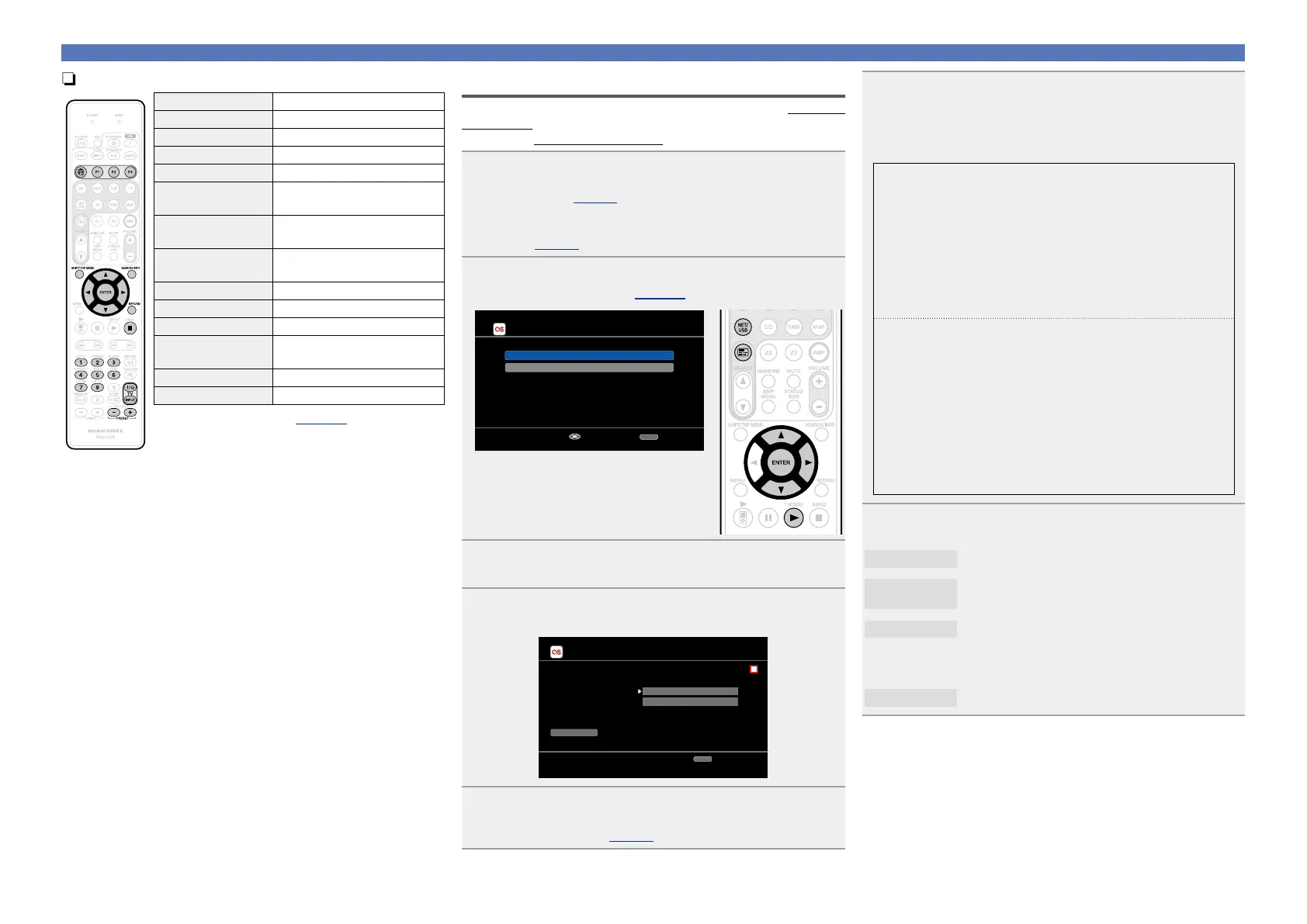
nFlickr operation
Operation buttons Function
V
Last played internet radio station
P1 – P3 Preset channel (1 – 3) selection
SHIFT/TOP MENU Preset channel block selection
SEARCH/INFO Page Search
z
uio p
Cursor operation /
Auto search (cue, ui)
ENTER
(Press and release)
Enter
ENTER
(Press and hold)
Stop
RETURN Return
2
Stop
1 – 8 Preset channel selection
TV Z / X
TV power on/standby
(Default : marantz)
TV INPUT Switch TV input (Default : marantz)
PRESET +, – Preset channel (A1 – G8) selection
•Slide show playback (vpage104 “Slide Show”)
z When the menu screen is displayed, press
SEARCH/INFO, then
press o (previous page) or p (next page).
To cancel, press ui or SEARCH/INFO.
How to listen to Last.fm on this unit
Last.fm radio is not available in all countries. Please check www.last.
fm/hardware for more information. You’ll also need a subscription. Get
one today at www.last.fm/subscribe.
1
Prepare for playback.
q Check the network environment, then turn on this unit’s
power (vpage14 “Connecting to a home network
(LAN)”).
w If settings are required, make the “Network Connect.”
(vpage92).
2
Press 3 to display the “Source Select” menu, then
select “Last.fm” (vpage 22).
Last.fm Account
I have a Last.fm account
I am new to Last.fm
Enter
RETURN
Cancel
•If you do not have a Last.fm account, press
i to select “I am new to Last.fm”. Then
press ENTER.
Create an account in accordance with the
instructions on the screen.
3
Press NET/USB to switch the remote control
operating mode to “NET/USB”.
4
If you have a Last.fm account, press ui to select “I
have a Last.fm account”. Then press ENTER or p.
Last.fm Account
OK
Enter Username
Username
Password
This service is currently
available in limited countries.
RETURN
Cancel
5
Use ui p to enter your username and password.
•For character input, see page78.
6
After inputting the username and password, select
“OK”, then press ENTER.
If the username and password match, the top menu for Last.
fm is displayed.
•The types of characters that can be input are as shown below.
Username:
GUpper case charactersH
ABCDEFGHIJKLMNOPQRSTUVWXYZ
GLower case charactersH
abcdefghijklmnopqrstuvwxyz
GSymbolsH - _
GNumbersH 0123456789
Password:
GUpper case charactersH
ABCDEFGHIJKLMNOPQRSTUVWXYZ
GLower case charactersH
abcdefghijklmnopqrstuvwxyz
GSymbolsH
! “ # $ % & ‘ ( ) z + , - . / : ; < = > ? @ [ \ ] ^ _ ` { | } ˜
GNumbersH 0123456789 (Space)
7
Use ui to select menu and then press ENTER.
Popular Stations
Play popular artists and tags in your area.
You Recent
Stations
Play your recent stations.
Your stations
You can play tracks from the following personalised
stations (“Your Recommended Radio”, “Your
Library”, “Your Friends’ Radio”, “Your Top
Artists”).
Search Stations
You can search station by Artist or Tag.




 To Next Page