4-4
User Guide
MC310 USER GUIDE I 5-14
5 Printing
5.1 Card Printing
Cards are usually printed and encoded by a Printer Application chosen by the User. However, if required, a
compatible non-proprietary application is available as an option for designing and printing cards. Cards can be
customized (logo, image and name) by creating graphic images and defining page formats.
The Printer Application recognizes the printer, allowing the User to create fully customized card jobs.
5.1.1 MC310 Printing preference
MC310 XPS driver printing preferences allow user to set the printer properties based on printing operation
requirement.
MC310 printing preference has following tabs,
Print setting tab
Card front setting tab
Card back setting tab
Mag encoding setting tab (* if Mag encoder module is installed in printer)
Lamination (* Based on Lamination installation with printer)
About tab
5.1.1.1 Print Setting tab
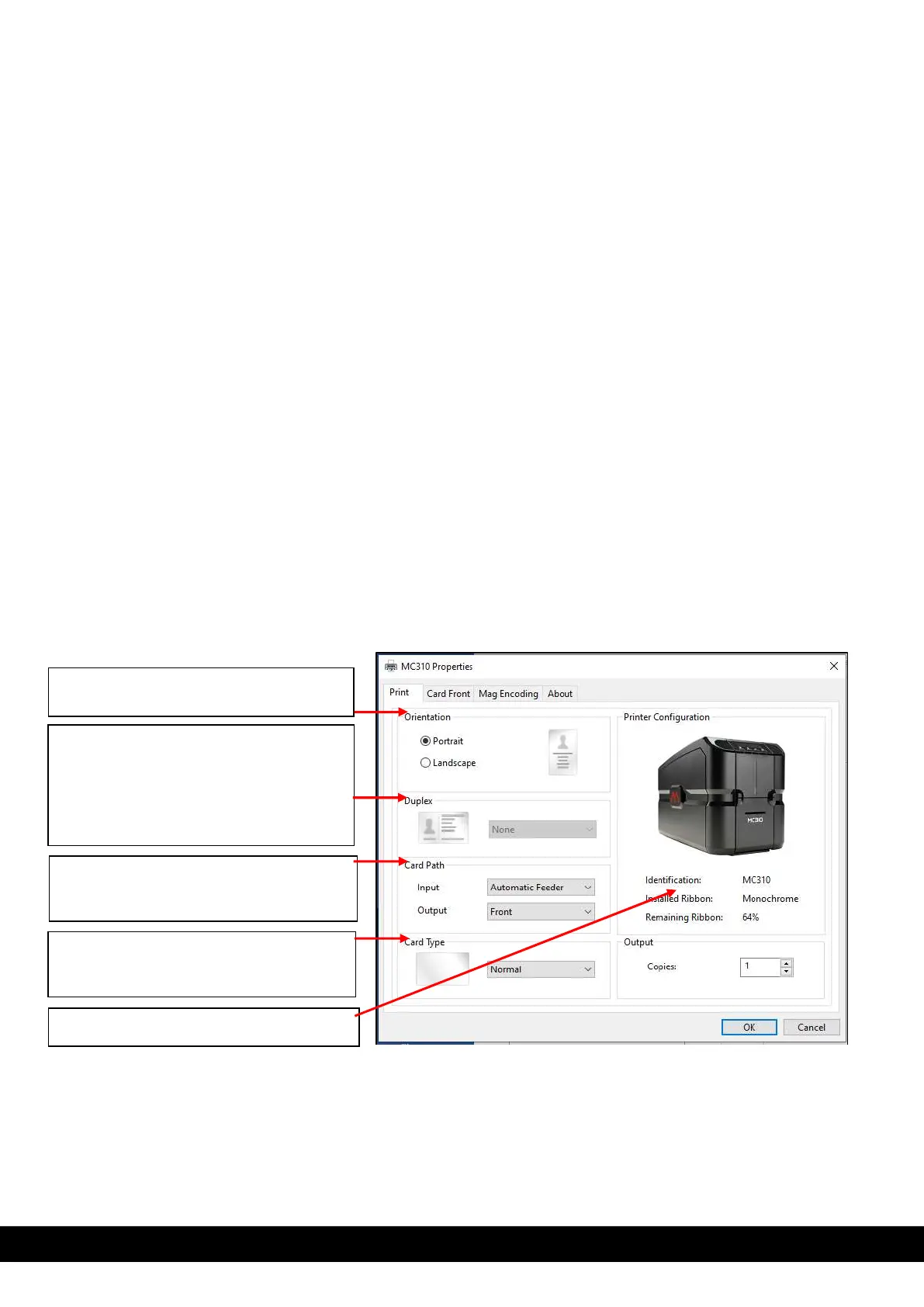
Print setting tab allows user to set the orientation of image printing on the card, duplex option, card input & output
option, Card type setting & number of copies to be printed. Also, it provides information on printer configuration, ribbon type &
ribbon % remaining for the ribbon inside the printer.
Print Image orientation setting.
User can set Portrait or Landscape
Duplex Option setting: User can print the
card on both side by setting the duplex
option short edge or long edge in duplex
enabled printer.
For single side printing User need to
select None option from drop down
Card path selection: Drop done menu
allows the user to select & set the feeder
Card type selection: Drop done menu
allows the user to select & set type of
card used for printing in the printer.
Printer Model & Ribbon details


 To Next Page