4-4
User Guide
MC310 USER GUIDE I 5-15
5.1.1.2 Card front Setting tab
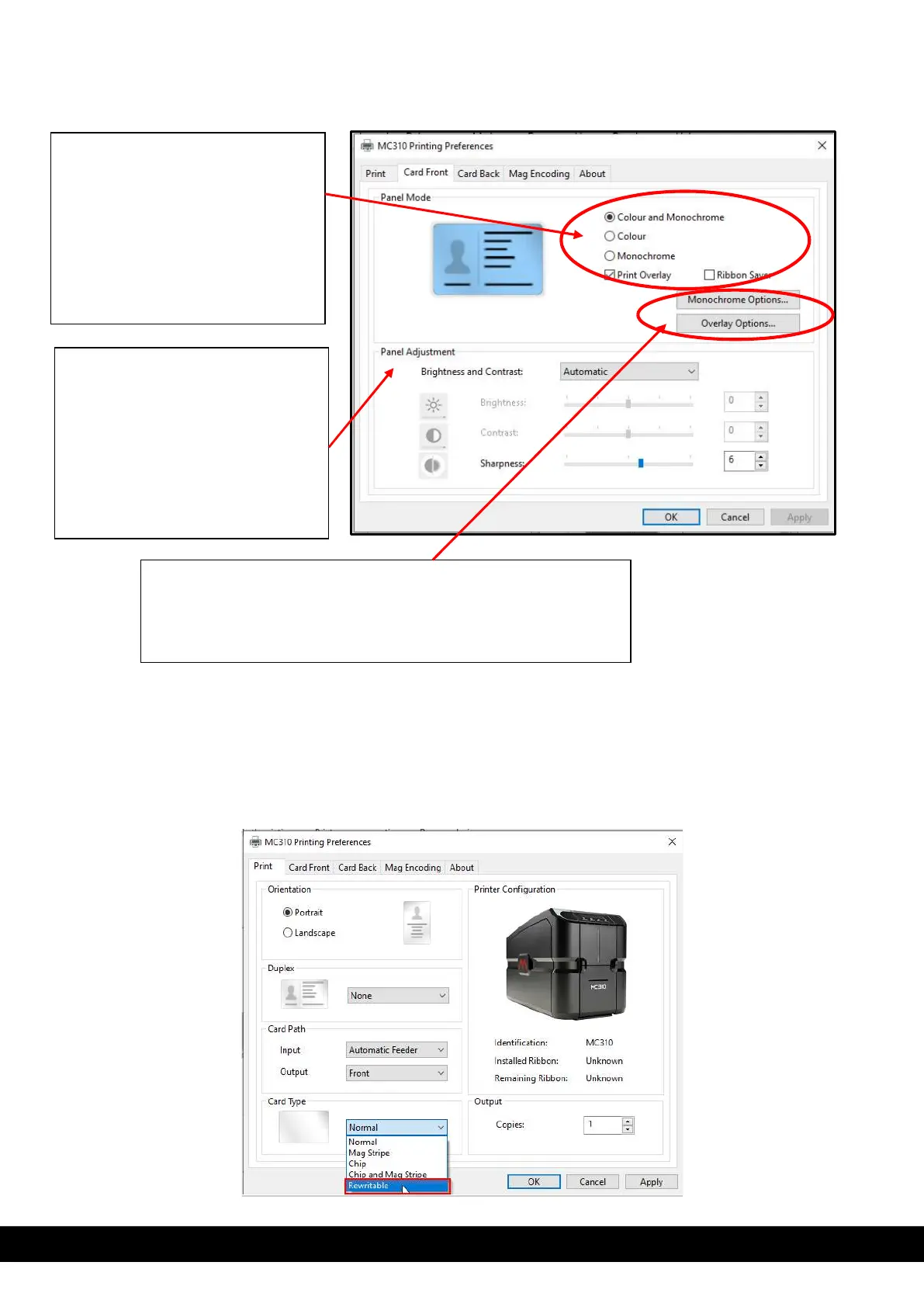
5.1.1.3 Rewritable card printing option:
Follow below step to use rewritable card printing option.
Step 1: If printer is already printing with other type of ribbon remove the ribbon from printer & Switch OFF &
Switch On printer.
Step 2: Open the MC310 printer properties, in print tab select the card type as Rewritable.
Panel Mode setting: based on type
of ribbon added inside the printer for
printing, the user allowed set color,
monochrome & overlay option for
front side printing on card.
** For printing color & overlay front
side & Monochrome K back side
using YMCKO ribbon User need to
select Ribbon saver option & click
Ok.
Panel Adjustment: using this option
the user can select Automatic &
manual setting of Brightness,
Contrast & Sharpness.
Automatic: Default setting available.
Manual: By selecting this option the
user can vary the brightness
contrast & sharpness, based on the
print image requirement.
Monochrome option: This option allows the user to set the contrast,
Half tone for monochrome panel and Resin area Extraction.
Overlay option: This option allows the user to set contrast for
overlay panel and overlay area setting.


 To Next Page