User Guide
6-5
MC310 USER GUIDE I 8-3
8.5 Sensor setting display in LCD
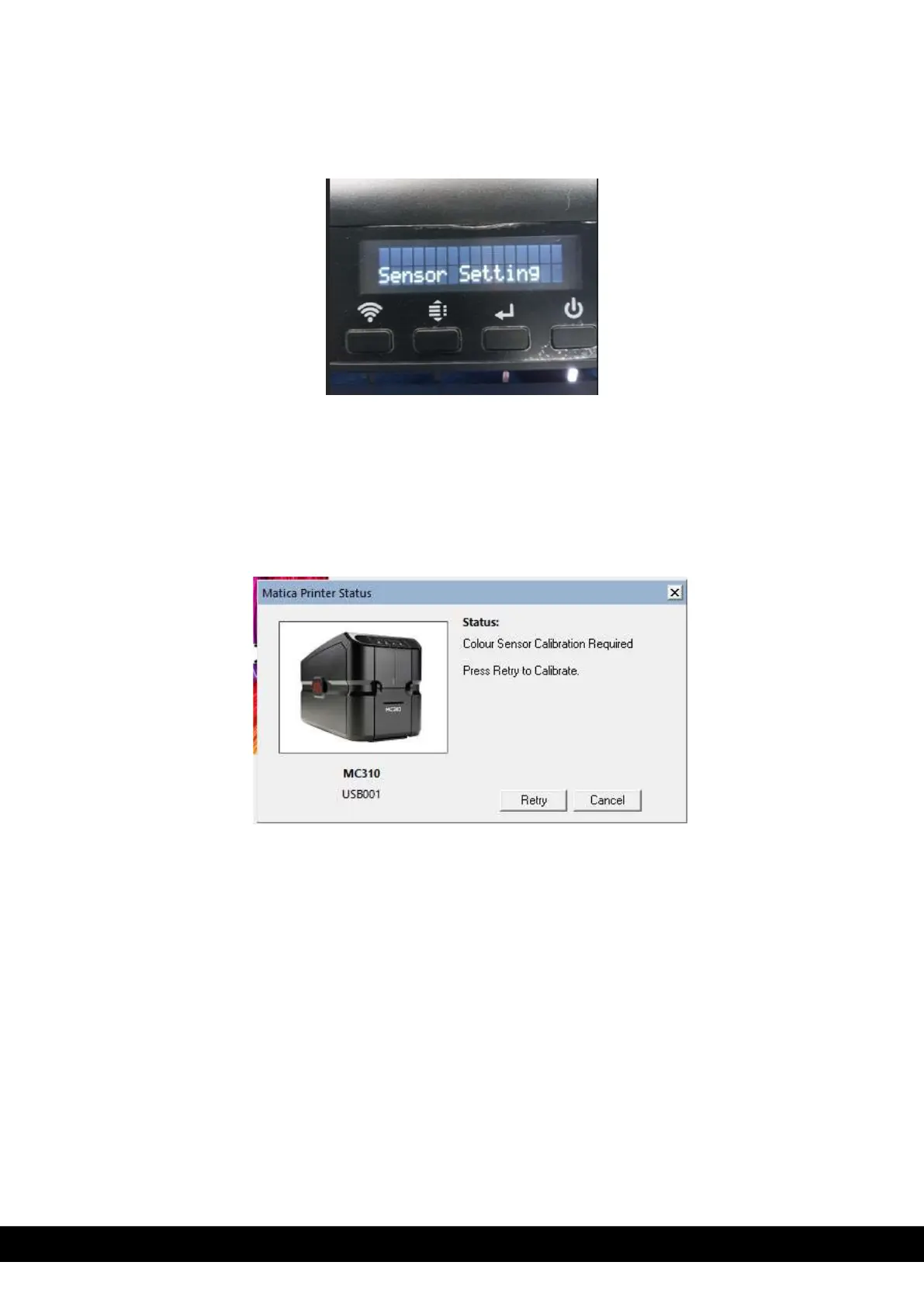
The printer LCD display shows sensor setting error (refer below photo) while using new YMCKO ribbon.
Follow below steps if user see sensor setting on LCD display while adding YMCKO ribbon or other type of
ribbon in the printer.
a) If sensor setting shown on the display for a type of ribbon of ribbon other than YMCKO, then remove
the ribbon & add YMCKO ribbon manufactured from same manufacturer.
b) With YMCKO ribbon added in printer & sensor setting error displayed on the LCD, send a print using
XPS driver to the printer. Below pop-up message appears.
c) Click retry to calibrate the ribbon & color sensor calibration starts.
*Note: Do not switch off the printer while color sensor is calibrating in printer.
d) Once color sensor calibrated successfully the job will print.
e) Switch OFF & Switch ON the printer.


 To Next Page