12
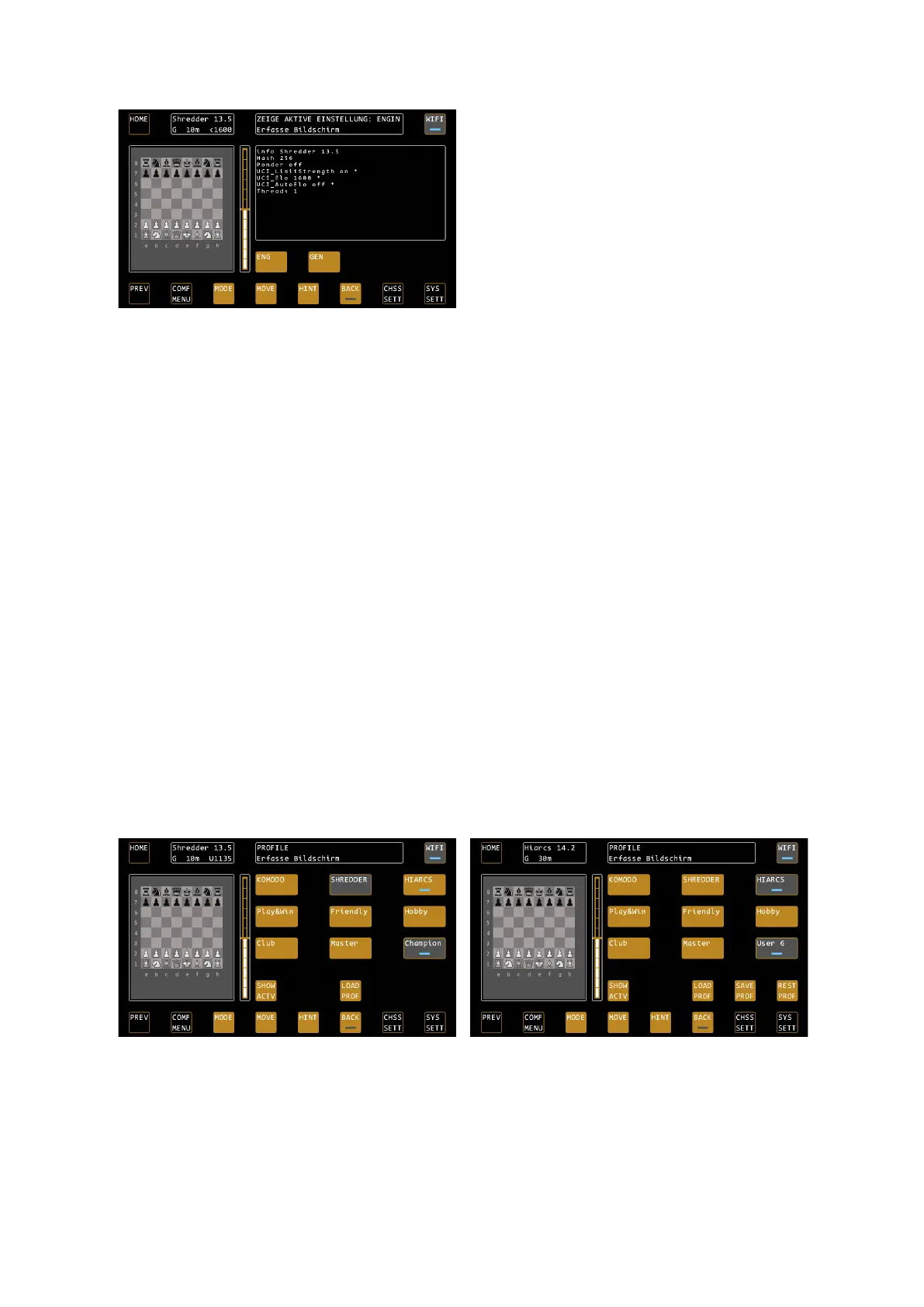
In the example, we have set an ELO limit of 1600
ELO based on the Shredder adaptive profile. The
SHOW ACTV menu now displays the affected UCI
parameters with *, because the settings have not yet
been activated. To do this, we need a "New Game"
command. This is executed the fastest by lifting a
piece in the basic position and setting it down
again. The “ping”tone for a new game will sound
and the new settings will be active.
Tip: If your pieces are in the initial position, simply lift up a piece and set it down again. This will trigger the "New
Game" command and the settings will take effect immediately.
Tip 2: If you want such settings to take effect immediately during a game without starting a new game, leave
your pieces on the board. Then select the NEW GAME command from the MODE menu, followed by POSITION.
In the position input menu, confirm the current position and continue with the changed settings.
The typical settings that cannot be changed during a game are mainly the change of ELO or SKILL levels as well
as the use of the NNUE networks.
LOAD PROF – Loading a Profile
Use the LOAD PROFILE function to activate a profile previously selected by means of the led buttons. By pressing
the button you will first see the preview of the profile, again with the distinction in ENG (engine parameters) and
GEN (generic parameters). You can now either load the profile with CONFIRM, or use the PREV key to keep the
previous settings.
SAVE PROF – Override a profile
You can use the SAVE PROFILE function to customize each of the pre-saved profiles for the associated engine. To
do this, load the profile you want to customize. You can now change the desired settings using the CHSS SETT
AND SYS SETT functions. Go back to the COMF MENU and press the SAVE PROF button. The system now shows
you the preview of the (new) settings again. Use CONFIRM to overwrite the profile with your settings. The name
of the profile will now change to "User 1", which indicates that this profile has been changed by you. For example,
you can quickly and permanently adjust the Hiarcs Play & Win profile from 1000 ELO to 800 ELO.
REST PROF – Restore factory profiles
The option RESTORE PROFILE appears if you have overwritten a profile. This allows you to restore the factory
settings of the selected profile. Other USER profiles are retained. Select the USER profile to be restored and press
REST PROF. The system displays the preview as usual, confirm with CONFIRM and the factory profile is restored.
Hiarc's CHAMPION profile is selected, it can now be
loaded with LOAD PROF. With SHOW ACTV, the
system displays the currently loaded settings.
The Hiarc CHAMPION profile has been changed by
the user. The modified profile can now be loaded,
overwritten (SAVE PROF) or restored (REST PROF).


 To Next Page