19
WIFI – Connect to a wireless network
You need a stable WiFi connection to perform updates and to play online games on Lichess.org (not yet
implemented in version 3.55E). With the WIFI button you can establish the connection.
As soon as you access the menu, the device automatically scans the available networks. Also pay attention to the
status indicators in the status box at the top of the display.
The device has 2 WiFi adapters and supports both 2.4 and 5 GHz networks.
After scanning, it will show you the found networks with their names, for example: 'M2000 / wlan0 / 54 / 64'.
M2000 is the name of the network, wlan0 denotes the WiFi adapter, 54 is the signal strength and 64 is the
channel of the network. If you see your network twice (once with wlan0 and once with wlan1), please select the
one that indicates the highest signal strength. The signal strength should generally be at least 50, otherwise the
network is too weak. If you do not reach this value, you must place the chess computer closer to your network
router.
Choose your network and enter the password. The password is stored in the device until you call up the WiFi
menu item again or reset the system.
The status box gives you information about whether the connection was successful.
Once the device is registered in the network, you can simply switch WiFi on and off using the WIFI button on the
top right of the control screen.
PGN USB – Export your games as a PGN file
This function allows you to export the last game to a USB flash drive. Plug the drive into the USB port and press
the PGN USB button in the system settings. All your games will be updated on the drive in a file in PGN format.
You can then open it with a chess program or interface.
Note: The USB flash drive must be formatted with the widely used FAT32 standard.
DIAG SYSTEM – Create System Diagnostic File
In case of problems with the device, you can create a diagnostic file of your system here, which is automatically
transferred to the update server via WIFI (please make sure that WiFi is switched on and connected beforehand).
This gives our customer service department access to the most important system parameters of your chess
computer and can better diagnose errors under certain circumstances.
If a WiFi connection is not possible, the system diagnostic file is stored on a connected USB flash drive.
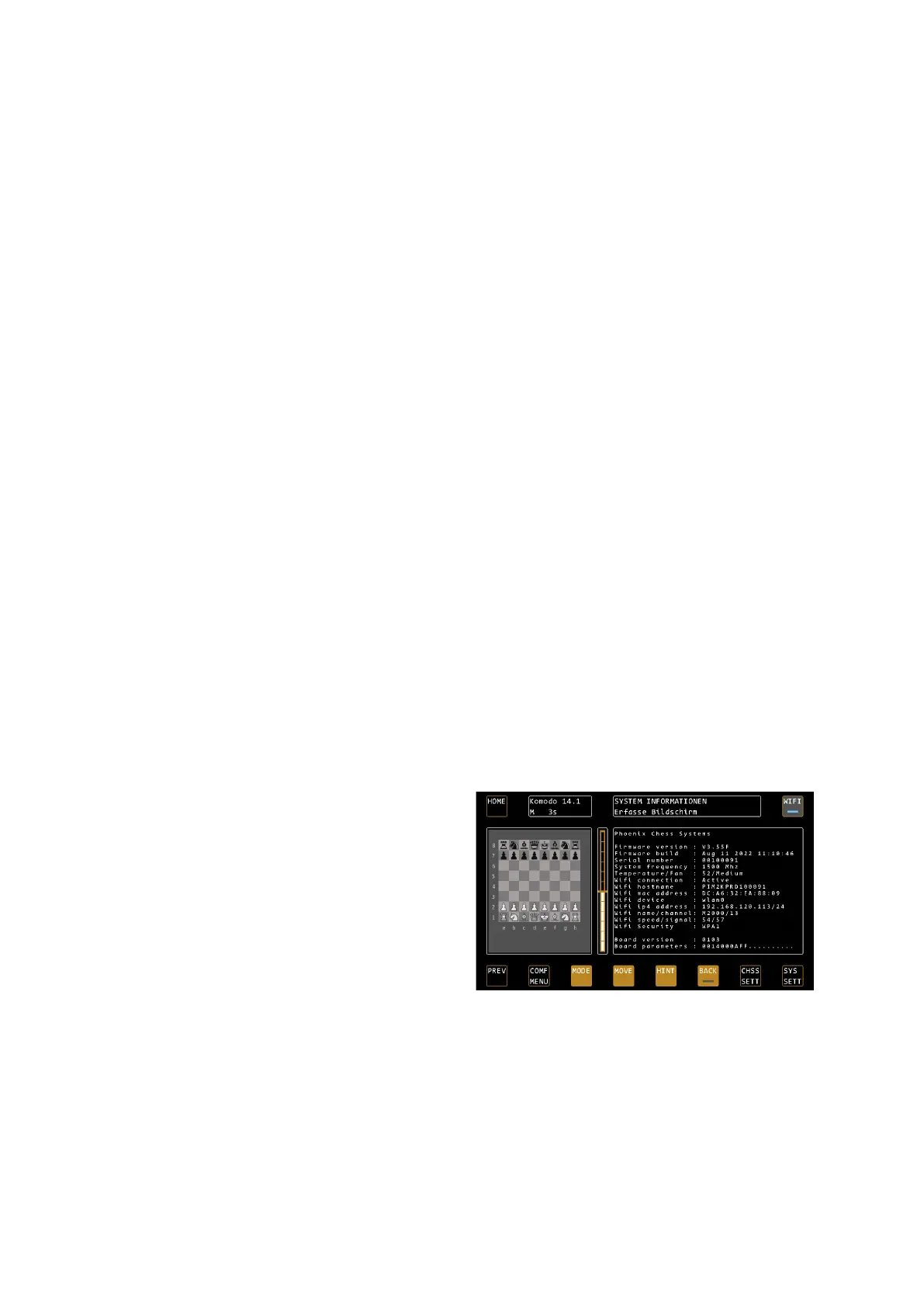
INFO SYSTEM – View the latest information
about the system
Here you can view current system parameters, such as
firmware status, serial number, processor temperature,
WiFi connection status, device Mac address, IP address
(if connected), signal strength, and board connected
information. This information may be of interest to our
service team if you contact us with any issues.


 To Next Page