11
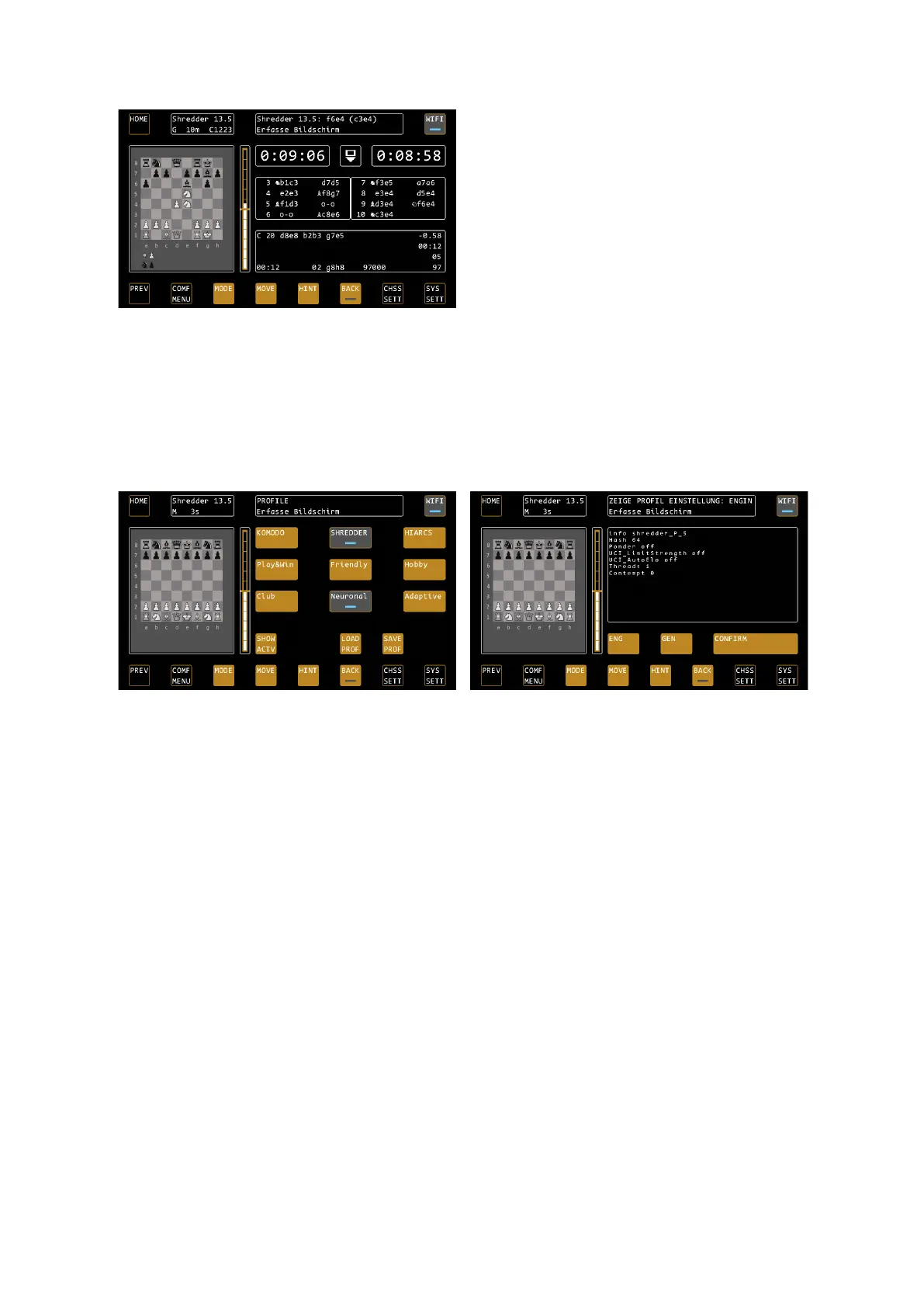
In the example, Shredder is currently set to 1223 ELO
(C=rating of the computer, if there is a U in front of it,
it is the rating of the player (user)).
Hiarcs Champion expects maximum strength, so you can, for example, carry out analyses with the device.
Selection and control of profiles
If you press the COMF MENU button, you can select the engine in the top line. The selected engine is displayed
by means of a blue LED, the last used engine is displayed in grey.
The lines 2 and 3 in this display then show the 6 available profiles. There are 6 profiles available for each of the 3
engines.
The Shredder Neuronal profile is preselected here.
LOAD PROF (Load Profile) opens the profile view, and
CONFIRM loads it.
In the 4th line you will find the control buttons with which you can load, overwrite or restore the profiles, as well
as the function for displaying the current settings of the system. In the following we describe them in more
detail:
SHOW ACTV – Show current settings
"SHOW ACTIVE" shows you the current settings the system expects.
Under the ENG (ENGINE) button you will find all engine-related settings, such as Threads, Hash, Ponder, Skill /
Elo, NNEU and so on.
Under the GEN (GENERIC) button you will find all the general settings of the system, such as level (time control),
CPU speed, activated display options and the selected options of the opening book.
If individual values are marked with a " * " at the end, this means that you have last changed these settings in the
system, and the new values can only be adopted with the next new game. The background here is that some
settings cannot be adjusted during a game.


 To Next Page