23
Chapter 3 Congure via Web Management Interface
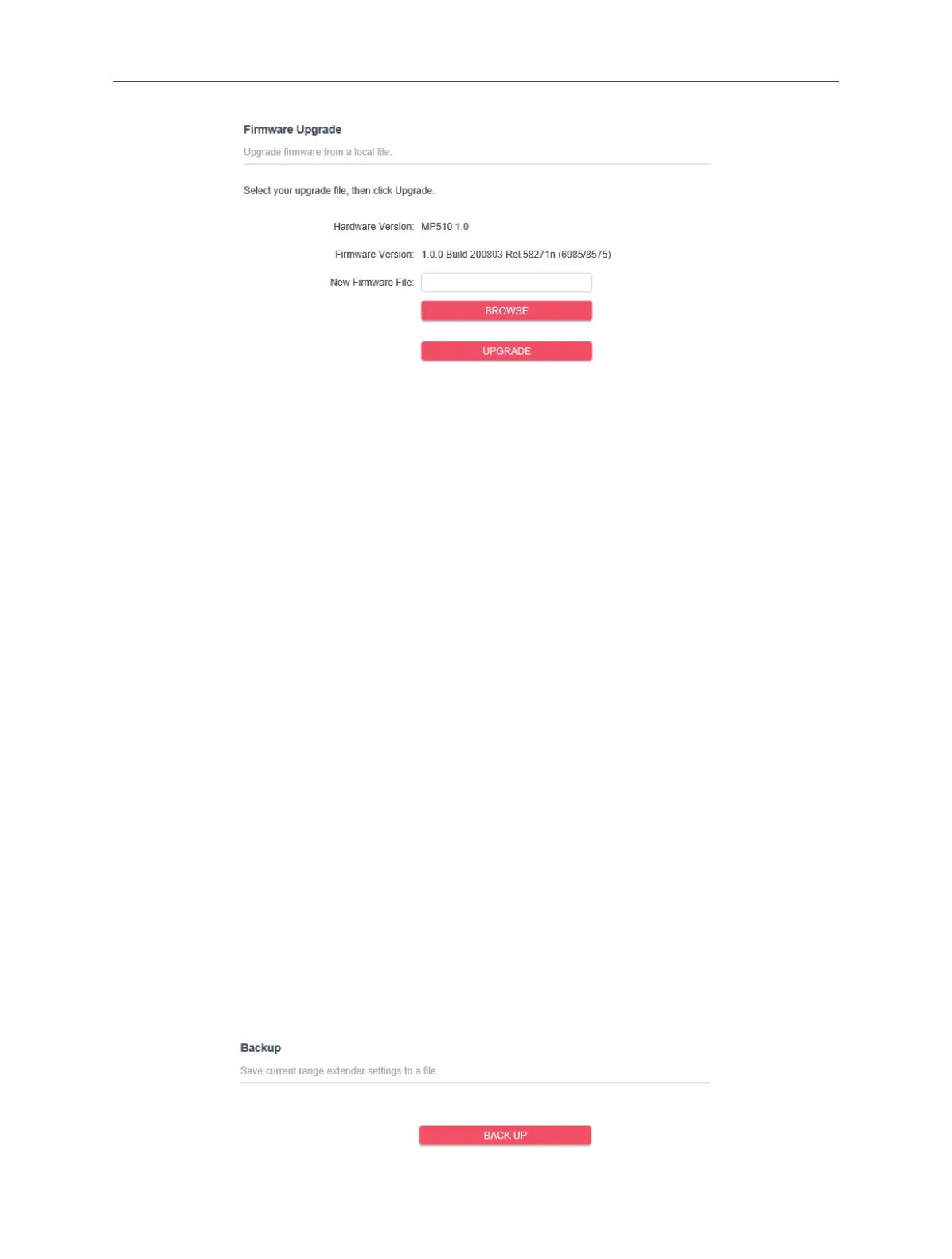
3. Go to www.mercusys.com. Download the latest rmware le for the extender.
Note: The upgraded rmware version must correspond to the hardware.
4. Click BROWSE to locate the downloaded new rmware le, and click UPGRAGE.
5. Wait a few minutes for the upgrading and rebooting.
Note:
1. Before upgrading the rmware, it’s better to back up your current settings.
2. During the upgrading process, do not turn o or reset the extender.
3. If the upgrade is interrupted, it’s possible your extender may stop working and its LEDs blink once a second. In
this case, please connect your computer to the extender via an Ethernet cable, and set your computer to static
IP 192.168.0.X and subnet mask 255.255.255.0. Then visit http://192.168.0.254 to complete the upgrade.
3. 11. 4. Back Up and Restore Conguration Settings
The conguration settings are stored as a conguration le in the extender. You
can back up the conguration le to your computer for future use and restore the
extender to a previous settings from the backup le when needed. Moreover, if
needed, you can erase the current settings and reset the extender to the default
factory settings.
To backup conguration settings:
1. Connect to the powerline extender wirelessly. Visit http://mwlogin.net, and log in
with the password you set for the extender.
2. Go to Settings > Backup & Restore page.


 To Next Page