14
Chapter 3 Congure via Web Management Interface
Channel: Select the channel you want to use from the drop-down list. This eld
determines which operating frequency will be used. It is not necessary to change
the wireless channel unless you notice interference problems with another nearby
access point.
Mode: Select the desired mode.
• 802.11n only: Select only if all of your wireless clients are 802.11n devices.
• 802.11g/n mixed: Select if you are using both 802.11g and 802.11n wireless
clients.
• 802.11b/g/n mixed: Select if you are using a mix of 802.11b, 11g, and 11n wireless
clients.
Note: When 802.11n only mode is selected, only 802.11n wireless clients can connect to the extender. It is
strongly recommended that you select 802.11b/g/n mixed, so that all of 802.11b, 802.11g, and 802.11n wireless
clients can connect to the extender.
Channel Width: Select the channel width. The default setting is Auto, which can
adjust the channel width for your clients automatically.
Transmit Power: Select the level of transmit power. We recommend you choose
High to have the best signal strength.
3. 5. 2. Wireless Clients
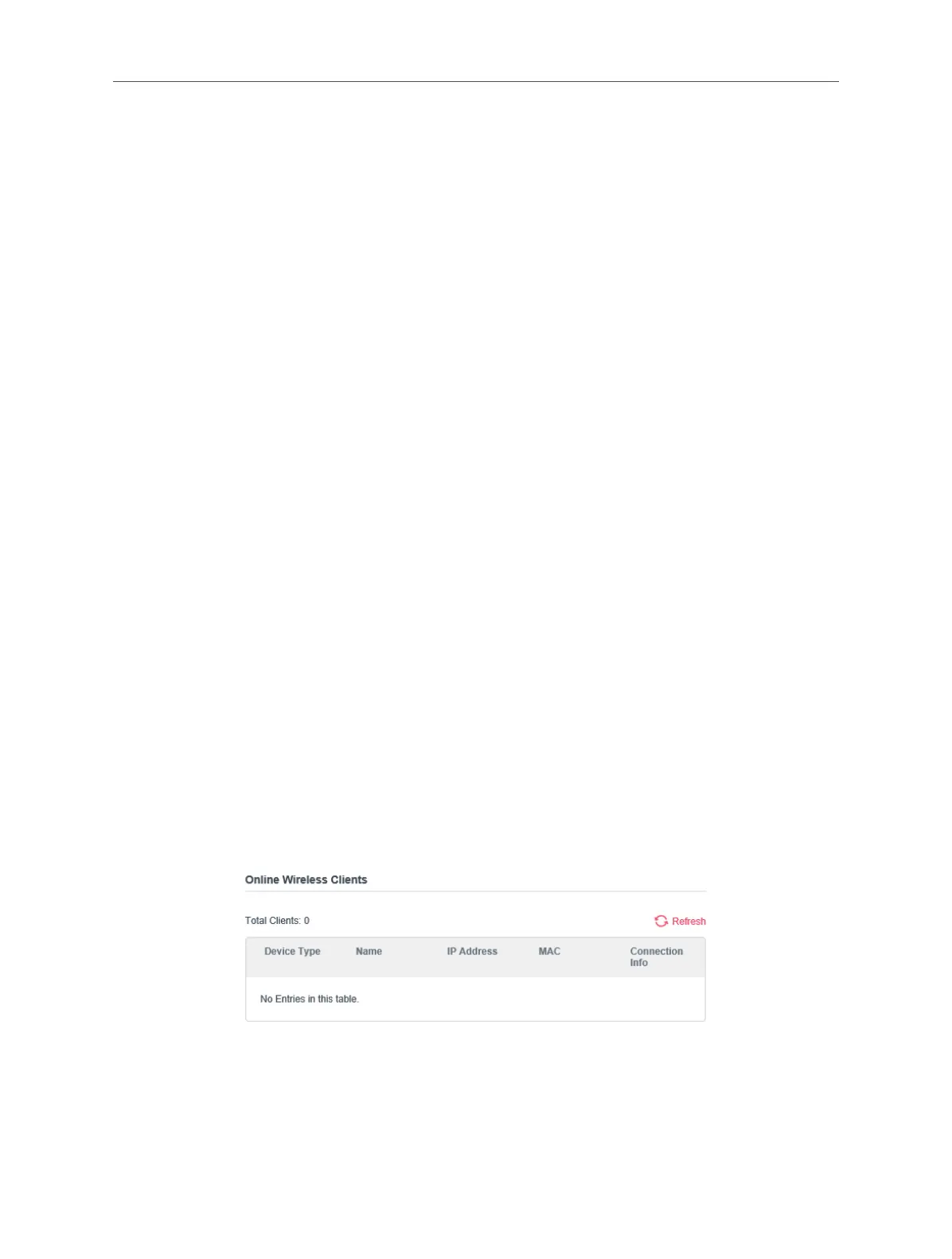
Follow the steps below to view detailed information of all wireless clients connected
to the extender.
1. Connect to the powerline extender wirelessly. Visit http://mwlogin.net, and log in
with the password you set for the extender.
2. Go to Wireless > Clients page.
3. Now you can view the detailed information, including device name, MAC address,
connected wireless band, and IP address.
Tips:
You can also see the wireless details by clicking the wireless clients icon on the Status > Wireless Clients page.


 To Next Page