adjust camera settings.
Note: The HAWK MV-4000’s default IP
address is: 192.168.AA.BB where
AA.BB are the last 2 octets in decimal of
the device MAC Address with subnet
Class B 255.255.0.0. Set your PC to the
same subnet (192.168.0.1, for example).
To access the camera’s “health status”,
enter the address http://[your camera
name]:8088 in a browser, where [your
camera name] is the name of the device
– HAWK3204E8, for example.
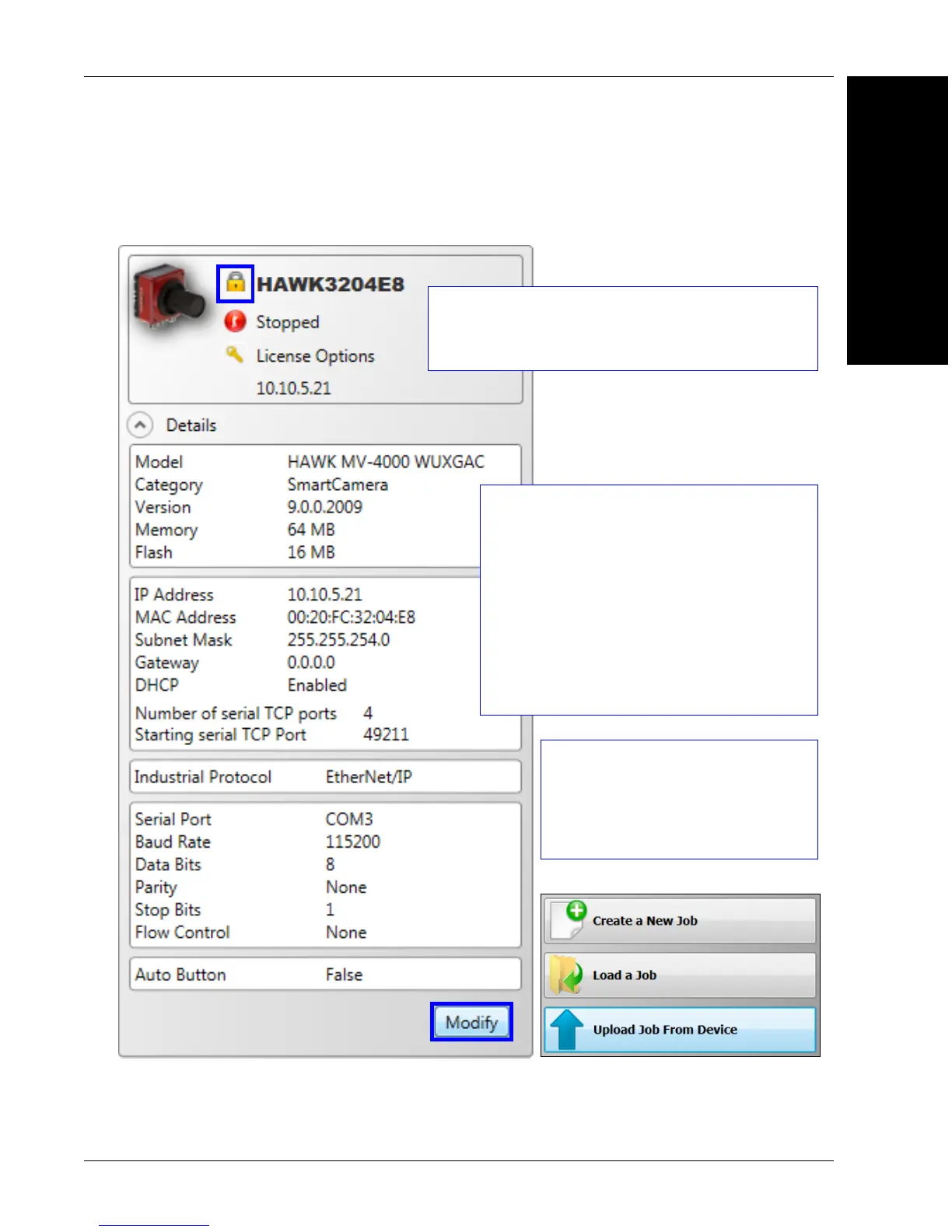
Modify camera settings in the
Details area at the left of the
Connect view. Create, Load, or
Upload a job using the buttons in
the center of the Connect view.
Important: When modifying camera settings,
you will need to enter a username and password
for the camera if a password has been defined.


 To Next Page