Microstep Website http://www.microstep.cc/eng
北京欣斯达特数字科技有限公司 Beijing Flourishing Start Digital Technology Co., Ltd
page: 22
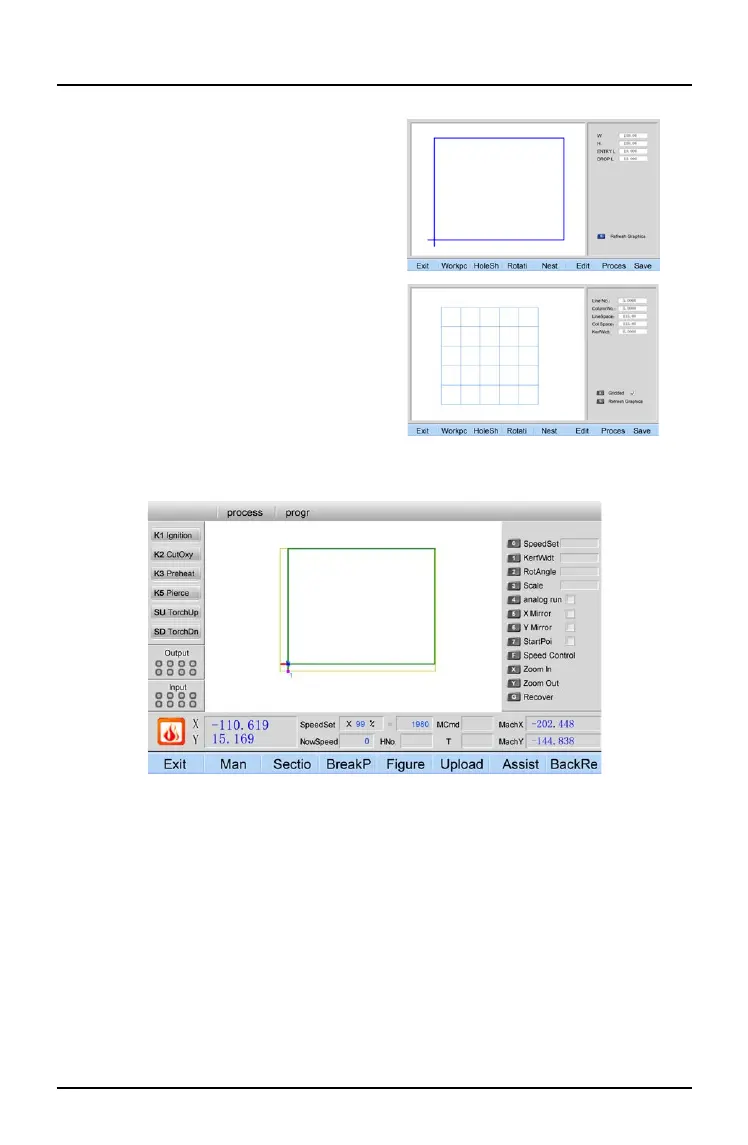
[Save]: after revising parameters and press [G] to refresh the figure, press [Save], the same
as save function of [Edit] function
Chapter 8 Help function
[Interface introduction]:
[Edit]: the same of Edit function
[Grid]: new function for rectangle workpiece,
after nest, there is a option of Grid, press X to
choose it, it’s zip cutting. If no the option, it’s
a common nest cutting.
Note:
grid cutting has no kerf compensation;
compensation value is set in the figure by
you. For example, a figure of 100 X 200, kerf
compensation is 2, you need to set 102 and 202
[save side]: this function is only available for
grided rectangle, press Y to choose (save left/
bottom/double side or no save side), press Y
to show an option at the screen right-bottom
corner, and the left figure will change. No
selection is no side save.
[Proces] (process): after setting parameters to the figure and press G to refresh new figure,
press [Proces] (process) to cutting interface
0 Product: information of product and company
1 Auto: help information of Auto function
2 Man: help information of Man (manual) function
3 Edit: help information of Edit function
4. Paramete (parameter): help information of Parameter function
5. Diagnosi (diagnosis): help information of Diagnosis
6. Figure: help information of Figure library
7. Exit: help information of Exit


 To Next Page