4. Getting Started
MiR Fleet PC Getting Started (en) 01/2021 - v.1.5 ©Copyright 2019-2021: Mobile Industrial Robots A/S. 15
2. Sign in as: remote,
With the password: mirremote
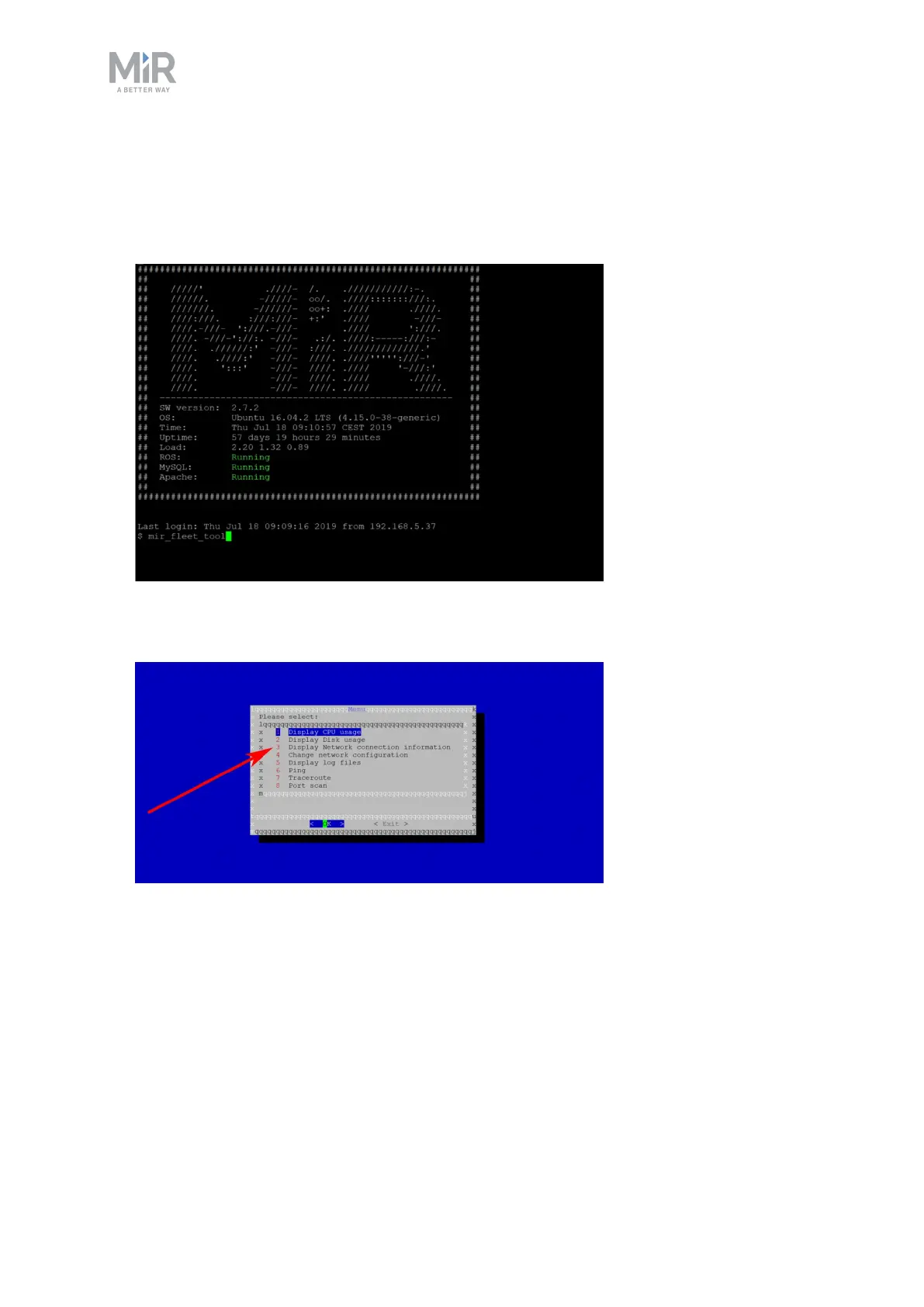
3. In the following frame, use the command:
mir_fleet_tool
4. A menu is displayed on a blue background. Choose Display Network connection
information to see your MiRFleet’s IP address.



 To Next Page