OPERATION
3-14
Mirage 22000/4000/6000User’s Manual
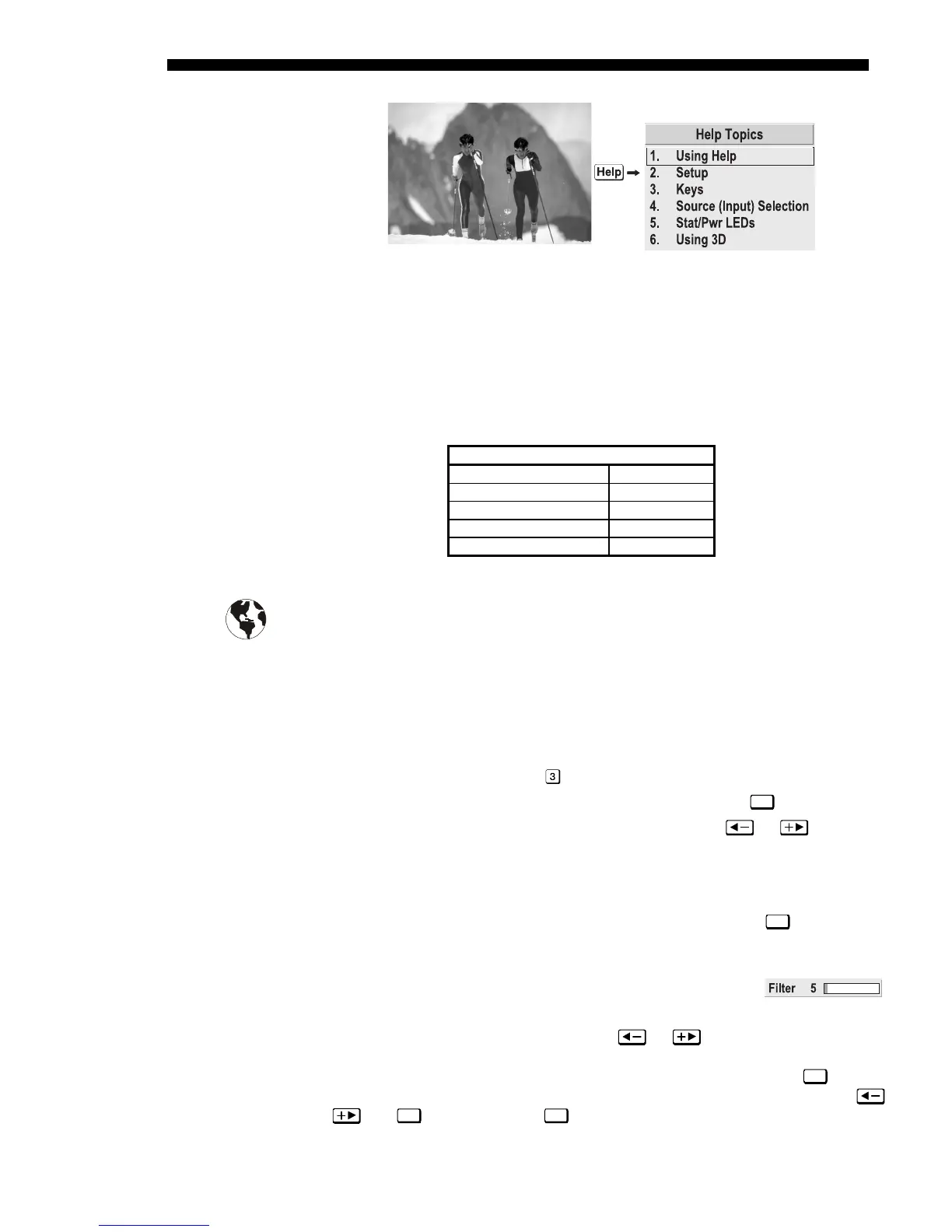
Figure 3.8. Accessing General Help Topics
At the bottom of some menus, a line of hint text also appears.
Whenever the projector is not at presentation level, such as when there is a slidebar,
menu, message or test pattern displayed, you have limited time in which to make a
keypad entry before the projector returns to presentation level and the graphic
disappears. These time-outs vary depending on the current display, as shown in the
following chart:
TIME-OUTS
Slidebar (from pres.) 5 seconds
Slidebar (from menu) 15 minutes
Lamp Timer Msg. 30 seconds
Channel entry 5 seconds
Other 15 minutes
In the menu system, settings that include this icon apply universally to any incoming
signal.
Most of the function menus allow you to change settings by using slidebars,
checkboxes, and pull-down lists. To select a slidebar, toggle a checkbox status, or
view a pull-down list, do one of the following within the function menu:
• Enter the menu option number corresponding to the setting you wish to
change (for example, press
for Vertical Stretch in Size & Position menu).
• Or move the highlight to the desired parameter and press
Enter
.
• Or move the highlight to the option desired and press
or .
• Or bypass menus entirely and use a single key to immediately access an
adjustment (note: applies only to options having their own key, such as Color,
Tint, Detail, Contrast, Brightness, Pixel and Position).
Once selected, change the setting as desired (see below) and press
Enter
to save and
return to the current function menu.
Slidebars in menus -
The current value for a given option,
such as size or vertical stretch, appears to the left of its slidebar
icon. This number may express a percentage or specific units (such as pixels, degrees
Kelvin, etc.), depending on the option. Press
or to gradually adjust the
setting up or down—both the number and the length of the bar change accordingly
(for continuous adjustment, hold down the desired arrow key). Or press
Enter
to
activate a slidebar text box for specific number entry via the keypad, then press
or and
Enter
to save (or press
Exit
to cancel).
Time-outs
'
The Global Icon
'
Using Slidebars and
'
Other Controls


 To Next Page