OPERATION
3-20
Mirage 22000/4000/6000User’s Manual
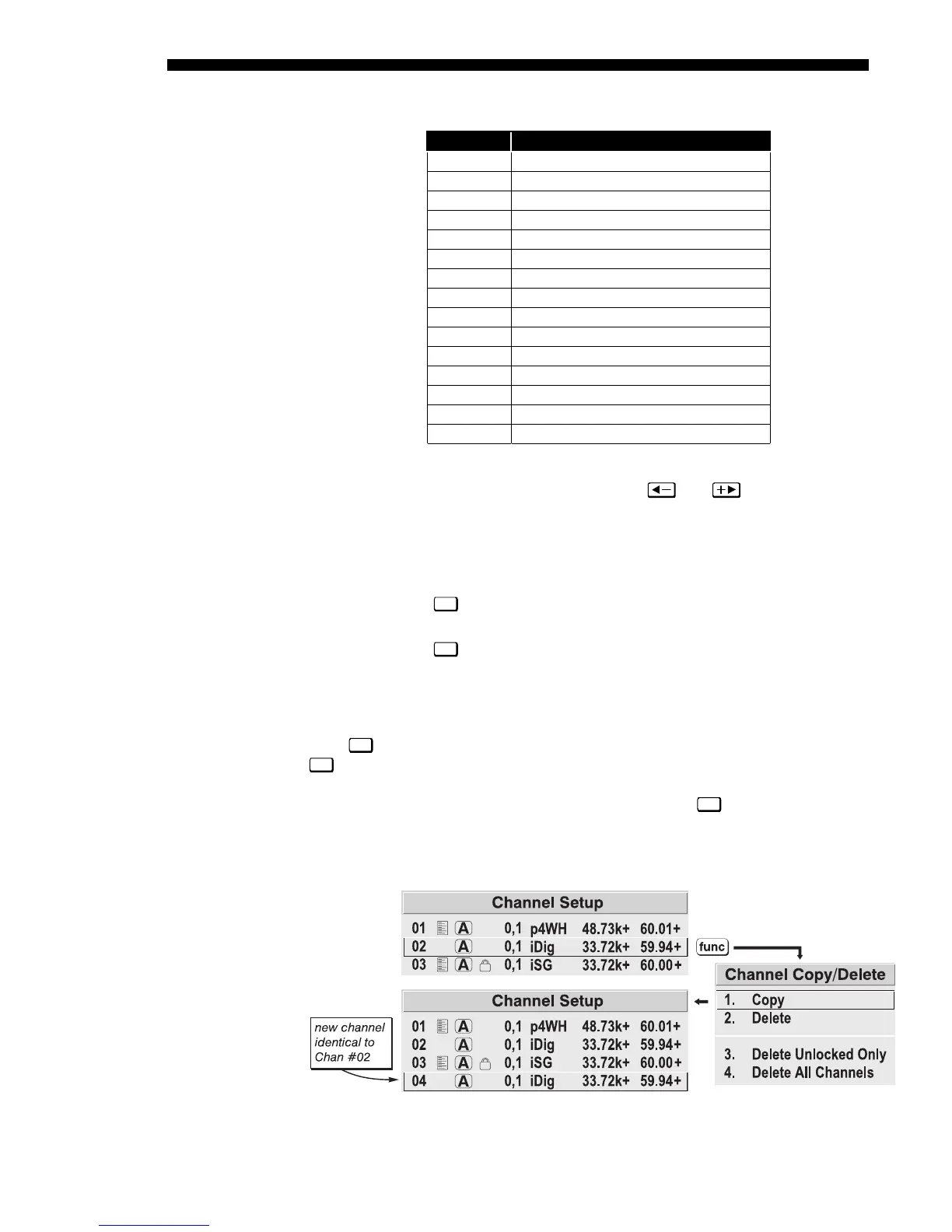
Table 3.1. Abbreviations for Signal Type
Abbrev. Signal Type
4WH Composite (4 wire) on HC input
4WV Composite (4 wire) on V input
SG Sync-on-green
SR Sync-on-red
5W Separate H,V
5WR Separate H,V swapped
SVid S-Vid
CVid Composite Video
3LH Tri-Level on HC input
3LV Tri-Level on V input
3LG Tri-Level on green
E3LH European Tri-Level on HC input
E3LV European Tri-Level on V input
E3G European Tri-Level on green
Dig Digital
If you have more than a handful of channels, use and to see the remaining
channels not visible in this initial display.
To copy, delete or edit any of the channels listed in the Channel Setup menu,
highlight the desired channel and do one of two things:
• Press
Func
if you want to copy the selected channel or delete this or other
channels. See Copying or Deleting a Channel below.
• Press
Enter
if you want to edit channel setups (i.e., non-image related
parameters) for the selected channel. See Editing a Channel Setup,
below.
TO COPY A CHANNEL, highlight the desired channel in the Channel Setup menu, then
press
Func
to go to the Channel Copy/Delete submenu. Select “Copy” and press
Enter
—a new channel will be created. It is identical to original, which still remains,
but it is identified with the next available number from 01-99. If you change your
mind and do not want to copy the current channel, press
Exit
to cancel and return to
the previous menu. Copying channels is a quick method for creating numerous
channels, each of which can then be edited and adjusted for a variety of presentations
in the future.
Figure 3.12. Copying A Channel
Copying or
'
Deletin
Channels


 To Next Page