OPERATION
Mirage 2000/4000/6000 User’s Manual
3-23
For certain options, you may prefer to use a “direct key” from presentation level to
go directly to a particular option rather than traveling through the menu system at all
(note: this is not available for all display parameters). For example, press
Cont
to
access the “contrast” slidebar immediately. Press
Exit
to return to your presentation.
NOTE: 1) To hide the “direct” slidebars only, make sure the Display Slidebars
option in the Menu Preferences menu is unchecked. 2) To hide the entire menu
system from view, toggle the on-screen display OFF: press and hold the
OSD*
key.
If you want the projector to quickly set up the image for you, select “Auto Setup”
from the Main menu. A confirmation box will ask if you really want to continue, in
which case display parameters listed in the Table below will be set for you. An “Auto
Setup” can save time in setting up an image, and you can also make further
adjustments as desired. You must have an unlocked channel present to use Auto Setup.
Table 3.2. Auto Setup Parameters
What an “Auto Setup” Does
OPTIMIZES: SETS TO DEFAULT:
Pixel Tracking Contrast & Brightness
Pixel Phase Auto Input Level (off)
Size Blanking
Vertical Stretch Detail
(if video source)
Position Filter
Input Levels
(if analog source)
Luma Delay
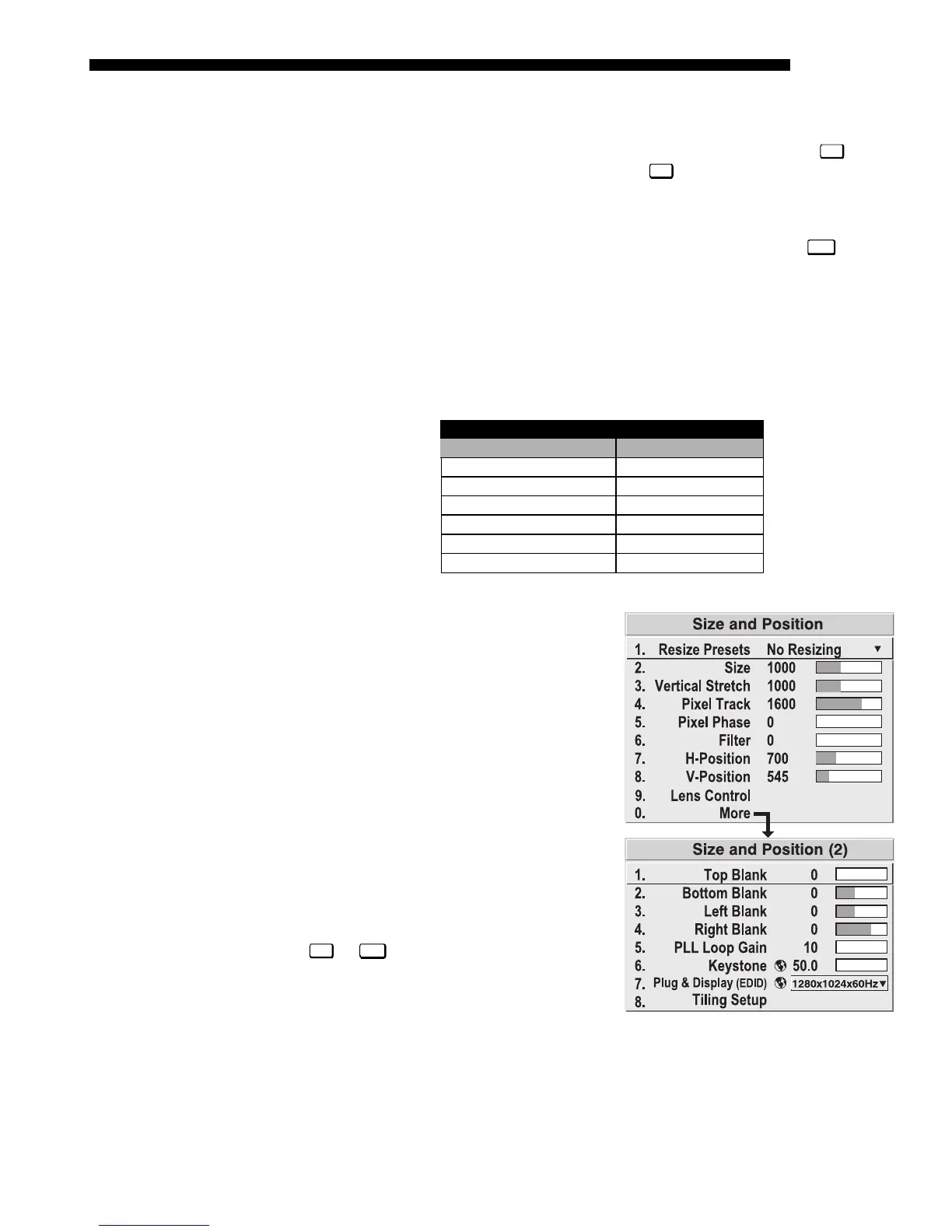
The two-page Size and Position menu
allows you to increase or decrease the size
of your image, change its proportion
(aspect ratio), move the image to a specific
area of the screen, and refine other related
parameters. Use Size and Position controls
to match the image precisely to the screen
size and aspect ratio needed for your
application.
Refer to "Using Slidebars and Other
Controls" (earlier in this section) if you
need help using any of the following
slidebars or pull-down lists to alter your
image. Changes made to the Size and
Position menu are applied immediately and
are saved when you exit the menu (press
Exit
or
Menu
).
Auto Setu
'
Ima
e Size and Position
'
Figure 3.15. Size and Position Menu


 To Next Page