OPERATION
3-24
Mirage 22000/4000/6000User’s Manual
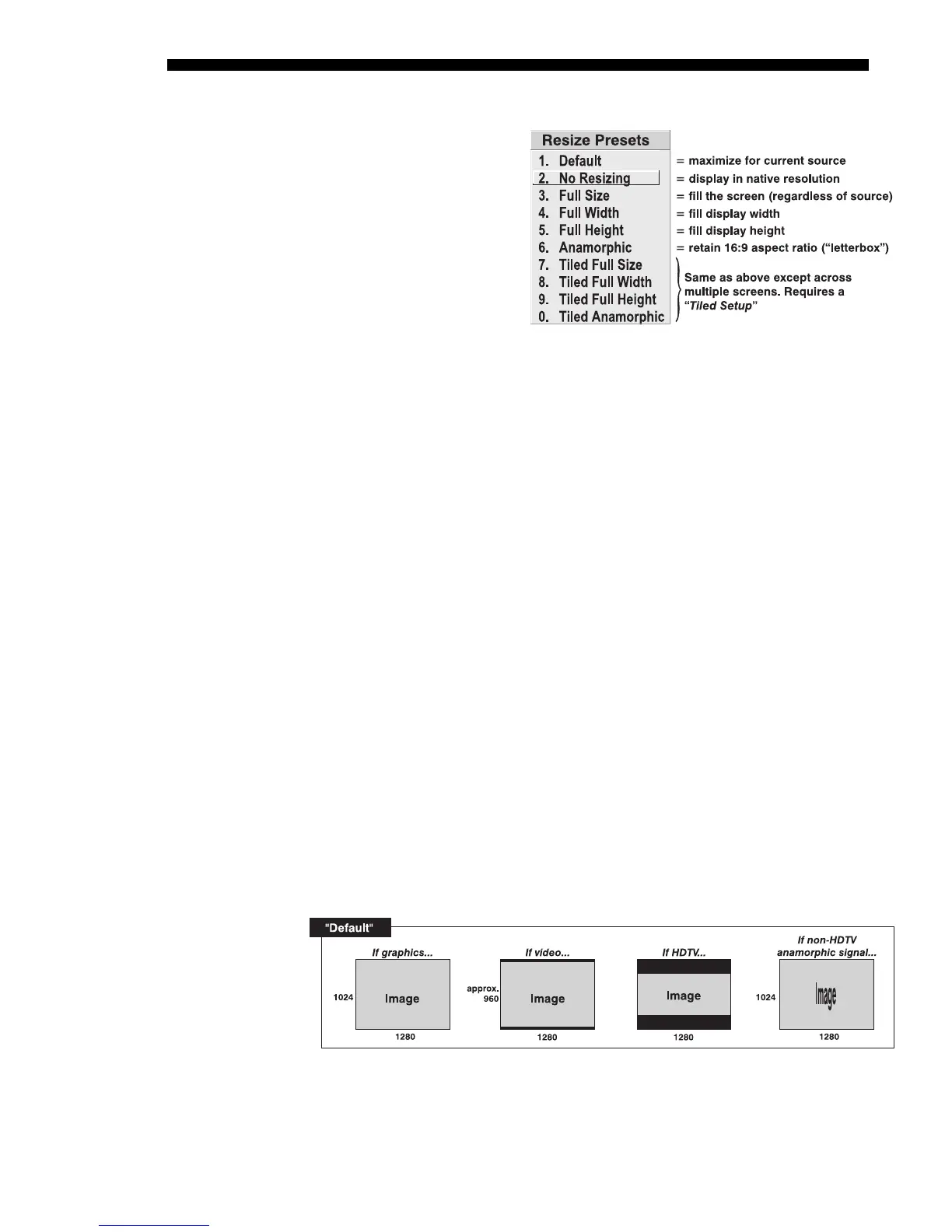
Resize Presets
Use Resize Presets to quickly
display an image in its native
resolution (including
anamorphic) or to
automatically resize an image
to closely fit the screen. The
value for Size, Position and
Blanking parameters
(described later) will, in turn,
change as necessary without
your having to set them
manually. Resizing options
for non-tiled applications are explained in detail below.
WHAT IS THE PROJECTOR’S DEFAULT? When displaying a new source, by default
your image will fill the screen as fully as possible for the type of source present. See
Select “Default” below.
WHEN “CUSTOM” APPEARS:
The “Custom” descriptor automatically appears in the
Size and Position menu when any of the values for Size, Vertical Stretch, H-Position,
V-Position or any Blanking do not correspond to those for a preset. It is not an option
in the Resize Presets pull-down list.
• Select
“DEFAULT” (default) for most images. This option will center and display
your image as large as possible for the present source as described below:
9 A graphic image will resize to fill the screen, regardless of its original
aspect ratio. For example, 1024 x 768 becomes 1280 x 1024.
9 A video image will resize to fill the screen while still maintaining its
aspect ratio (assumed to be 5:4).
9 An HDTV wide-screen (16:9) image will resize to fill the screen
horizontally while maintaining its 16:9 aspect ratio—i.e., there will be
black borders at top and bottom, commonly called “letterboxed”.
9 A non-HDTV anamorphic (16:9) image, typical of DVDs, will be
stretched vertically.
So with the exception of HDTV (16:9), the “Default” setting produces an aspect
ratio that is either almost or exactly 5:4. See examples below.
NOTE: 3D images are displayed with No Resizing only.
• Select “NO RESIZING” to display the image in its native resolution, which may be
smaller or larger than the native resolution of the projector. All Size, Vertical
Stretch, H-Position, V-Position or Blanking values will change accordingly. For
example, for a source with a native resolution of 800 x 600, “No Resizing” will
Figure 3.16. Resize Presets Choices


 To Next Page